The Tasks panel
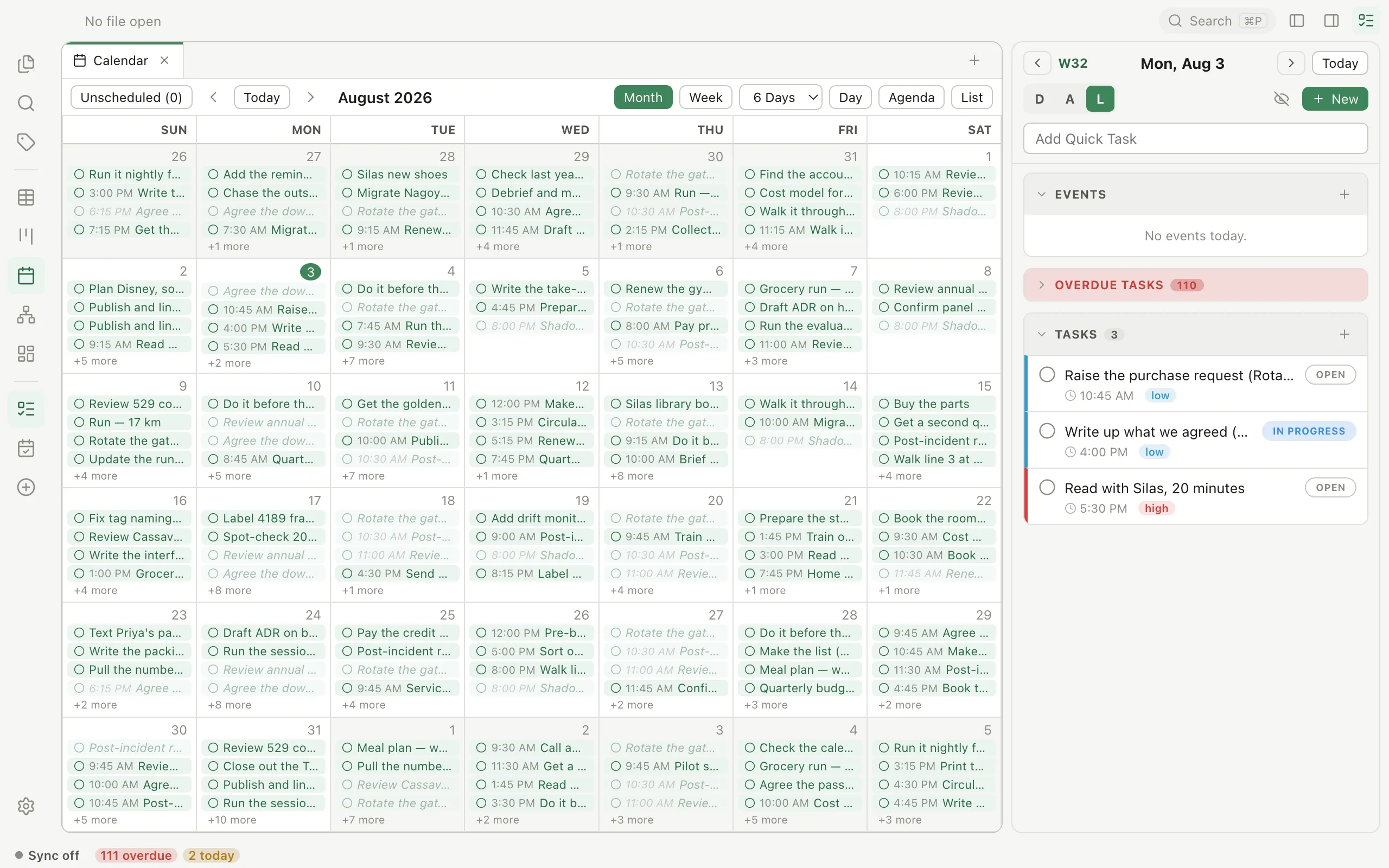
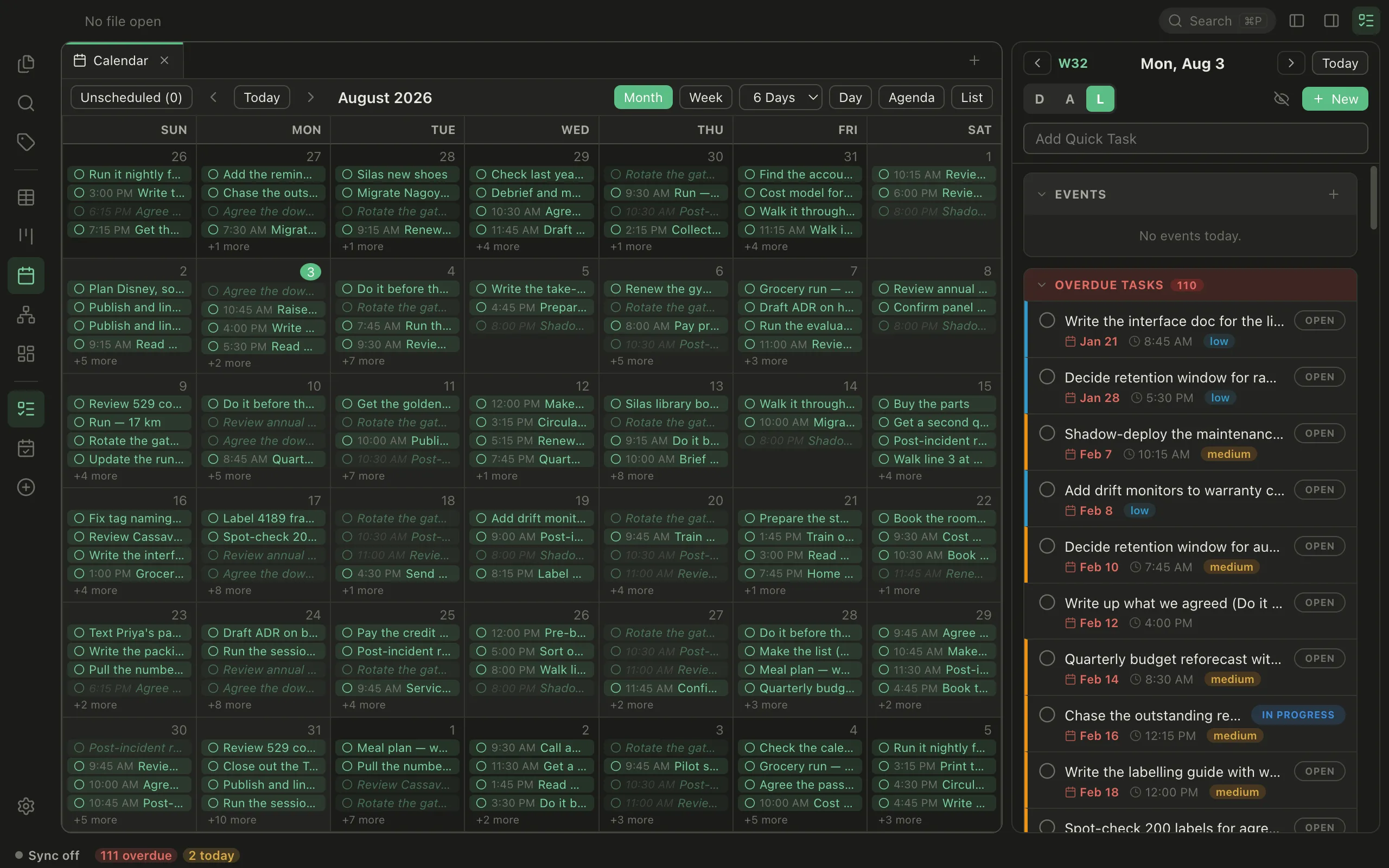
There’s a panel on the right that stays with you. Not just in the task views — while you’re writing a note, drawing on a canvas, reading a PDF. It shows what’s happening today: your events, anything overdue, and the tasks you’ve actually planned.
The button for it is at the top right of the window.
Three ways to see the day
Section titled “Three ways to see the day”The D / A / L buttons switch between them.
List is the default: today’s events, then anything overdue, then today’s tasks grouped by type. The one to leave it on.
Agenda scrolls forward through the coming days instead of one at a time — better for “what does this week look like”.
Day lays the day out hour by hour, with all-day items on top. Useful when the day is busy enough that when matters.
Getting around
Section titled “Getting around”The arrows and Today move the day. The number top left is the week of the year, which is handy more often than you’d think.
Type in Add Quick Task and it lands on the day you’re looking at. No dialog.
The eye icon hides completed tasks when the list gets noisy with things you’ve already done.
Collapse what you don’t need
Section titled “Collapse what you don’t need”Each section folds away — click its heading. Worth knowing if you’ve built up a long overdue list, since it’ll otherwise fill the panel and push the day you’re actually looking at off the bottom.
Events come from your real calendars
Section titled “Events come from your real calendars”If you’ve connected Apple, Google or an ICS feed, those events show here alongside your tasks. It’s the one place the two sit together.
Not the same as the Backlog panel
Section titled “Not the same as the Backlog panel”There’s a second panel, on the left, in the Kanban and Calendar views — labeled Unscheduled or Backlog. That one is for dragging work that has no date onto a day or a column. Different panel, different job.