Kanban Boards
A board shows tasks as cards in columns you drag between. It answers “what’s moving?” in a way a list can’t.
Making one
Section titled “Making one”Open the Board view from the left rail and create a board. You can have as many boards as you like — one per project, one for the week, one for a person. Each keeps its own columns, sort and card settings.
A board isn’t a saved filter. Tasks don’t fall onto a board because they match a condition — you put them there, by picking the board in the task dialog or by dragging a card in from the backlog. A task belongs to one board, or to none.
What the columns are
Section titled “What the columns are”You choose what drives them:
- Status — Open / In Progress / Complete / Skip. The classic.
- Priority — High / Medium / Low / None. Good when everything is open and the question is what matters.
- Group — your projects or areas, side by side.
- Type — any type from Settings → Tasks. Dragging a card to another type’s column applies that type, and the properties it carries.
- Any property of your own — pick Add property… from the menu and name a frontmatter key: a client, a stage, a sprint. Pellet also offers the single-value properties already on the board’s cards. Multi-value properties like tags aren’t offered — a card that belonged in three columns at once would have nowhere to sit.
For status and priority the columns are the fixed set. For everything else the columns are the values your cards actually carry.
Dragging a card between columns changes that field on the task. Drag a card into In Progress and that becomes its status — there’s no separate bookkeeping.
The columns themselves reorder the same way: drag a column’s header left or right and an insertion bar shows where it will land. The order is remembered per board.
A column can also fold to a strip: click the arrow beside its name and it narrows to its name and card count, turned on its side, so a board with many columns fits on one screen. Click the arrow again to open it back up. The fold is remembered per board.
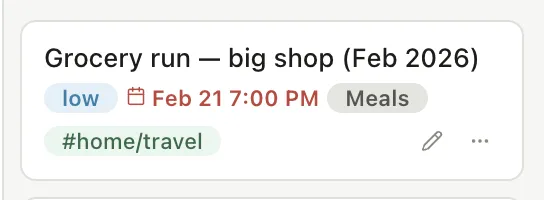
Each card shows the title plus whatever badges apply — due date, priority, group, tags, and a repeat marker if it’s recurring.
Two of those badges are counts, and they answer different questions. Checklist
count is the - [ ] lines inside the task itself — 2/3 means one left to
tick. Subtask count is separate task files filed under this one as children.
A card only shows a count it actually has, so cards without either stay clean.
A subtask counts as finished when it’s Complete or Skipped — skipping something is a decision, not an outstanding job, and a card stuck at 4/5 because of one abandoned subtask would be worse than no badge.
Cards can show due dates as a countdown — in 3 days, 2 days ago — instead of a date. It’s a per-board setting, and worth turning on: it’s the difference between reading a board and doing arithmetic on it.
Cover images
Section titled “Cover images”In Board settings › Card cover, a card can show an image across its top: the task’s Banner, the First image in the task, or both. With both on, a task that has a banner shows the banner, and one without shows its first image instead. A task with neither has no cover.
Checklist and subtasks on the card
Section titled “Checklist and subtasks on the card”Board settings › Card sections can list a task’s checklist and its subtasks at the bottom of its card. Each one is Off, Collapsed or Open, which sets how cards start. A section only shows up on cards that have something in it.
Click a section’s heading to open or close it on that card. The card remembers your choice, so it’s the same next time you open the board. Tick an item right on the card: a checklist item is ticked in the task’s file, and a subtask is marked complete. A long section shows its first five rows, then + N more.
Opening tasks beside the board
Section titled “Opening tasks beside the board”Turn on Board settings › Opening tasks › Open tasks in a split on the right and clicking a card’s title opens the task in a pane beside the board, so the board stays in view while you read. Each board has its own setting. ⌘-click still opens a new tab, and ⇧⌘-click opens on the right whether the setting is on or not. On Windows and Linux, use Ctrl in place of ⌘.
Card menu and selecting several
Section titled “Card menu and selecting several”Right-click a card, or click its ⋯ button, for Open file, Remove from board, Convert to note, Delete and More file actions (rename, move, export and the rest).
Click a card to select it, ⌘-click to add or remove cards, and Shift-click to select a run in the same column. Right-click any selected card and the menu acts on all of them: Move to a column, Remove from board, Convert to notes or Delete. Delete asks first unless you’ve turned off Settings › General › Ask before moving to Trash. Right-clicking a card that isn’t selected selects just that card.

The backlog drawer
Section titled “The backlog drawer”The panel beside the board holds every task that isn’t on any board yet and isn’t finished. That’s not the same as unscheduled — a task can have a due date next Tuesday and still sit here, because nobody has put it on a board. It’s the pile of work you haven’t decided where to track.
The Notes tab lists every note in your vault, most recently edited first. Search it, or filter by folder, tag or type. Drag a note onto a column and it becomes a task on the board. The file stays in its folder with its name, text and properties intact. Every card on a board is a task, so they all work the same way. If you change your mind, use Convert to note on the card.
There’s also a Checklist tab collecting the unticked - [ ] lines from every note in your vault.
That last one is worth knowing about. Checkboxes you scribbled inside meeting notes are usually invisible the moment you close the note. Here they’re gathered in one place, and you can drag one straight onto a column to promote it into a real task.
You can select several and drag them together.
Quick add per column
Section titled “Quick add per column”Each column has its own add box. Typing there makes a task already in that column — already the right status, or the right group — instead of making one and then moving it.
Sorting within a column
Section titled “Sorting within a column”Per-board, so a “this week” board can sort by due date while a triage board sorts by priority.