Properties
A note can carry fields as well as words: who wrote it, when it’s due, which project it belongs to, whether you’ve reviewed it. In Pellet those are properties, and they live in a block at the very top of the file between --- lines.
They’re plain text in your own file, so anything else that reads markdown can read them too.
Transcript
Every note can carry properties. Click the Properties pill at the top of a note. They are stored as ordinary frontmatter, right in the file. Add one, pick its type, and fill it in. Text, number, date, a checkbox, a list, or a link to another note.
Opening them
Section titled “Opening them”At the top of a note you’ll see a small Properties pill. Click it and the panel opens: one row per property, with its name on the left and its value on the right.
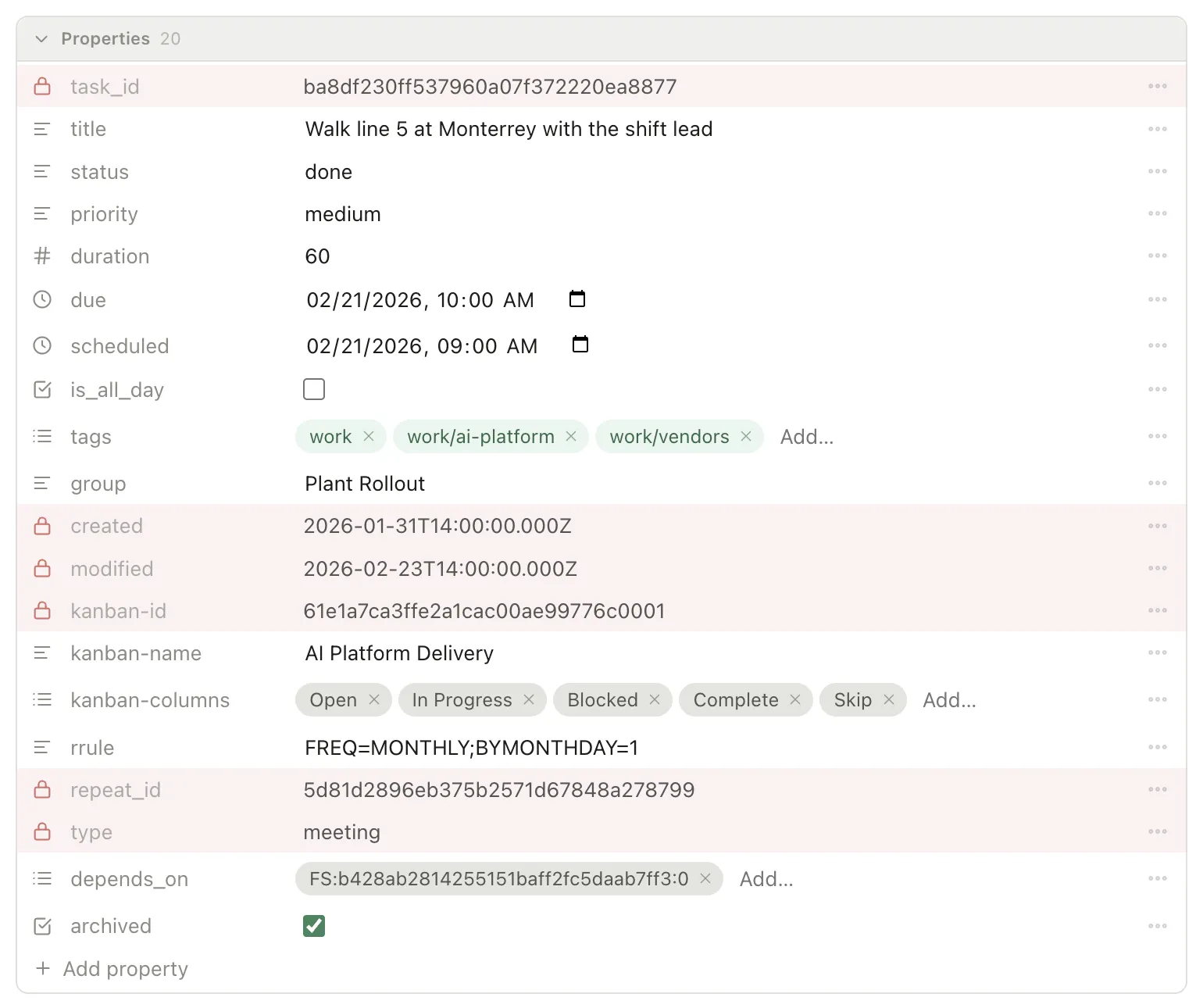
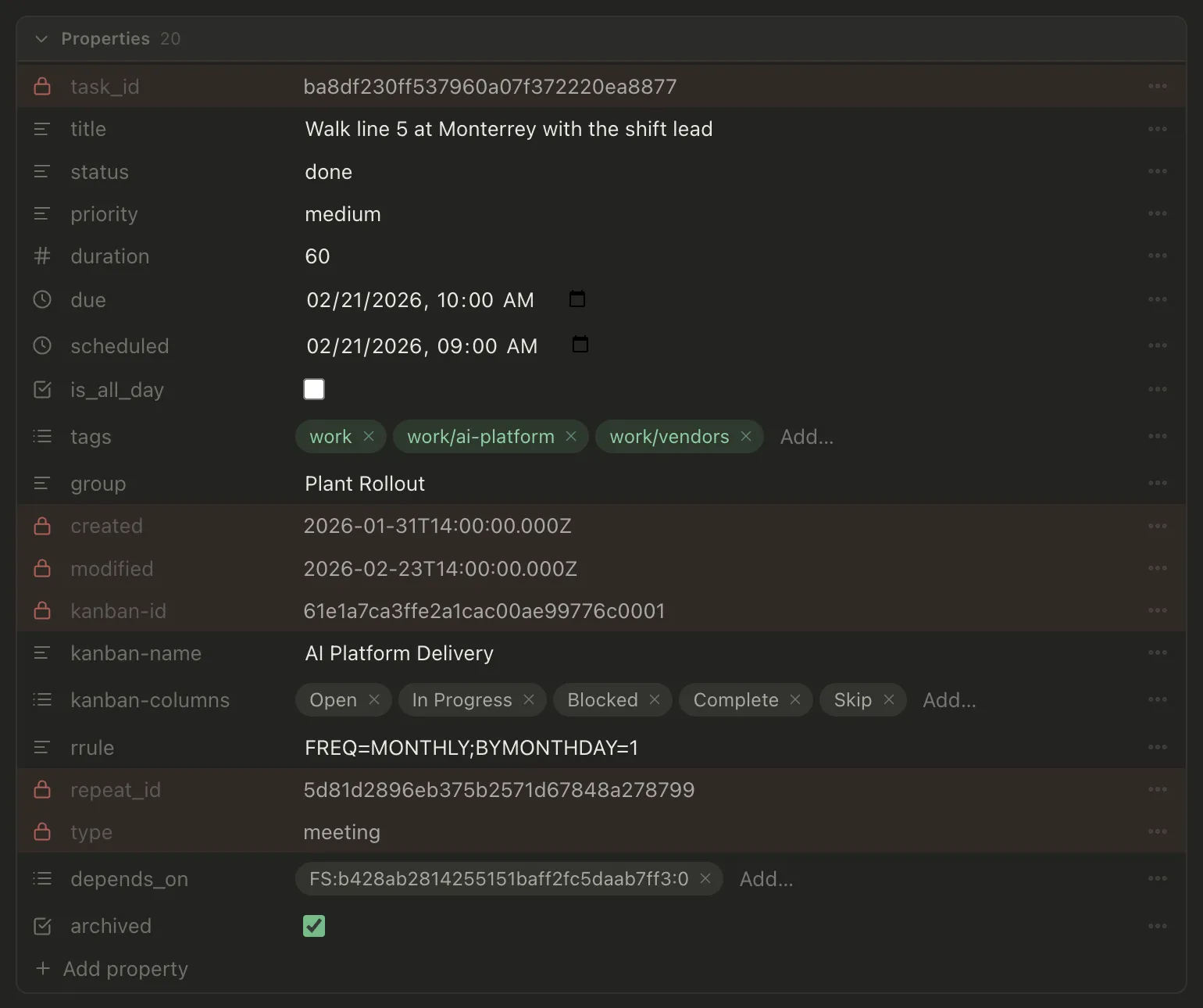
Click the chevron in the panel’s header to collapse it back to the pill.
The panel is part of Live Preview. Switch to source mode and you’ll see the raw text instead, which is the place to go for anything the panel can’t express. Reading mode hides properties entirely — see Editing and reading.
Adding one
Section titled “Adding one”Click Add property. A new row appears with the cursor in its name, and a list of every property name your vault already uses — with how many notes use each one, so you can tell a well-established name from a one-off typo.
Pick an existing name or type a new one, press Enter, and the cursor moves straight to the value.
If you pick a name your vault already knows, it arrives as the type it already is. Adding tags gives you a list without a second step.
Every property has one of six types, which decides how you edit it:
| Type | You get |
|---|---|
| Text | A plain field, suggesting values that name already holds elsewhere |
| Number | A plain field that expects digits |
| List | Removable pills, and a box to add another |
| Date | A date picker |
| Date and time | A date and time picker |
| Checkbox | A tick box |
Click the icon at the left of a row to change the type.
Until you set one, Pellet reads the type off the value — a list looks like a list, 2026-08-14 looks like a date. Once you choose, your choice sticks, including when the value is empty.
When a value doesn’t fit
Section titled “When a value doesn’t fit”Change a property’s type and Pellet converts the value if the new type can hold it. 2026-08-14 09:00 becoming a Date drops the time; a number becoming a List becomes a one-item list.
When it can’t convert, it leaves your value exactly as you wrote it and marks the row instead. A red row with a warning icon means “this doesn’t match the type you asked for” — hover it for the reason. The row also shows its type as a small badge beside the key, so a list sitting in a Text property reads as a question of type, not of value. Nothing has been lost; fix the value or change the type back and the mark goes away.
Where a repair is safe, the row offers a Fix button — hover it to see exactly what it will do before you click:
- If the value is already a good example of another type — a list in a property declared Text, say — Fix declares the property that type instead. That applies to every note using it, and no file is changed.
- Otherwise, if the value can be rewritten to fit its type without losing anything, Fix rewrites it in this note only.
- Tags written as one comma-separated value (
tags: work, home) show struck through, because that isn’t valid tag formatting. Fix rewrites them as a proper list in that note, with the tags themselves unchanged.
When no repair is safe there’s no Fix button, and the row stays marked until you correct it.
That direction matters. Blanking a value to make it fit its label would be tidying the display by throwing away the data.
Nested properties
Section titled “Nested properties”If a property contains other properties, they appear indented underneath it with their own rows and their own Add property. You can nest as deeply as you like.
The ones Pellet keeps
Section titled “The ones Pellet keeps”Some rows are tinted and locked, with a padlock instead of a type icon. These are the properties Pellet derives rather than ones you decide:
- Identity —
task_id,type, and the ids that tie a repeating task to its series. Change one and the note is orphaned from everything that refers to it. The one exception istype’s value: you can’t rename or remove the row, but you can pick a different type from it — see below. - Timestamps —
createdandmodified, stamped on every save. - Calendar links — the id tying a task to its event in Google Calendar or iCloud. A wrong one points sync at somebody else’s event.
- Recurrence history — which occurrences of a repeating task you completed or skipped.
Editing these by hand doesn’t change what they describe, it just makes the description wrong. Source mode will still let you — the lock is there so it can’t happen by accident.
Everything else stays yours to edit, including status, due, tags and priority.
A file’s type, and what it brings with it
Section titled “A file’s type, and what it brings with it”Every note and task has a type — note, task, or one you’ve added under Settings → Tasks → Types. Click the value on the type row to pick another.
A type can carry properties of its own: open a type in Settings and list the properties every file of that type should have, each with a kind (text, number, date…) and, if you like, a default. From then on:
- Applying the type to a file adds each of those properties it doesn’t already have — with the default, or empty. A value the file already has is never overwritten.
- Switching a file to another type removes the old type’s properties while they’re empty; anything you’ve filled in stays. The new type’s properties are added.
- Rows a type put there carry a thin colored edge. You can still remove one; the type puts it back the next time it’s applied.
Changing a type’s list later offers to update the files that already carry it, or leaves them until each is next given the type. Pellet’s own properties — status, due, tags, task_id and the rest — can’t be added to a type; they’re already looked after.
The Properties pane
Section titled “The Properties pane”The panel shows one note’s properties. The Properties pane in the sidebar shows the whole vault’s — every key in use, with how many notes carry it, and what each one currently means.
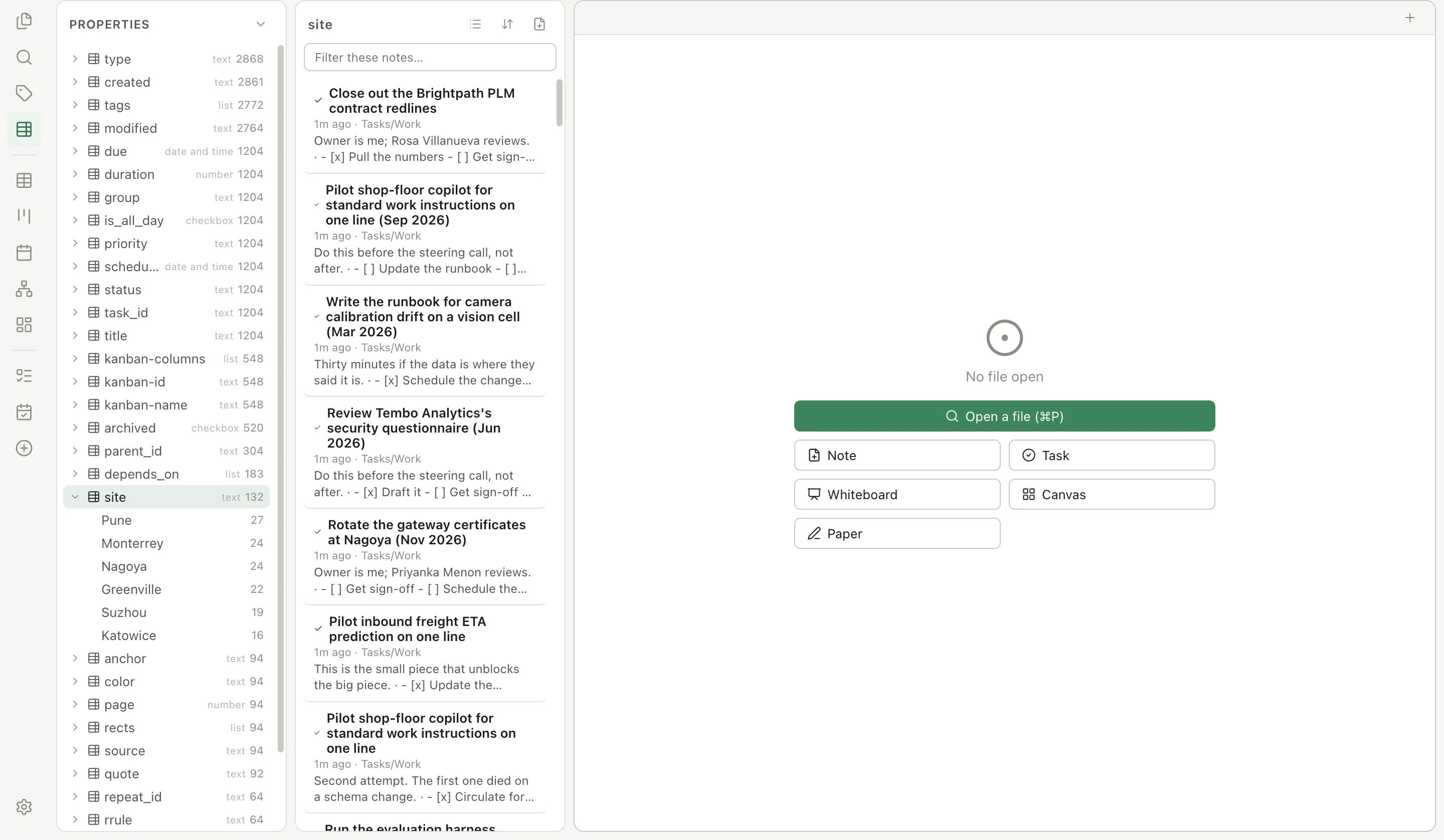
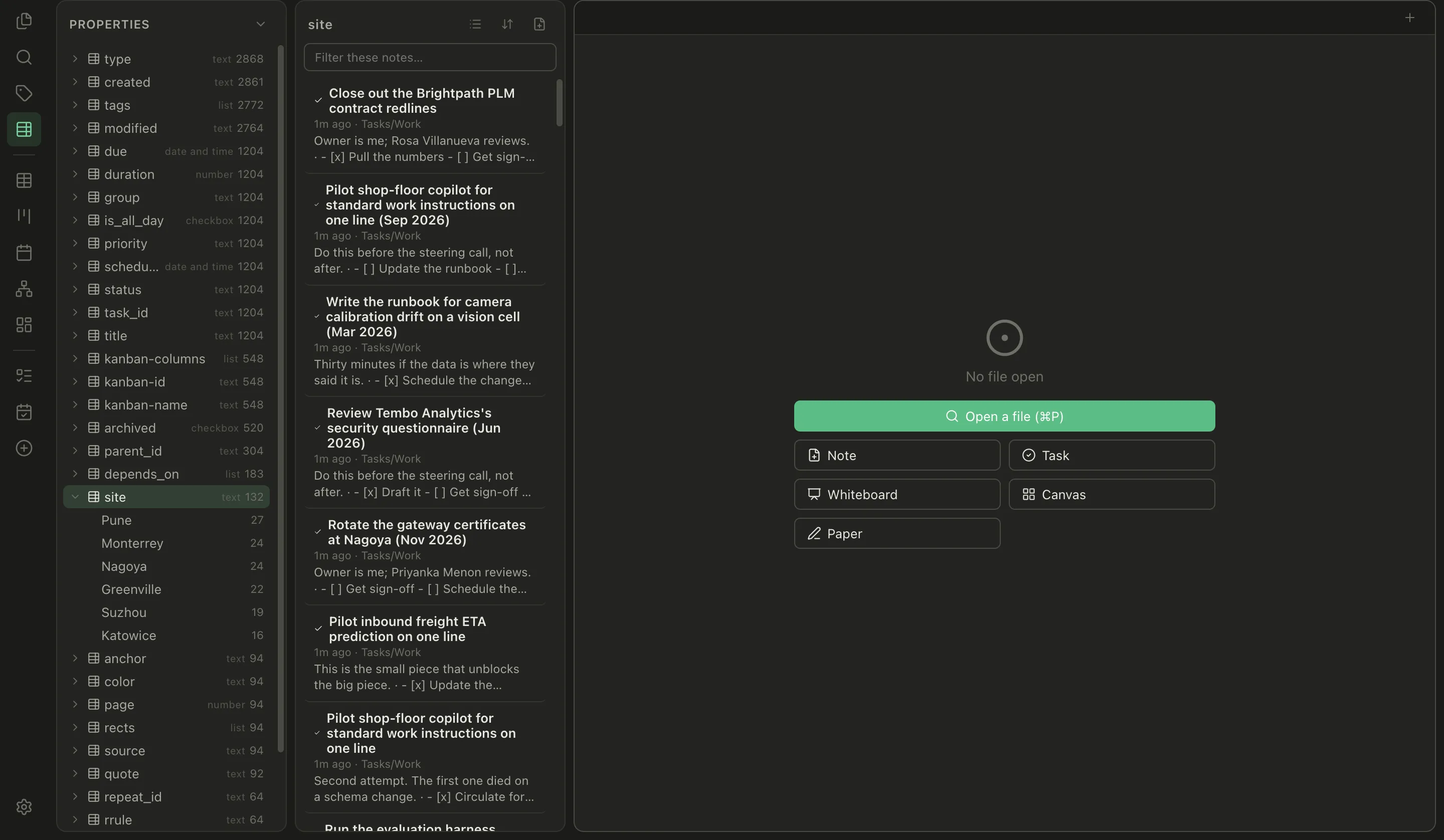
Click the properties icon in the left rail to open it. On a phone it’s in More, beside Tags.
The filter box under the header matches both keys and their values: type a property name to narrow to it, or type a value to find whichever property holds it. The count under it says how many properties match, Aa makes the match case-sensitive, and the × or Escape clears it.
Each key shows its type and how many notes use it. Expand one with the chevron and you get its values, most-used first, each with its own count. Keys start collapsed — a key like created holds a different value in every note, and there’s no use opening with thousands of those.
Clicking filters the note list. Click a key and you get every note carrying it. Click one of its values and you get the notes holding that value — including notes where it’s one item in a list, so a value row under a list-valued property works the way you’d expect.
Right-click a value to rename it everywhere, or remove it. Renaming rewrites just that value in the notes holding it — notes with a different value keep theirs, and a value written in quotes stays in quotes, so the change reads as one line in a diff. Renaming onto a value the key already has merges the two, and says so before it does.
Removing a value means those notes no longer have it: where the property held that value on its own, the property goes; where it was one item in a list, only that item goes, and a list left empty takes the property with it.
Right-click a key for the rest:
- Rename it across every note that carries it. Only the key changes; the values are untouched. A note that already has a property under the new name is left alone rather than having two values merged into one — you’re told how many, if any.
- Change its type, which is the same vault-wide type the panel and the Table use. This doesn’t rewrite anything in your notes. It changes what the property means, and a value that no longer fits shows as invalid where you edit it, with the real value still there.
- Delete it from every note carrying it. The notes stay exactly where they are — only the property goes. Every edited file keeps a history entry, so any one of them can be rolled back on its own.
Renaming or deleting shows you how many notes will be edited before you commit.
The properties Pellet keeps for itself are listed here too, so you can filter by due or status from the pane — but neither they nor their values can be renamed, retyped or deleted, and right-clicking one says why. Renaming done under status wouldn’t just rename a word; every note carrying it would stop reading as complete.
Properties on things that aren’t notes
Section titled “Properties on things that aren’t notes”A canvas, a whiteboard, a Paper drawing, a PDF, an ebook, a recording — any of them can carry properties too. Give a research PDF a Status and a Rating, then filter your Table on them exactly as you would for notes.
Where those properties live depends on what the file is, and Pellet picks the best available home for each:
| File | Where its properties are kept |
|---|---|
Notes and tasks (.md) |
In the file, at the top, between --- lines |
| Canvas, Whiteboard, Paper | In the file, as one extra field the drawing carries |
| PDFs, ebooks, images, audio, video, plain text | Beside your vault, in Pellet’s own folder |
In the file wherever the format allows it, because properties that live in the document travel with it for free — copy it, move it, sync it, restore it from the trash, or hand the file to someone else. Only formats that physically cannot hold a field of their own use the second option, and those properties still sync between your devices like everything else.
Two things worth knowing about the exceptions:
- A whiteboard’s properties are Pellet’s addition to the Excalidraw format. The board itself opens anywhere; if you re-save it in another Excalidraw tool, that tool will drop the properties Pellet put there.
- Editing properties on these files is done from the Table, not from the properties panel — the panel edits the text block at the top of a note, and a drawing has no such block.
Properties and the Table
Section titled “Properties and the Table”A custom column in the Table is a property — the same one, read from the same place, whatever kind of file the row is.
So the two agree. Adding a column for a property that already exists tells you so and adopts its type rather than redefining it. Naming a property that already has a column offers it back to you. And a property you invent in either place shows up in the other.
Other tools’ fields
Section titled “Other tools’ fields”Pellet reads the keys it knows and leaves every other key exactly as you wrote it, including ones put there by tools it’s never heard of. It doesn’t reorder them, reformat them, or drop the ones it doesn’t recognize — see Where your notes actually live.
If a value is written in a way the panel can’t model — an anchor, an alias, something exotic — you’ll still see it, as its own raw text row you can edit. Nothing in your file is ever hidden from you.