Link notes together
This is the part that turns a folder of files into something more useful.
Making a link
Section titled “Making a link”Type [[ and start typing a note’s name. Pellet offers matches; pick one and it becomes a link. Click it to go there.
If you type a name that doesn’t exist yet, that’s fine — the link still works, and clicking it creates the note. Writing first and organizing later is a perfectly good way to work.
Backlinks: who points at this?
Section titled “Backlinks: who points at this?”Open any note and the right panel shows two lists:
- Linked from — every note that links to this one
- Links out — every note this one points at
You never have to maintain these. They’re worked out from what you’ve written.
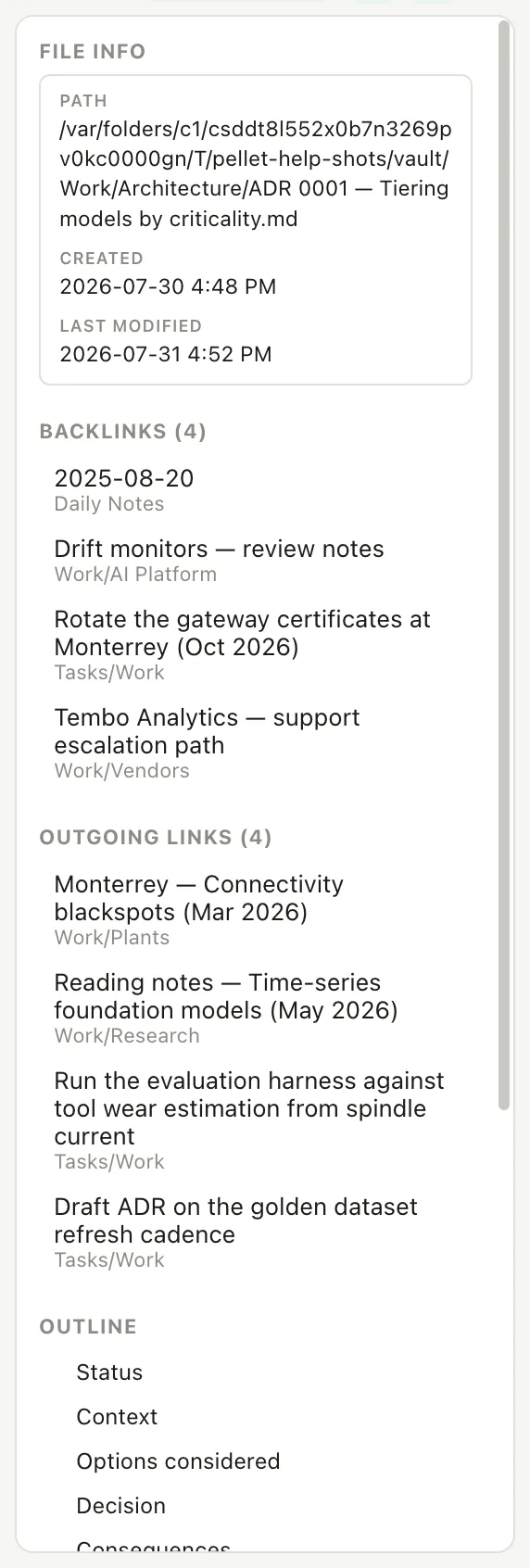
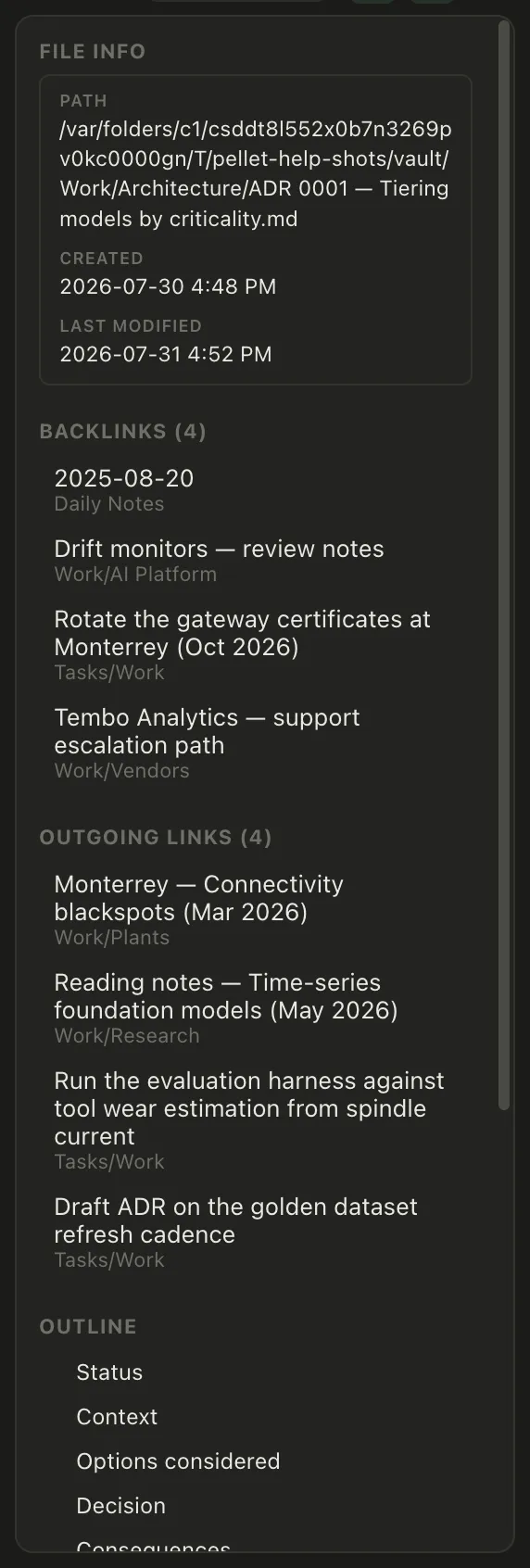
This is where a vault starts paying off. Write a note about a supplier, mention it from three meeting notes, and the supplier note quietly accumulates a list of every conversation it came up in.
Pulling a note into another note
Section titled “Pulling a note into another note”![[Some note]] — with an exclamation mark in front — embeds that note’s content where you put it, live. Edit the original and every place it appears updates.
You can embed just one section: ![[Some note#The heading]].
Useful for anything you’d otherwise copy and paste, and then have to remember to update in five places.
Seeing the shape of it
Section titled “Seeing the shape of it”The Graph view in the left rail draws every link you’ve written as a map. You can look at the whole vault, or at just one note and its immediate neighbors — which is usually the more useful of the two once you have a few hundred notes.