Embedding a table in a note
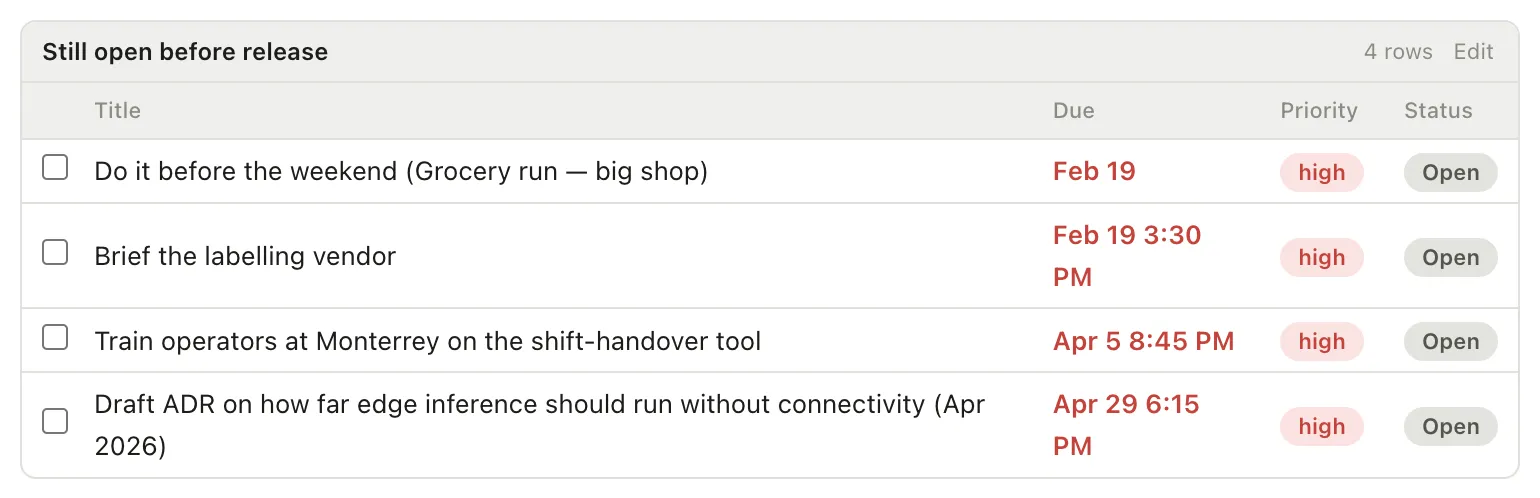
A note can hold a table that keeps itself up to date. Write down what you want to see — everything still open before the release — and the note shows it, now and next month, without you maintaining a list by hand.
It works in both editing and reading modes, and it updates as your vault changes: complete a task somewhere else and it leaves the table on its own.
Transcript
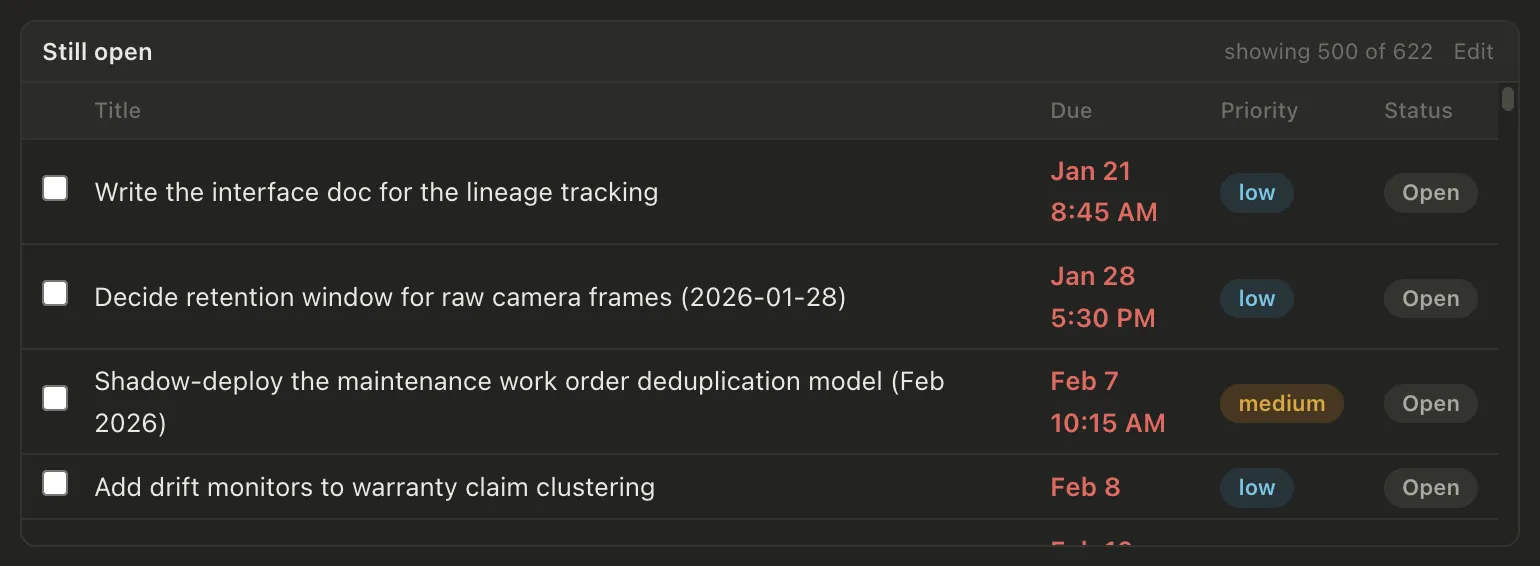
A live table, inside a note. A pellet table block asks a question of your vault, and the answer appears in the note. Filter by status, by priority, by due date. And it stays live. Change a task anywhere else and the table in your note has already followed.
Putting one in
Section titled “Putting one in”Two ways, and neither involves remembering the syntax.
From the note. Type /tableview and press Enter. You get a starter block with the pieces filled in, ready to edit. (/table is the other one — that inserts an ordinary markdown table.)
From the Table. Set up the view you want in the Table — filter it, sort it, choose the columns — then press Embed. That copies a block matching exactly what’s on screen; paste it into any note.
What a block looks like
Section titled “What a block looks like”```pellet-tabletitle: Open before releasewhere: status is openwhere: due before todaysort: due asccolumns: title, due, statusrows: 12```Every line is optional. A block with nothing but where: status is open is perfectly good.
| Line | What it does |
|---|---|
title: |
A caption above the table |
filter: |
Use a saved filter by name — the same query, in one place |
where: |
A condition. Repeat it for as many as you need |
match: |
all (the default) or any |
search: |
Narrow to matching titles |
sort: |
due asc, or several: due asc, priority desc |
group: |
Break it into sections — status, type, kind, or any property |
kinds: |
Which kinds of file to include — task, note, pdf |
columns: |
Which columns, in order: title, type, group, tags, start, due, priority, status, created, modified, or a property — see below |
rows: |
How many to show before it scrolls |
layout: |
table (the default) or grid — see below |
size: |
For a grid: s, m (the default) or l |
covers: |
For a grid: on (the default) or off |
Showing it as a grid
Section titled “Showing it as a grid”Add layout: grid and the same rows appear as picture cards, like the Table’s Grid layout. A PDF shows its first page, an image shows itself, and a canvas or whiteboard shows its drawing. A note shows its banner, or with covers: off, the first image in its text. A card with no picture shows the start of its text, so it’s never an empty box. Each card shows a task’s status and due date, or a file’s kind and size. Click a card to open the file.
```pellet-tablewhere: links to active notelayout: gridsize: l```If you press Embed while the Table is on Grid, the block it copies already says layout: grid. A block that names a saved filter remembered as a Grid opens as one too, unless it says layout: table.
When you export the note as a PDF or a web page, a grid stays a grid of cards. Image files and banners come along as pictures; other cards show their title and details. Exported as markdown or plain text, it becomes an ordinary table.
Showing a property as a column
Section titled “Showing a property as a column”A property you’ve added as a column in the Table can be named as it is: columns: title, deadline, or by its header if that’s different (columns: title, Review date). For any other property, put custom: in front, as in columns: title, custom:deadline. A name Pellet doesn’t recognize is left out, and the block tells you which one and why, instead of showing an empty column.
Formula columns work the same way: columns: title, Days left shows the formula’s result, worked out when the note is shown, and sort: and where: can use it too (where: Days left < 0). When a note is exported, each formula cell is written out as its result on that day.
Writing the conditions
Section titled “Writing the conditions”where: lines read the way the filter builder reads:
where: status is openwhere: due before todaywhere: tags has any of ml, paperswhere: priority is highwhere: stage is draftA few things that make this less fiddly than it looks:
- Use the words you see.
status is openworks, even though the file stores that astodounderneath. - Dates can be relative.
today,tomorrow,yesterday,+7d,in 7 days, or a plain2026-09-01. They’re worked out when the table draws itself, so a note left open overnight is still right in the morning. - Your own properties work too —
stage is draft,rating > 3— and compare correctly for their type, so a number sorts and compares as a number. - Either spelling of an operator is fine:
due is before 2026-09-01anddue before 2026-09-01mean the same thing.
If a line doesn’t make sense, the table says so underneath it, naming the line — and still shows everything the other lines matched. A typo costs you one condition, not the whole table.
Transcript
Build the view, then paste it into a note. Set the Table up the way you want it. Narrow it down with as many conditions as you need, until it shows exactly what you care about. Then press Embed. Pellet copies the whole view as a block, and pasting that into a note gives you the same rows, live.
How many rows
Section titled “How many rows”By default the table shows about nine rows and scrolls inside itself. rows: 20 shows twenty. rows: auto grows to fit everything and never scrolls — the one to use for a note you’ll read straight through or print.
Very large results stop at 500 rows and say so in the header, so you always know when you’re seeing part of something. If you genuinely want more, rows: 900 raises it.
Using it
Section titled “Using it”Click a title to open that file — hold ⌘ for a new tab, ⇧⌘ to open it in a pane to the right. Tick a task’s checkbox to complete it, right there in the note; a repeating task advances to its next occurrence rather than closing.
To change the query, click Edit in the table’s header — the control on the right of the caption bar. That swaps it back to the text you wrote; click away and it’s a table again.
That control is the way in on purpose: clicking the table itself does what the table does, and a click in the margin beside it would land in the block’s hidden source.
Exporting
Section titled “Exporting”Exported notes get a real table. The block becomes an ordinary markdown table holding the answer as of the moment you exported — because a file opened in Word or a browser can’t ask your vault anything.
That applies to every format: Markdown, plain text, Rich Text, web page and PDF. All matching rows are written, not just the ones that fit on screen.
Sharing a query between notes
Section titled “Sharing a query between notes”If several notes want the same list, save it once as a saved filter and point at it:
```pellet-tablefilter: Ship 0.10columns: title, due, status```Change the saved filter and every note using it follows. If the filter is later renamed or deleted, the block says so rather than going blank.