Reading PDFs and ebooks
Drop a PDF or an EPUB into your vault and open it. Pellet reads both — no external app, no export step.
Transcript
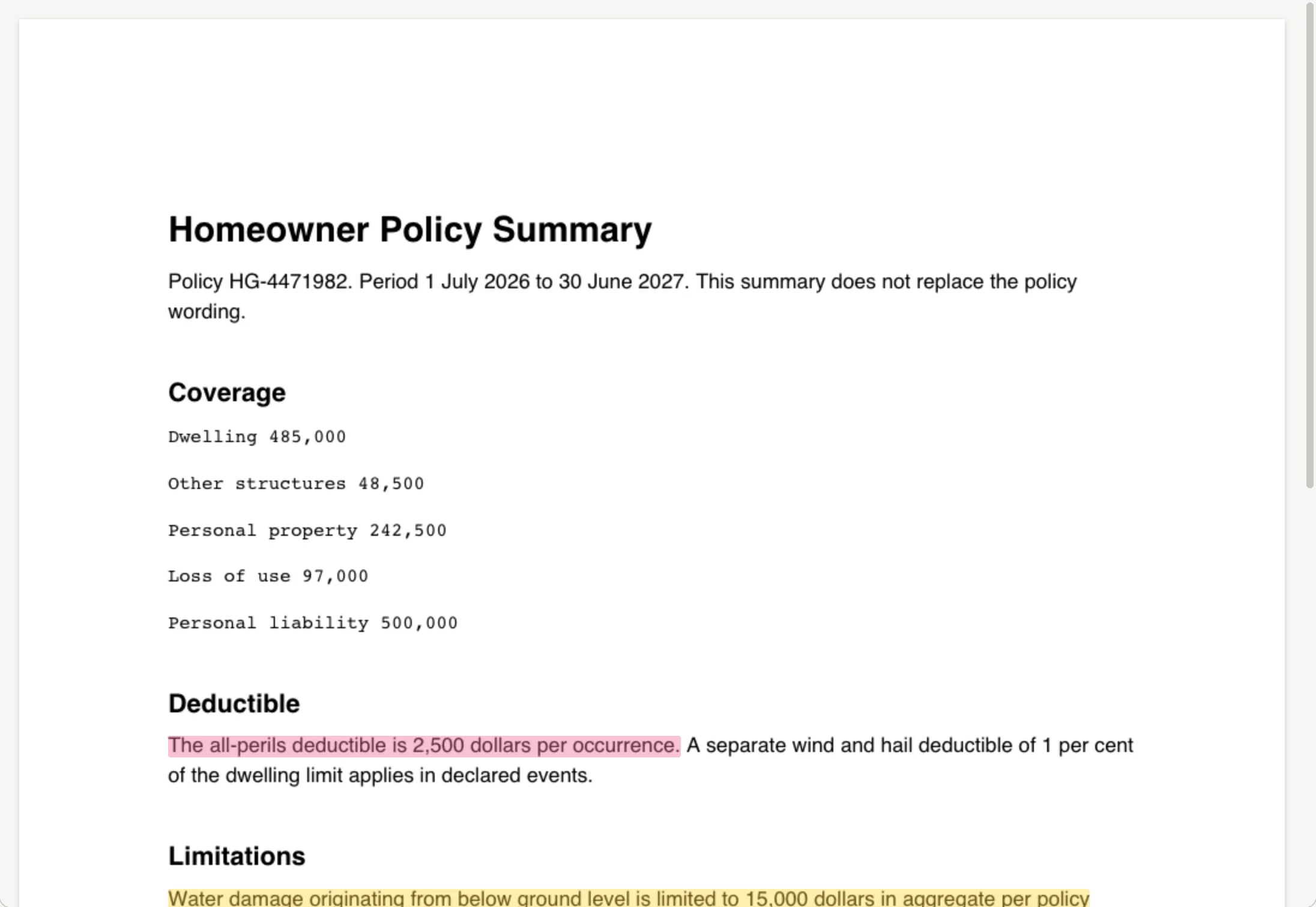
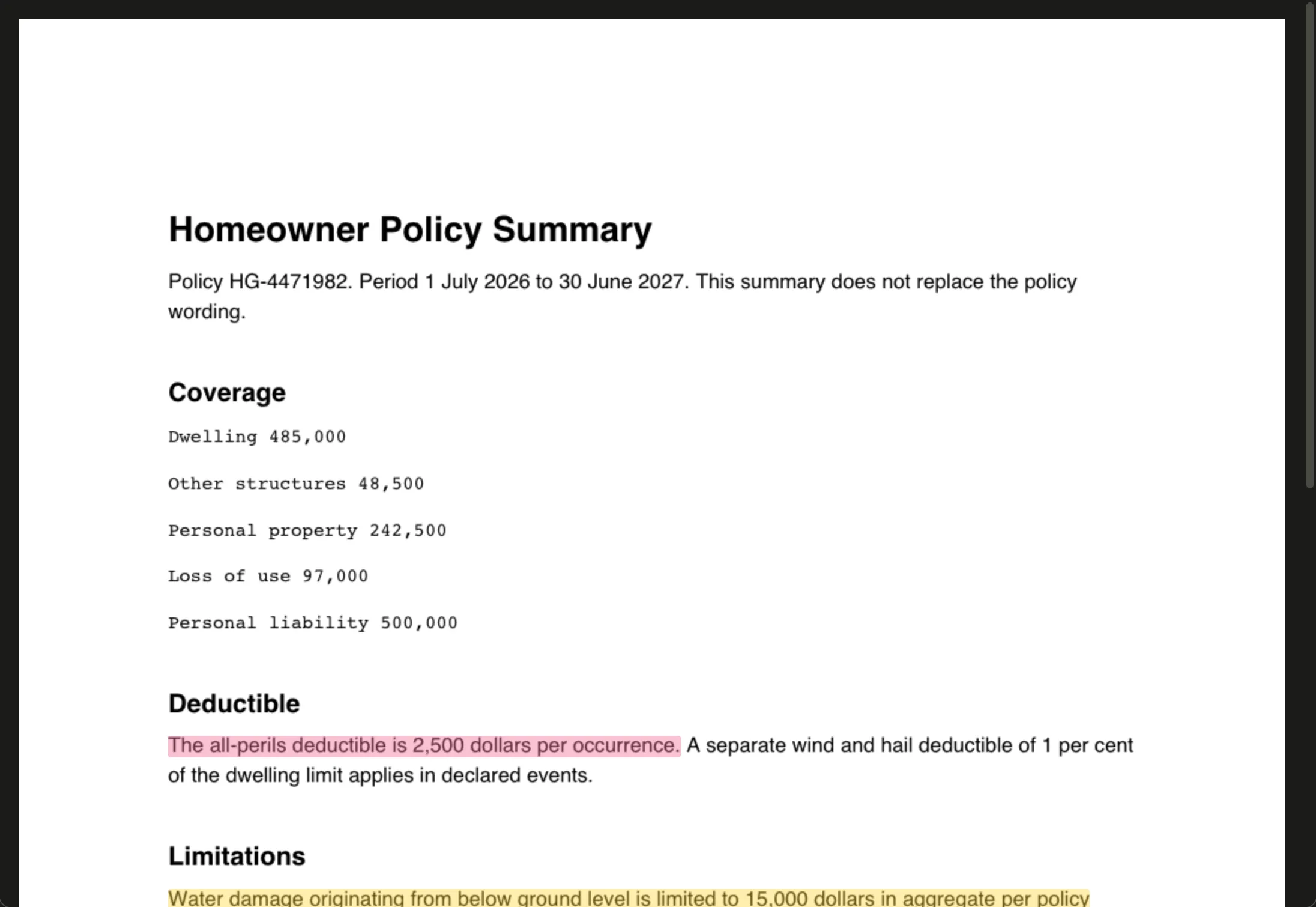
Highlight a PDF, keep it as a note. Pellet opens PDFs and ebooks in the pane. Select a passage and you get a highlight, in whichever color you pick. Each highlight becomes a note of its own, so what you marked in the document is searchable and linkable with everything else.
Highlighting
Section titled “Highlighting”Select text and pick a color. Six to choose from — yellow, green, blue, pink, orange and purple — which is enough to mean something (say: yellow for interesting, blue for evidence, pink for disagree) without becoming a system you have to remember.
Highlights become notes
Section titled “Highlights become notes”This is the part that matters.
Each highlight becomes a real note in a Highlights/ folder, with one subfolder per source document. Not an annotation locked inside a PDF viewer — an ordinary markdown note.
Which means a highlight can be linked to, searched, tagged, embedded in another note, and shows up in the graph. The passage you underlined in a report last March is findable in the same breath as everything else.
Each highlight note keeps a link back to the exact place in the document, so you can jump from the note to the page.
One file per book
Section titled “One file per book”If you’d rather have one note per book than one per highlight, turn on Keep each book’s highlights in one file in Settings › Folders & Templates. New PDF and EPUB highlights then go into a single note for that book, grouped by page or chapter, with your notes beside each quote.
The switch only changes where new highlights go. To bring older ones along, use Merge existing highlights just below it: it tells you how many notes and books are involved first, then moves the old notes into their book’s file and sends the originals to the Trash.
Why this beats the usual
Section titled “Why this beats the usual”In most readers, highlights are trapped. They live inside that app, in that file, and getting them out means an export that flattens them into a list.
Here they’re notes from the start. Reading and writing use the same material, and the stuff you read stops being a separate pile from the stuff you think.
Tracking what you’ve read
Section titled “Tracking what you’ve read”A PDF or ebook can carry properties of its own — Status: read, Rating: 4, a topic, a source. Set them from the Table, where every file in your vault is a row, then filter your reading list on them the way you would a set of tasks.
A PDF has nowhere inside it to keep a field like that, so Pellet stores these beside your vault rather than in the file — and syncs them between your devices, so a paper you marked read on the desktop is read on the phone too.
On a phone or iPad
Section titled “On a phone or iPad”Both readers work on iOS. Highlighting uses the usual selection handles.