Your first task
Press ⇧⌘N, or use the quick-add row at the top of the Table view: type a title, press Enter.
A task is a note
Section titled “A task is a note”This is the bit that surprises people. A task in Pellet isn’t a row in a database — it’s a markdown file, exactly like a note, with some extra information at the top:
---task_id: 8f2c1atitle: Send the quarterly reportstatus: doingdue: 2026-08-04priority: hightags: [work/finance]---
Waiting on the numbers from Priya before this can go out.
task_id is the one field that isn’t optional. It’s what makes the file a task rather than a note — Pellet stamps it when the task is created, and a markdown file without it is treated as a plain note however many other task fields it carries. If you’re writing files by hand and they aren’t showing up in the task views, that’s the field to check.
Which means a task can have a body. Notes, links, a checklist, a pasted email — anything you’d put in a note. Most task apps give you a title and a cramped notes field; here it’s a whole document.
The fields
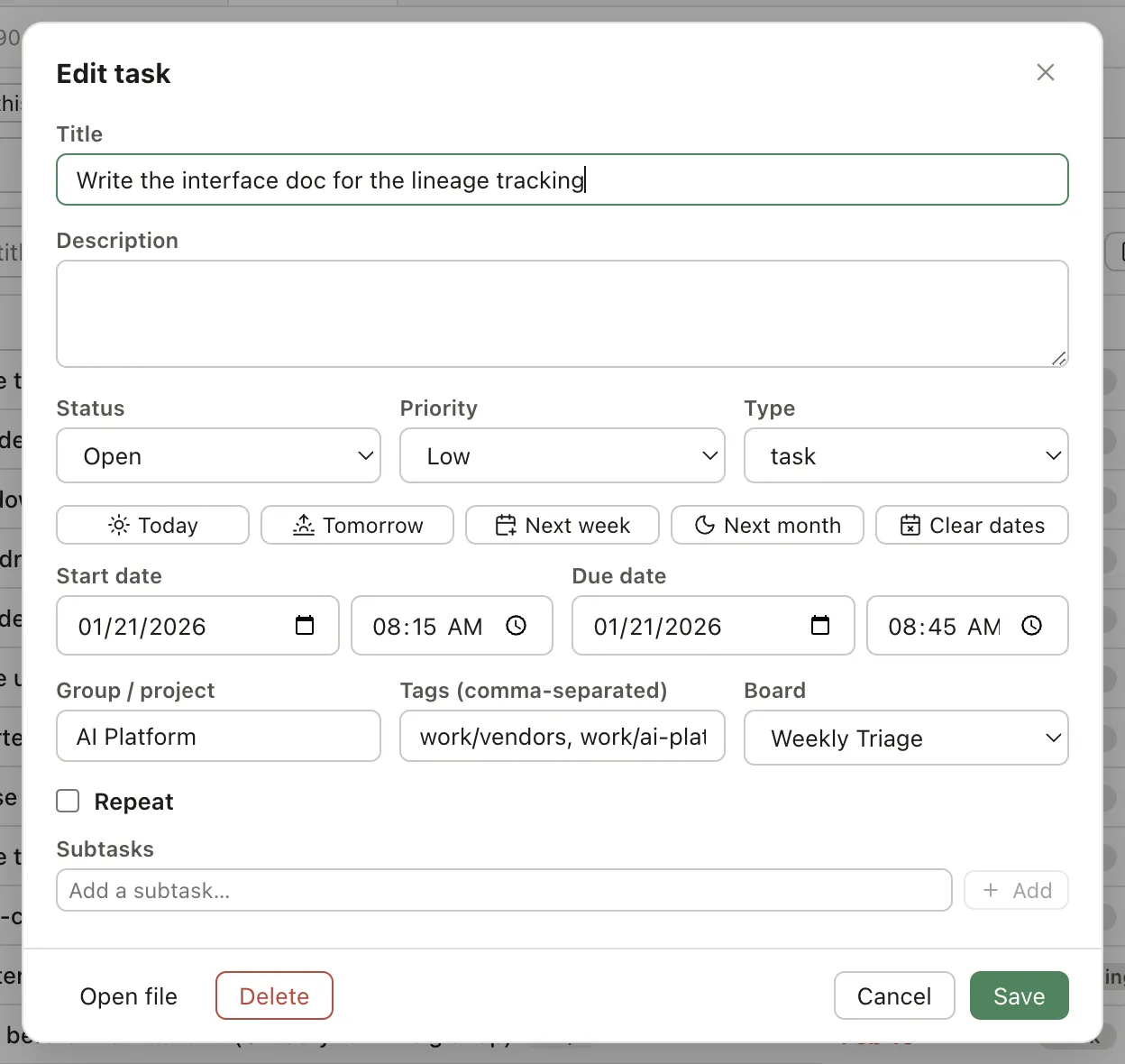
Section titled “The fields”| Field | What it’s for |
|---|---|
| Status | Open, In Progress, Complete, Skip, or one of your own |
| Priority | None, Low, Medium or High |
| Due | When it must be finished |
| Start date | When you plan to start — often more useful than the deadline |
| Group / project | A project or area, for grouping in views |
| Board | Which board this card belongs on, if any |
| Type | Any type from Settings → Tasks — a type can add properties of its own |
| Tags | The same tags your notes use |
| Recurring | See Repeating tasks |
You don’t have to fill any of them in. A title alone is a valid task.
Due date versus start date
Section titled “Due date versus start date”Worth getting straight early. Due is the deadline. Start date is when you intend to work on it. A report due Friday that you plan to write Wednesday has both, and they do different jobs. The calendar puts the report on Friday, and the overdue list warns you about Friday, not Wednesday. Turn on Show start dates in the calendar’s ⋯ menu and Wednesday gets a marker too. A task with only a start date sits on its start day, and you’re reminded when it starts.
Turning a task back into a note
Section titled “Turning a task back into a note”If something stops being a task, convert it. Pellet strips the task fields and leaves everything else exactly as it was — the body, your other frontmatter keys, the lot.
The file stays where it is: same folder, same name.