Link notes together
This is the part that turns a folder of files into something more useful.
Making a link
Section titled “Making a link”Type [[ and start typing a note’s name. Pellet offers matches; pick one and it becomes a link. Click it to go there.
To change a link instead of following it, put your cursor in it or right beside it first, with the arrow keys or by clicking just past its end. While your cursor is touching a link, clicking it moves the cursor to where you click instead of opening it. ⌘-click (Ctrl-click on Windows and Linux) still opens it.
If you type a name that doesn’t exist yet, that’s fine — the link still works, and clicking it creates the note. Writing first and organizing later is a perfectly good way to work.
Transcript
Linking notes is two square brackets. Start typing and Pellet offers every note, and every attachment, in your vault. Pick one and it writes the link for you. Follow it with a click. And the note you linked to now lists this one under backlinks, without you doing anything.
Other names for a note
Section titled “Other names for a note”Add aliases: to a note’s frontmatter and it becomes linkable by any of those names too, on top of its own filename — Obsidian’s syntax, so a vault that already uses it just works.
---aliases: [Cliff edge, Escarpments]---A single alias can also be written as alias: Cliff edge on its own. Either way, [[Cliff edge]] and [[Escarpments]] both open that note, exactly as [[filename]] would — Pellet checks a note’s aliases the moment it needs to open or draw a link, so it doesn’t matter which name you typed.
A real filename always wins over an alias. If another note is actually named “Cliff edge”, that file is what [[Cliff edge]] opens — the alias only steps in once no file answers to the name. So giving a note an alias can never take a link away from a note that is genuinely called that.
One limit worth knowing: the [[ autocomplete list only offers filenames, not aliases, so an alias won’t appear while you’re typing the link — type it out and Pellet still finds it once the brackets close. An alias also isn’t a name of its own for search purposes; the one place besides links where it’s matched is the word lookup card’s In your vault list (see Definitions and spelling), which shows a note whose alias matches the word you looked up.
Links to the web
Section titled “Links to the web”A web address typed or pasted into a note is a link: click it to open it in your browser.
When you paste one, a small bar appears beside it:
- Link swaps the long address for a short name, like
example.com/page. - Address keeps the address exactly as you pasted it.
Ignore the bar and it goes away on its own, leaving the address as you pasted it.
Paste a YouTube, Vimeo, Spotify or Apple Podcasts link and you get a third choice, Embed, which shows the player right there in the note. That one only appears when there’s actually something to play.
Seeing a link without opening it
Section titled “Seeing a link without opening it”Rest the pointer on a link and a card shows what’s on the other side. For a link to a note that’s the note itself, rendered — move onto the card and it stays put, so you can read down it, follow links inside it, or open it properly from the button in its corner.
Two switches in Settings → General → Behavior control it. Preview notes on hover is on: it reads a file on your own disk, and nothing leaves your machine.
Preview web links on hover is off until you turn it on, and it’s worth knowing why it’s a separate switch. Showing a web page’s title means asking that site for the page — a page you only pointed at, and haven’t clicked. The site sees your IP address and learns you hovered its link. That’s a fair trade if you want it, but it shouldn’t happen because you turned on something else.
Backlinks: who points at this?
Section titled “Backlinks: who points at this?”Open any note and the right panel shows two lists:
- Backlinks — every note that links to this one
- Outgoing links — every note this one points at
Each carries a count beside its name, so you can see at a glance whether anything points here.
Below them, the Outline lists the note’s headings. Click one and the note scrolls to that heading, in the editor and the reading view alike.
You never have to maintain these. They’re worked out from what you’ve written.
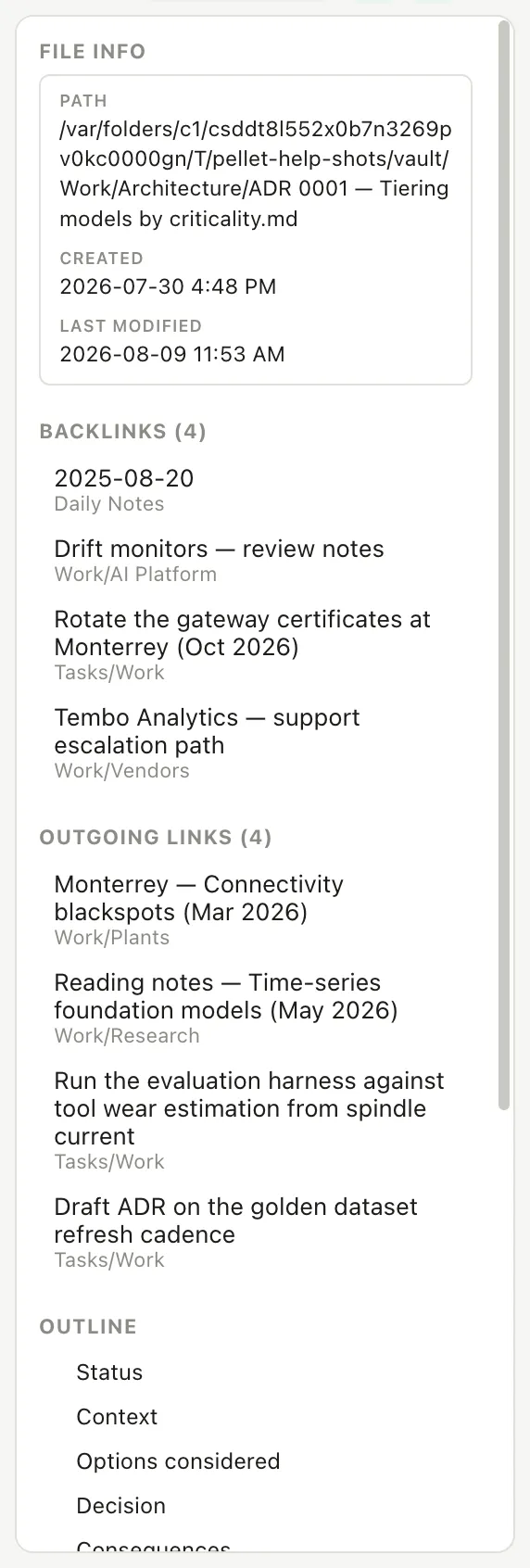
This is where a vault starts paying off. Write a note about a supplier, mention it from three meeting notes, and the supplier note quietly accumulates a list of every conversation it came up in.
Linked mentions: what they said about it
Section titled “Linked mentions: what they said about it”Backlinks tell you which notes point here. Linked mentions show what they said. Turn on Show linked mentions at the end of notes in Settings → General → Behavior, and every note something links to ends with those passages, while you edit and in the reading view.
Each mention shows the bullet that holds the link, the bullets it sits under, and the bullets under it, so a note from a meeting reads in context. Other bullets in that list are left out. A link in a plain paragraph shows the paragraph, and a link under a heading shows the heading’s name above it. The link itself is highlighted.
- Click a note’s name to open it, or click a passage to open that note at the line. Hold ⌘ (Ctrl on Windows) to open it in a new tab.
- Click the arrow beside a note’s name to fold it, or use the button on the bar to fold them all.
- The sort menu on the bar offers the same orders as the file list: modified, created or name.
- The sliders button holds the rest: start with everything folded, list notes that link here only from a property (it shows which one), and skip folders such as Templates.
Pellet remembers these choices on this device. Mentions are read-only here: to change one, open the note it’s in.
Pulling a note into another note
Section titled “Pulling a note into another note”![[Some note]] — with an exclamation mark in front — embeds that note’s content where you put it, live. Edit the original and every place it appears updates.
You can embed just one section: ![[Some note#The heading]].
Useful for anything you’d otherwise copy and paste, and then have to remember to update in five places.
Transcript
Put one note inside another. An exclamation mark in front of a link embeds the note instead of linking to it. Point it at a heading and you get just that section. And it stays live. Edit the original, and every note that embeds it is already right.
Seeing the shape of it
Section titled “Seeing the shape of it”The Graph view in the left rail draws every link you’ve written as a map. You can look at the whole vault, or at just one note and its immediate neighbors — which is usually the more useful of the two once you have a few hundred notes.