Canvas, whiteboards and handwriting
Some thinking doesn’t want to be a document. Pellet has three answers, and all three save as open files you can open elsewhere.
Canvas
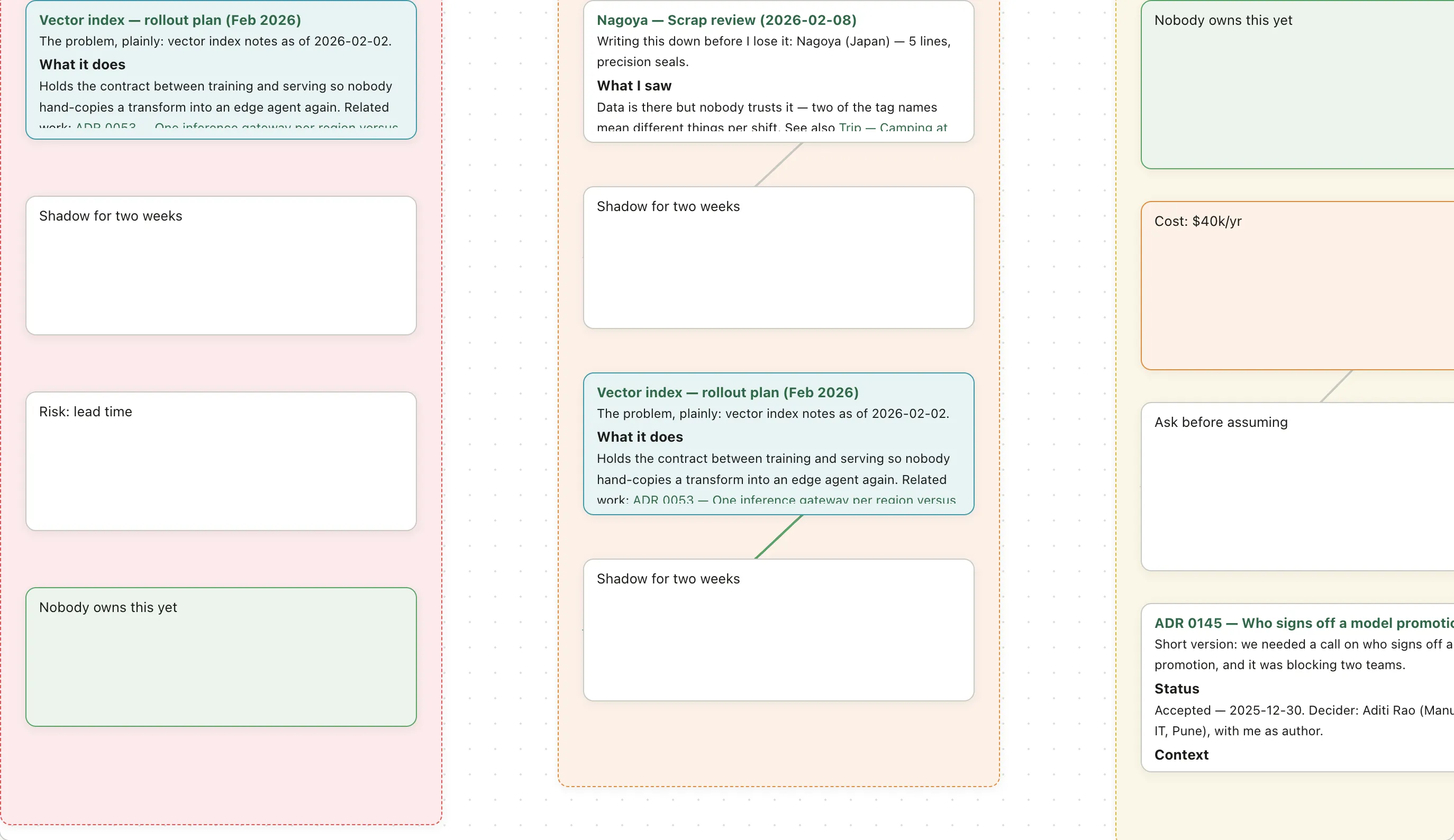
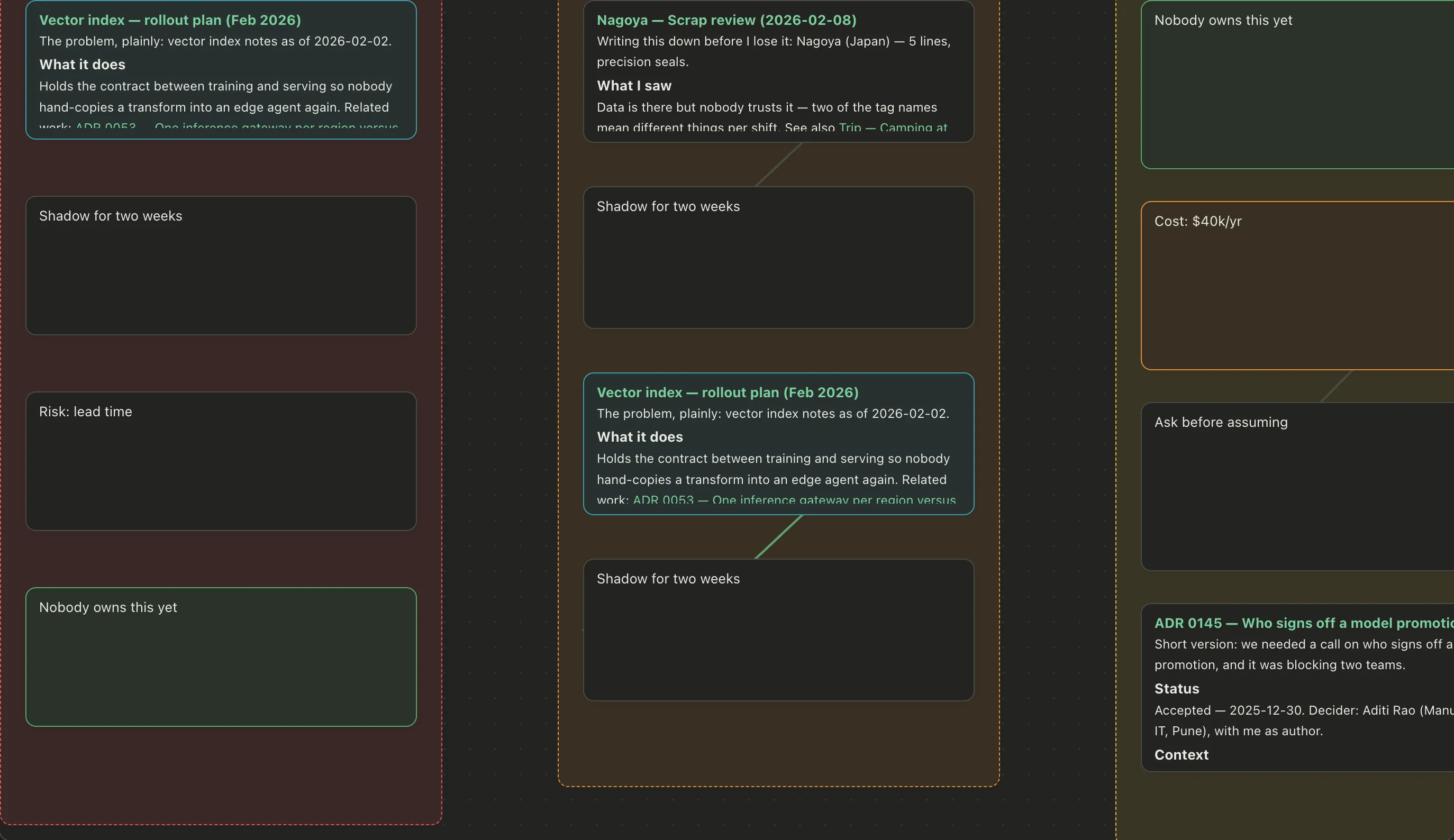
Section titled “Canvas”An infinite board you arrange cards on. A card can be a scrap of text you type straight onto the board, or a whole note from your vault — which stays live, so editing the note updates the card.
Good for: planning something with parts, mapping how ideas connect, laying out a project where the arrangement itself carries meaning.
You can group cards, color them, draw arrows between them, and drag a selection to move it as one. Saved as .canvas in the JSON Canvas format — the same one Obsidian uses, so canvases open in both.
Card shapes
Section titled “Card shapes”A card doesn’t have to be a box. Pick a Shape from the card’s toolbar or its right-click menu: Rounded (the default), Rectangle, Terminal, Decision, Input / output, Database, Document or Circle — the flowchart shapes, named for what they mean. Groups don’t take a shape; they’re the backdrop the cards sit on.
The file is still plain JSON Canvas. Another app opens the same board with every card in the same place — just as ordinary rounded cards.
Formatting a card’s text
Section titled “Formatting a card’s text”A text card is written in markdown, like a note, and shows it formatted. Double-click it to edit: it opens the same editor your notes use, so select a word and the formatting toolbar appears, or use the shortcuts: ⌘B for bold, ⌘I for italic, ⇧⌘X for strikethrough. Headings, lists, links and highlights work the same way.
To change a whole card, select it and press Aa in its toolbar:
- Align: left, center or right. Press the chosen one again to go back to the card’s own default, which is left on an ordinary card and centered on a shaped one.
- Size: S, M, L or XL. M is the size cards have always had. The card stays the same size; only the text grows or shrinks.
- Font: Default (your text font from Settings), Serif, Rounded or Mono.
Note cards have Aa too. It changes how the note looks on this board, not the note itself. Task cards lay out their own details, so they don’t have it.
Select a line and its toolbar has How the line travels: Curved, Straight or Squared. A squared line turns at right angles and goes around the two cards it joins rather than cutting through them. New lines, in Board options, sets what a line starts as; changing it never touches lines already drawn.
A selected line shows a dot at each end. Drag one along a card’s border to put the line exactly where you want it — it stays there as the card moves, and when the card is resized. Drop it on another card to reconnect that end. A filled dot has been placed; a hollow one sits at the middle of its side.
To hand the choice back, press Let the line choose its own sides as the cards move in the line’s toolbar, and the line picks its own sides again as you rearrange.
Board options
Section titled “Board options”The Board options button in the canvas toolbar — also on the board’s right-click menu — holds the switches for how canvases behave: Card shapes, Collapsible groups, Highlight connected lines, Focus mode, Presentation, and New lines. They’re your preferences rather than part of any board, so they apply to every canvas you open.
Turning Card shapes off hides the shape picker. A board that already has shapes keeps them.
Highlight connected lines, on to start with, thickens the lines that touch whatever you’ve selected. Focus mode goes further: select a card and everything not connected to it fades back. It’s off until you turn it on.
Folding a group
Section titled “Folding a group”With Collapsible groups on — it is to start with — a group’s label carries a chevron. Click it, or choose Collapse from the group’s right-click menu, and the group folds to its label bar, with a count of the cards inside so it doesn’t read as empty. Expand brings them back.
Switching Collapsible groups off draws every folded group open again. The fold comes back when you switch it on.
Presenting a board
Section titled “Presenting a board”Turn on Presentation in Board options, then right-click a card and choose Add to the presentation. Cards are numbered in the order you add them, and the number shows on the card. Remove from the presentation takes one out, and the rest renumber so there’s no gap.
Once at least one card is numbered, right-click the board and choose Start the presentation. Pellet frames the first card. →, ↓, Page Down or Space moves to the next; ←, ↑ or Page Up goes back. The walk stops at the last card rather than starting over. Escape — or Leave the presentation — ends it.
Whiteboards
Section titled “Whiteboards”For freehand diagramming, Pellet embeds Excalidraw — the actual editor, not an imitation. Shapes, arrows, hand-drawn-looking boxes, text.
Saved as real .excalidraw files, so you can open them at excalidraw.com or in Obsidian’s plugin, edit there, and come back.
Good for: sketching an architecture, a seating plan, anything where the shapes matter more than the words.
Export and Import live in the board’s ⋯ menu, alongside the rest of the file actions rather than in the toolbar — the strip along the top is for the tools you reach for constantly, and exporting isn’t one of them. Export a board as PNG, SVG or a copy of the .excalidraw file, either into your vault or out to disk. Importing an .excalidraw file opens it as a new board rather than merging it into the one you’re looking at.
Handwriting
Section titled “Handwriting”On iPad with an Apple Pencil, .ink pages let you write by hand. Pressure-sensitive, using the system’s own handwriting engine.
Stored as plain JSON, not a proprietary blob — so a handwritten page is still a readable file in ten years.
Transcription turns a handwritten page into a normal typed note, which then behaves like any other note: searchable, linkable, in the graph. It’s off until you set up a service in Settings → AI & MCP.
That can be a cloud service with your own API key — or Ollama running on your own machine, in which case the page never leaves it. Ollama needs no key, just the address it’s listening on (blank means http://localhost:11434) and a model that can see images, like llava. A text-only model will answer about nothing.
A page also remembers how far you had zoomed in, per document, on that device — and changing the paper color or template no longer throws that away.
How new Papers start
Section titled “How new Papers start”Settings ▸ Paper sets what a new Paper looks like: its paper color, page size and template. Changing any of those inside a Paper changes that page and nothing else — it never quietly becomes your default.
There’s a quicker way round, and it’s usually the better one. Set a page up until it looks right, then press Make new Papers look like this in the toolbar, next to the paper color. It keeps the color, size and template — and the pen and ink color with them. The button grays out once there’s nothing left to save, which is how you know it worked, and on a page you haven’t touched it tells you at a glance that this is already what you’ll get.
Your pen
Section titled “Your pen”The pen and ink color follow you. Pick the highlighter in green and the next Paper opens with the highlighter in green — no re-picking on every file. You can set them in Settings ▸ Paper too, if you’d rather choose before you start writing.
The eraser is the exception: it’s never handed back, so putting a page down mid-erase can’t open the next one unable to draw.
On Android, the first time a pen touches a Paper page it switches to pen only — your finger scrolls instead, and a resting palm doesn’t draw. It stays that way until you change it with the pen button in the toolbar. Autodetect, under Settings ▸ Paper ▸ Your pen, turns it off.
Nib widths stay in the toolbar, under each pen — a thickness is something you judge by drawing with it. They apply from then on, and never change ink already on a page.
One difference worth knowing if you write on more than one device: nib widths follow you everywhere, because the same page should come out looking the same. The pen in your hand doesn’t — that’s a fact about where you’re sitting.
Names and getting back
Section titled “Names and getting back”A new document is named for the moment you made it — Whiteboard - 20260813.1432.07, and the same for Canvas - and Paper -. Never “Untitled”, which tells you nothing and collides with the last four you made. Rename it whenever you like.
Canvases, whiteboards and Paper pages all carry Back (⌘[) and Forward (⌘]) buttons in the tab strip, the same as notes do. Follow a card through to the note it holds, then come straight back to the board you were on. To keep the board open beside it, ⌘-double-click a note or task card to open it in a new tab, or ⇧⌘-double-click to open it to the right.
Giving one properties
Section titled “Giving one properties”A canvas, whiteboard or Paper drawing can carry properties like a note can — a status, a stage, a client. Set them from the Table, where the file is a row like anything else, then filter and group on them.
They’re stored inside the drawing itself, so they travel with it when you copy, move or sync it.
Which to reach for
Section titled “Which to reach for”Roughly: canvas when the pieces are notes you already have, whiteboard when you need to draw, handwriting when you think better with a pen.