The editor, in 37 videos.
Writing in Pellet: formatting, links, tables, embeds and the tools around the page. The written guide covers the same ground if you'd rather read it.
Peek at a link without opening it
Transcript
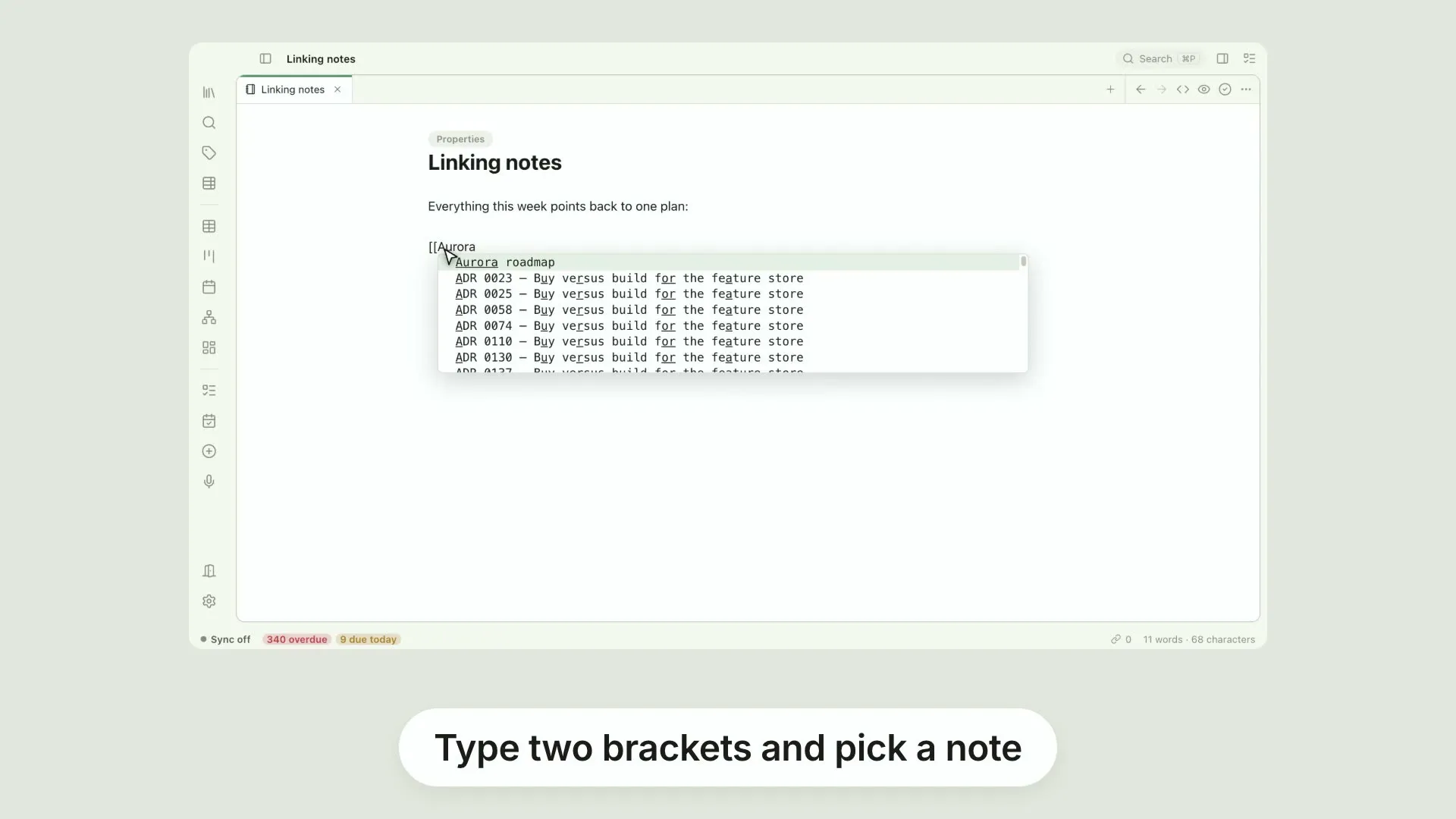
Peek at a link without opening it. Rest the pointer on a link, and a card shows the note on the other side, fully rendered. Move onto the card and it stays put, so you can read down it. The button in its corner opens the note.
Link straight to a heading
Transcript
Link straight to a heading. Type a hash after the note's name, and Pellet lists that note's headings. Pick one, and it finishes the link for you. Click the link, and the note opens scrolled to that heading, not at the top.
Today's note with ⌘D
Transcript
Today's note is one shortcut away. Press command D, and today's note opens in the Daily Notes folder, named for the date. If it doesn't exist yet, Pellet creates it, so you can start typing. Press it again from anywhere, and you're back on the same page, with everything you wrote.
Insert a template with /
Transcript
Your templates are in the slash menu. Every note in your Templates folder is a slash command. This one has placeholders for the title and the date. In any note, type slash and part of the template's name. It's listed under Templates. Press Enter, and the template goes in at the cursor, with this note's title and today's date filled in.
Paste formatted text as Markdown
Transcript
Paste formatted text, and keep the formatting. Paste formatted text with command V, and the heading, the bold and italic, the link and the list all come through. Underneath, it's plain Markdown, the same text you'd type yourself. When you only want the words, shift command V pastes plain text instead.
Give a note other names
Transcript
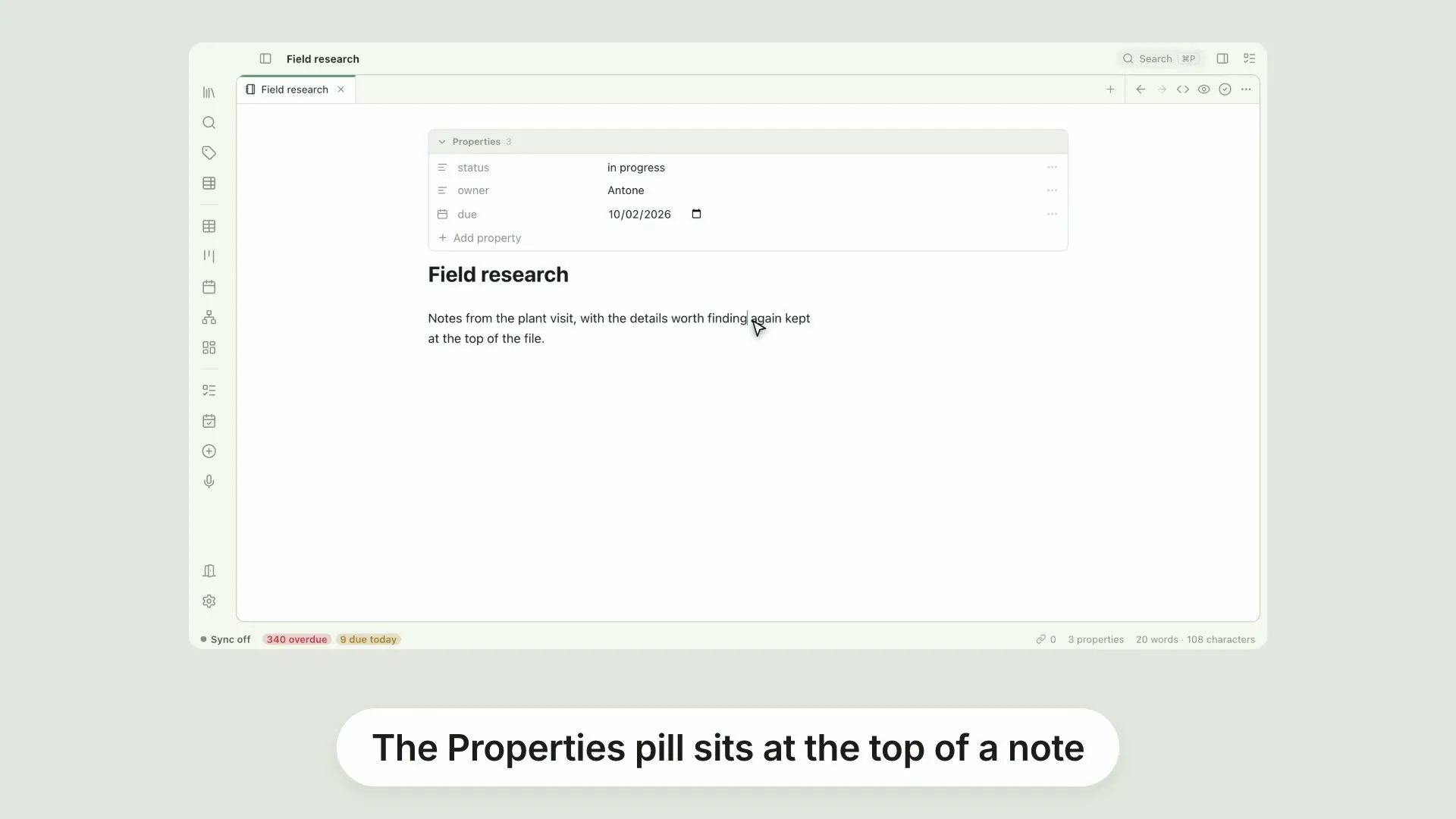
Give a note other names. Add aliases to the note's frontmatter, and list the other names it goes by. Now a link to any of those names opens the note, just as its filename would.
Read a folder as one document
Transcript
Read a whole folder of notes as one document. Right-click a folder and choose Arrange by hand. Then Open Flow view shows every note in it, one after another. Outline shows each note as a row with its synopsis. Drag one to a new place, and the notes in the folder move with it. Cards shows the same notes as index cards. Click one, and Flow takes you to that section.
Checklist lines become tasks
Transcript
Turn a line into a real task. Hover a checklist item and Pellet offers to convert it. The line becomes a task with its own note behind it. It still reads as a checkbox in your file, but it now carries a priority, a due date, and it turns up in the Table, the Kanban and the Calendar.
Collapsible headings and lists
Transcript
Long notes fold out of the way. Hover a heading and a chevron appears. Click it and everything under that heading collapses, so a long note becomes its own outline. Lists fold the same way. Any item with children gets a chevron of its own.
Footnotes
Transcript
Footnotes that stay out of the way. Write a marker where you want the reference, and the note itself further down. Pellet collapses the marker to its number. The definition sits at the bottom of the file, out of the way of the sentence you are writing, and the reference reads as a footnote should.
Hide markdown at the cursor
Transcript
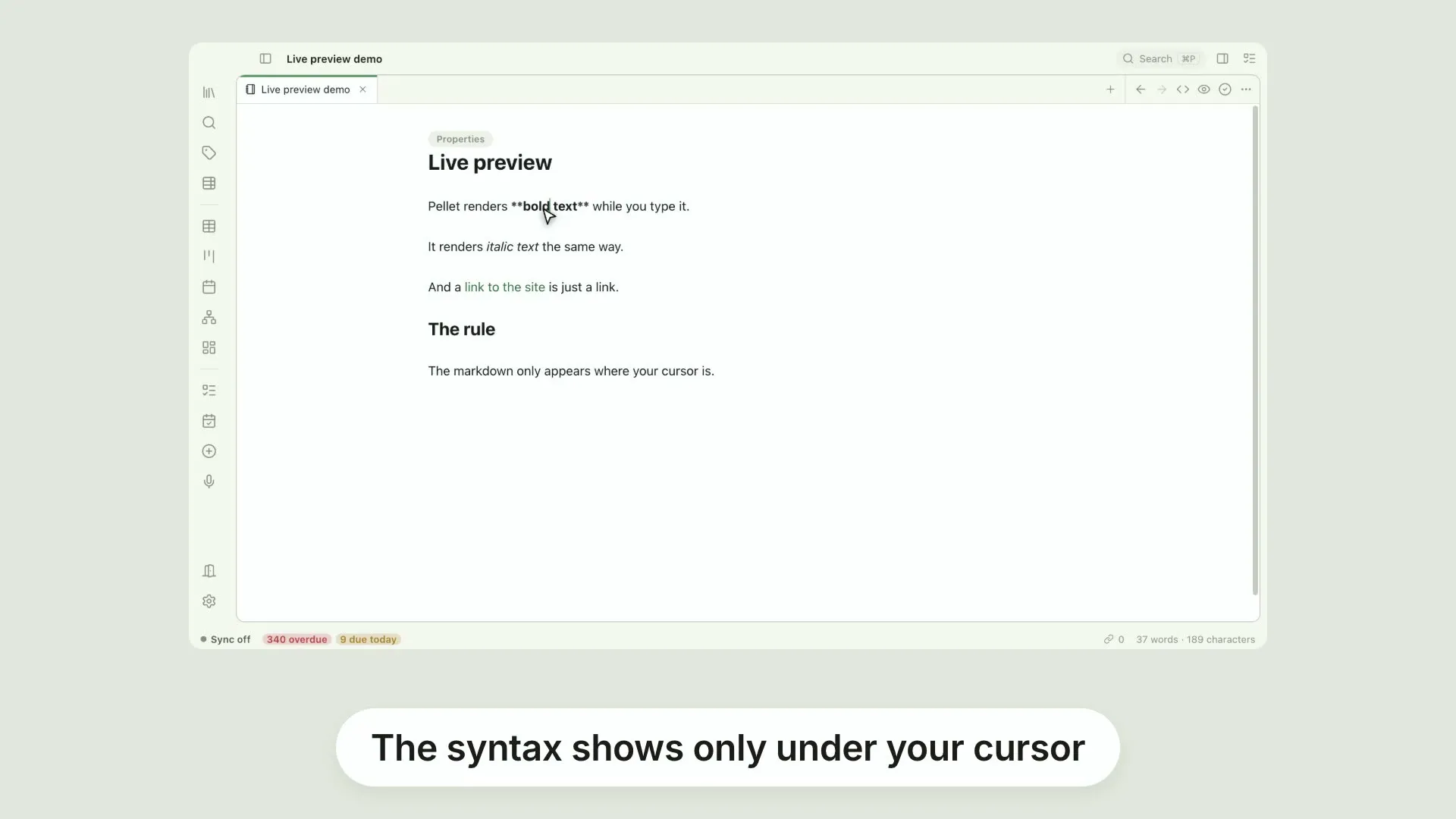
Hide the syntax, even under your cursor. Normally the markers show on the line you are editing, so you can see what you are changing. Turn on hide markdown at the cursor and they stay hidden. The line you are writing looks exactly like the finished text.
Numbered list styles
Transcript
Numbered lists, eight ways. The List style button offers decimal, multilevel, outline, upper and lower roman, upper and lower letters, and padded decimal. Pick one and the list redraws. Your file keeps ordinary one dot, two dot markers, with a single comment recording the style, so the note stays readable anywhere else.
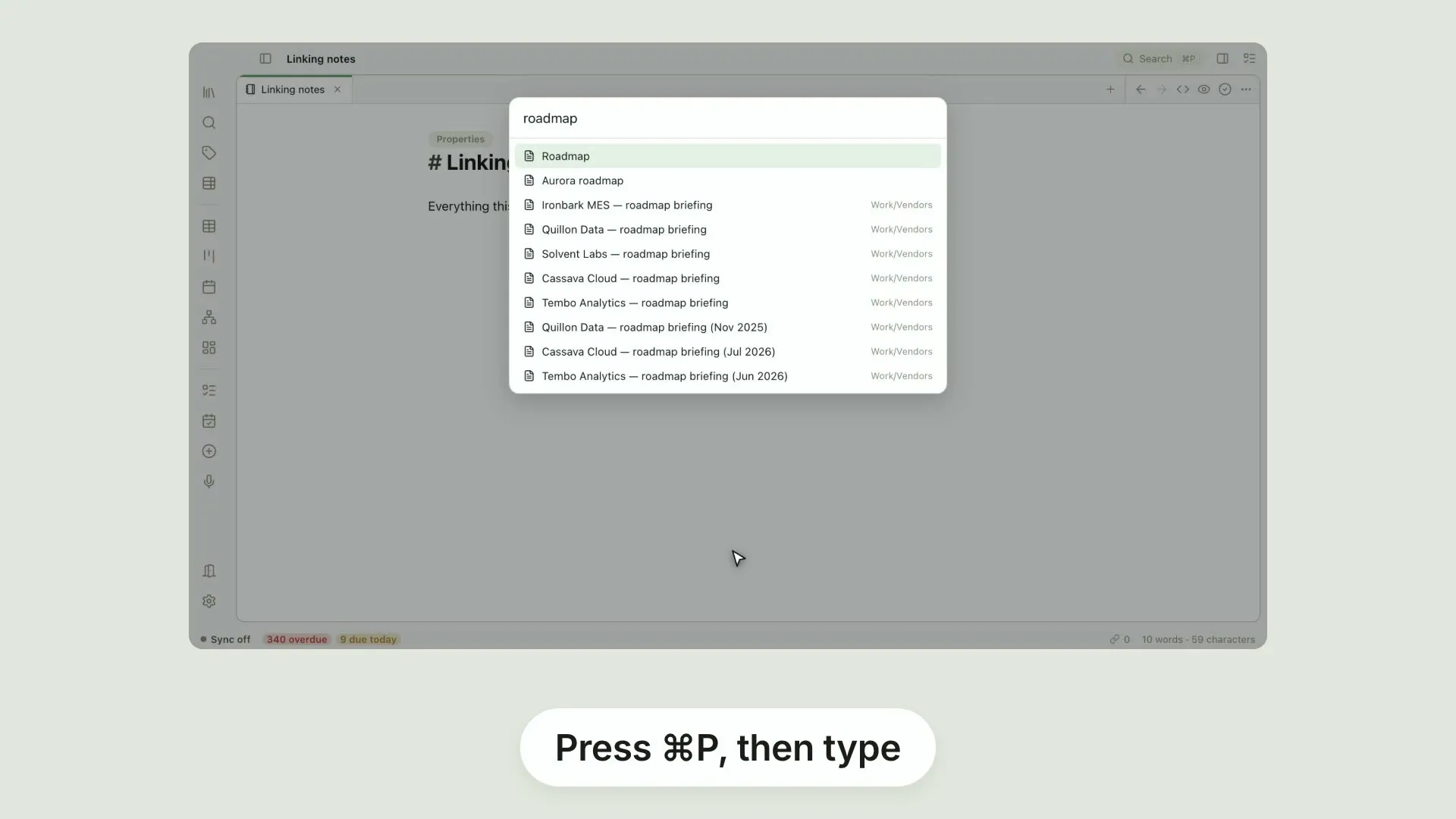
The slash menu
Transcript
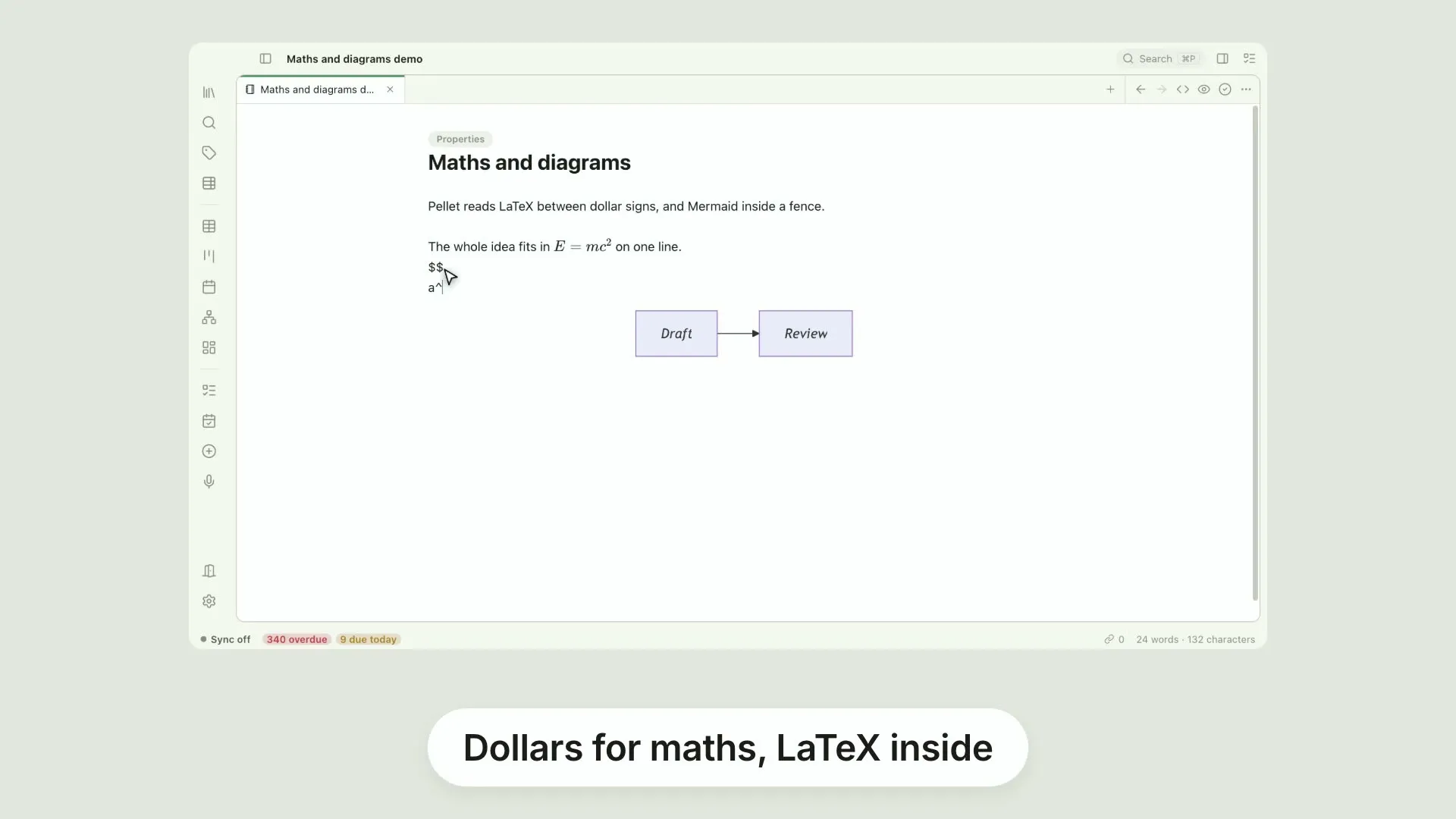
Type a slash to insert almost anything. Headings, lists, tasks, tables, code, maths, dates and more, without leaving the keyboard. Keep typing to narrow it down, then press Enter.
Calculate, format and align table columns
Transcript
Your tables can do arithmetic. Open the menu on any column and choose Calculate. Sum, average, median, minimum, maximum or range, worked out from the rows and kept up to date. The same menu formats a column as a number, a percentage or a currency, and aligns it left, center or right.
Editable markdown tables
Transcript
Markdown tables, without counting pipes. Every cell is a real input. Tab walks across, the arrow keys step between cells, and the columns keep themselves lined up in the file. Add rows and columns, move them, delete them, from the menu on any column.