Learn

Fifty-three short videos.

Most run under a minute. Start with the tour, then take whatever you need — every video has a transcript, and the ones that explain a feature sit on the help page for it.

Your notes are data, not documents
Transcript

Pellet is not just a note-taking app. It is where all of your data ends up. Notes, yes. But also your tasks, your calendar events and meeting notes, the highlights you create in a PDF or ePub, handwritten notes in Paper, the whiteboards and canvases you brainstorm on. Here that is three thousand four hundred files, and every one of them is a plain file in a folder you own. Capture everything with ease. Type notes. And when a task turns up while you are in the middle of something else, add it in the Tasks panel, right there beside what you were writing. No switching views, no losing your place. Search the table and there it is, an ordinary row with everything else. The structure sits in the files themselves. Links between them, tags, and properties written into the front matter, so the organisation outlives the app that made it. And because it is data, you can look at it any way you like. The same files in a table you can sort, filter and edit in place. In a board, when the work has stages. In a calendar, when it has dates. Or in a graph. Narrow it to one note, and you see exactly what it links to, and what links back. Some of it was never text to begin with. Canvases and whiteboards sit in the same vault, beside the notes they belong to. When it is time to show someone, export a note, or a whole folder read as one document, to markdown, rich text or PDF. And make it look the way you want. Headings, body, tables and callouts, changed against a live sample and saved as a theme you can reuse whenever you like. And there's so much more. AI features that run on-device, for transcription of handwriting and audio, text in images, and related notes. Sync between your own devices, end to end encrypted. And free apps for iPhone and Android. It runs where you do. On your desktop, your tablet and your phone. On a Mac, on Windows, on Linux, on iOS and on Android.

The editor 30 videos
0:25
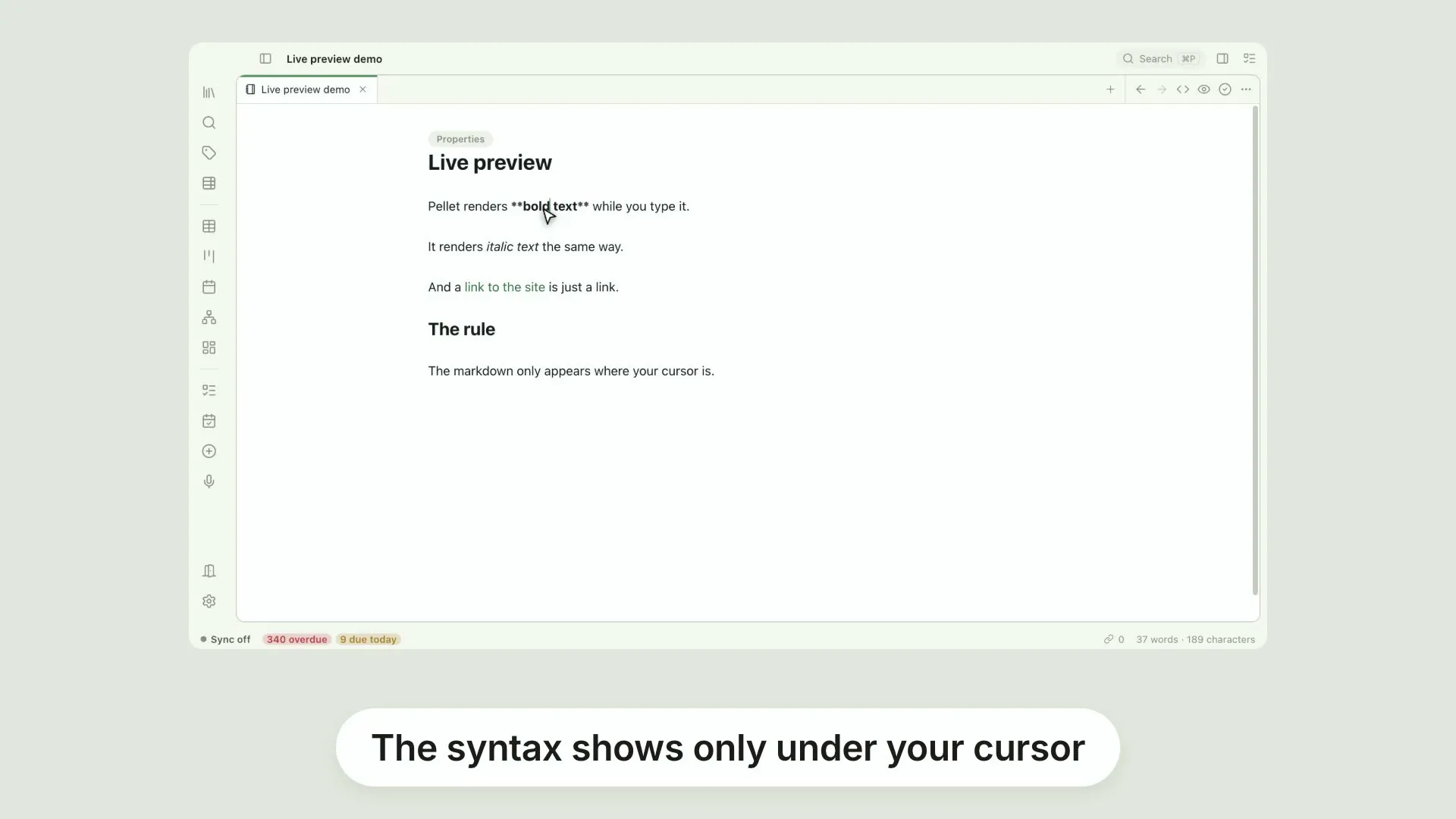
Markdown that gets out of the wayPellet stores your notes as plain markdown, but you don't have to stare at the syntax
0:21
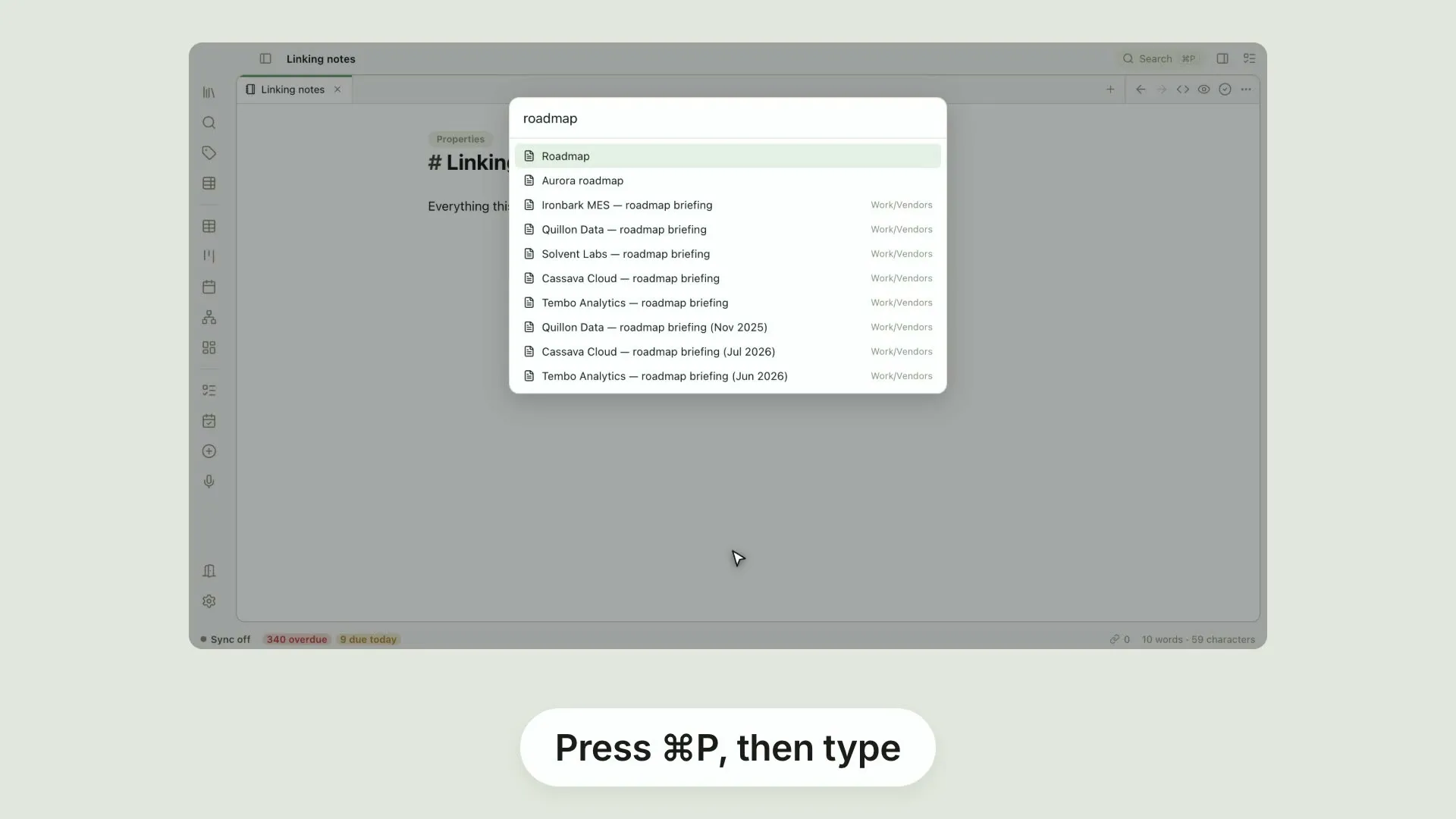
Jump to any note with ⌘PPress ⌘P anywhere in Pellet to open the quick switcher
0:22
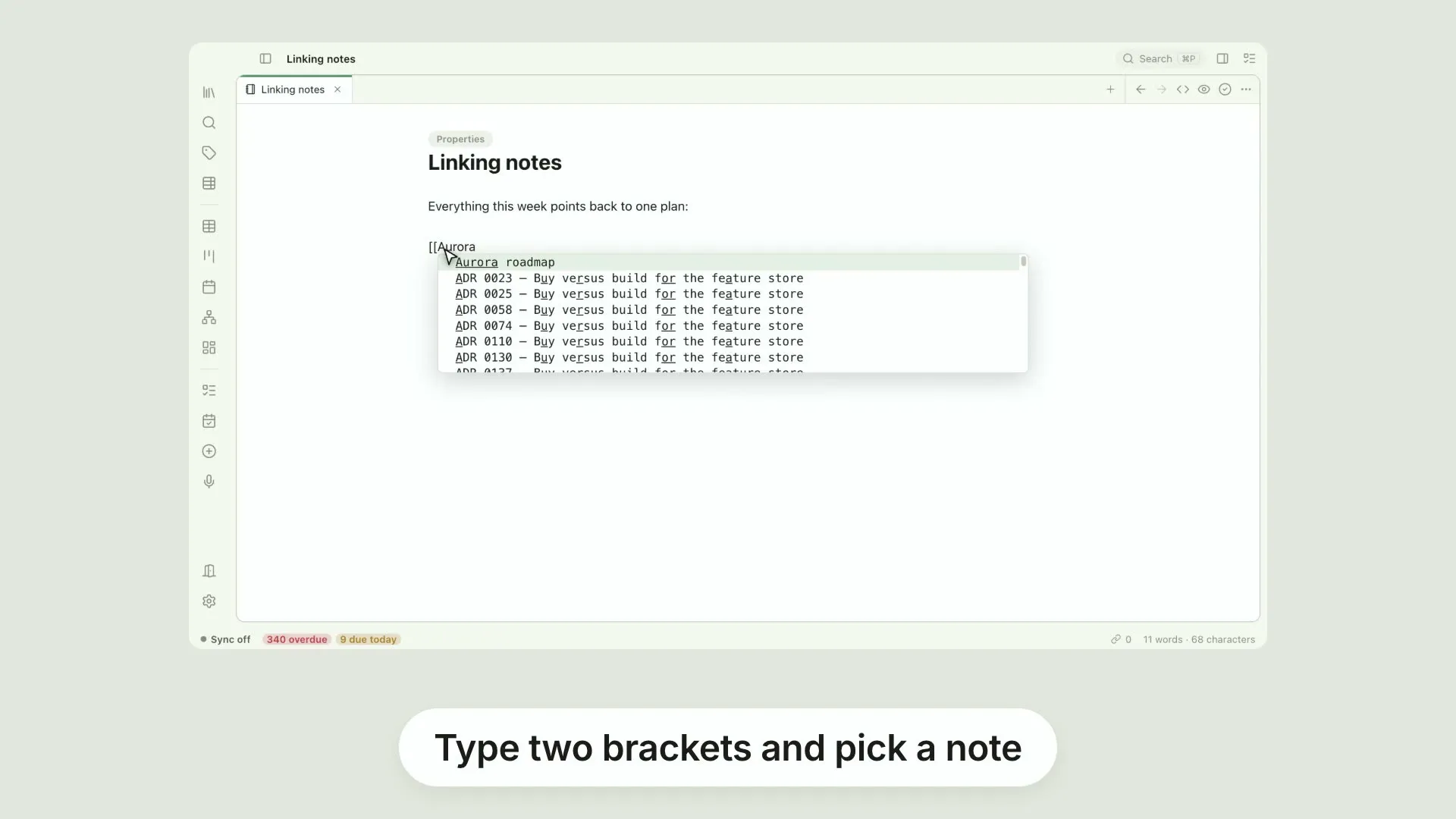
Link notes together with [[Type two square brackets to link one note to another
0:23
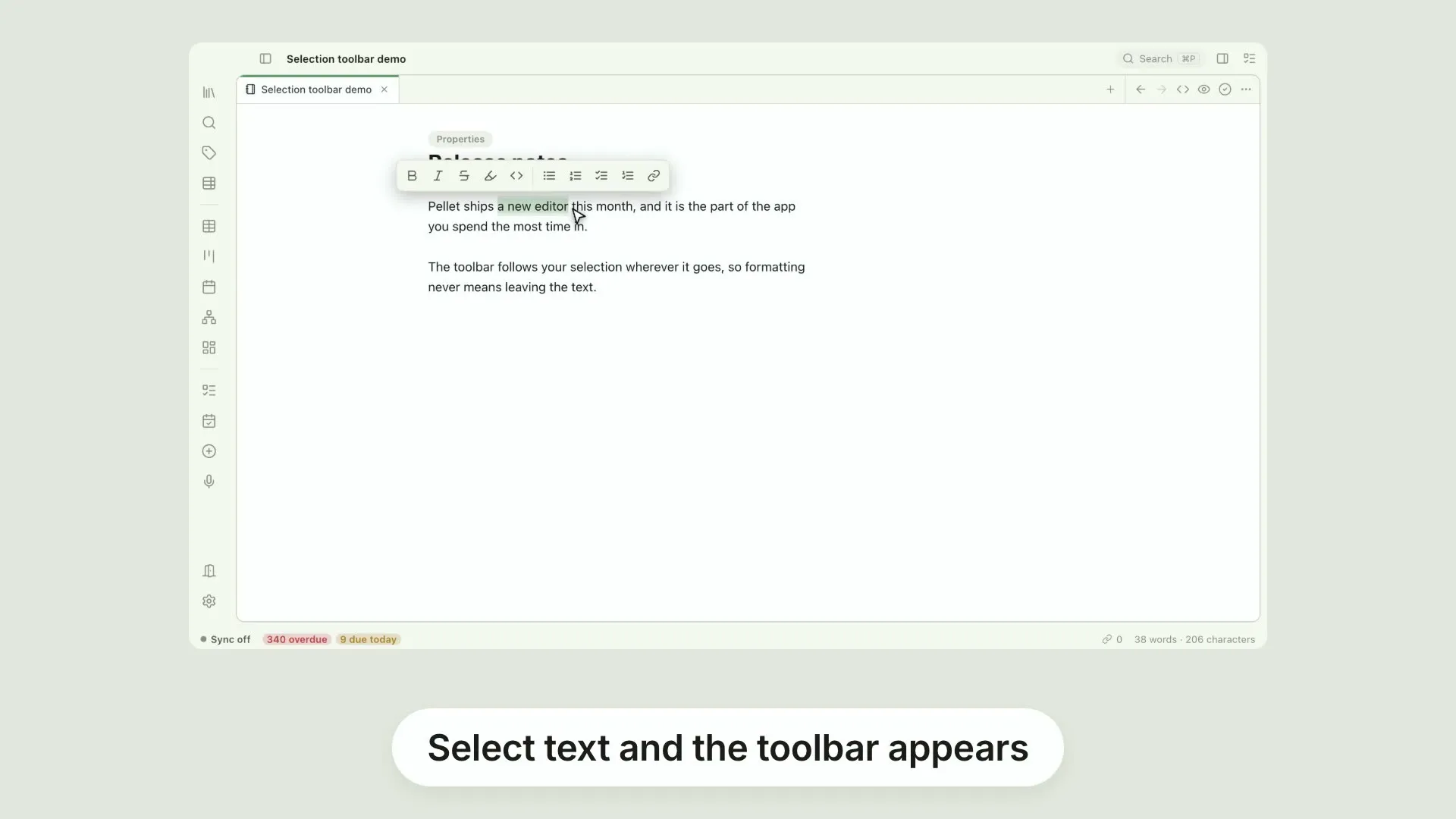
The selection toolbar, and ⌘B / ⌘ISelect any text in Pellet and a small toolbar appears just above it: bold, italic, strikethrough, highlight, inline code, headings and links
0:20
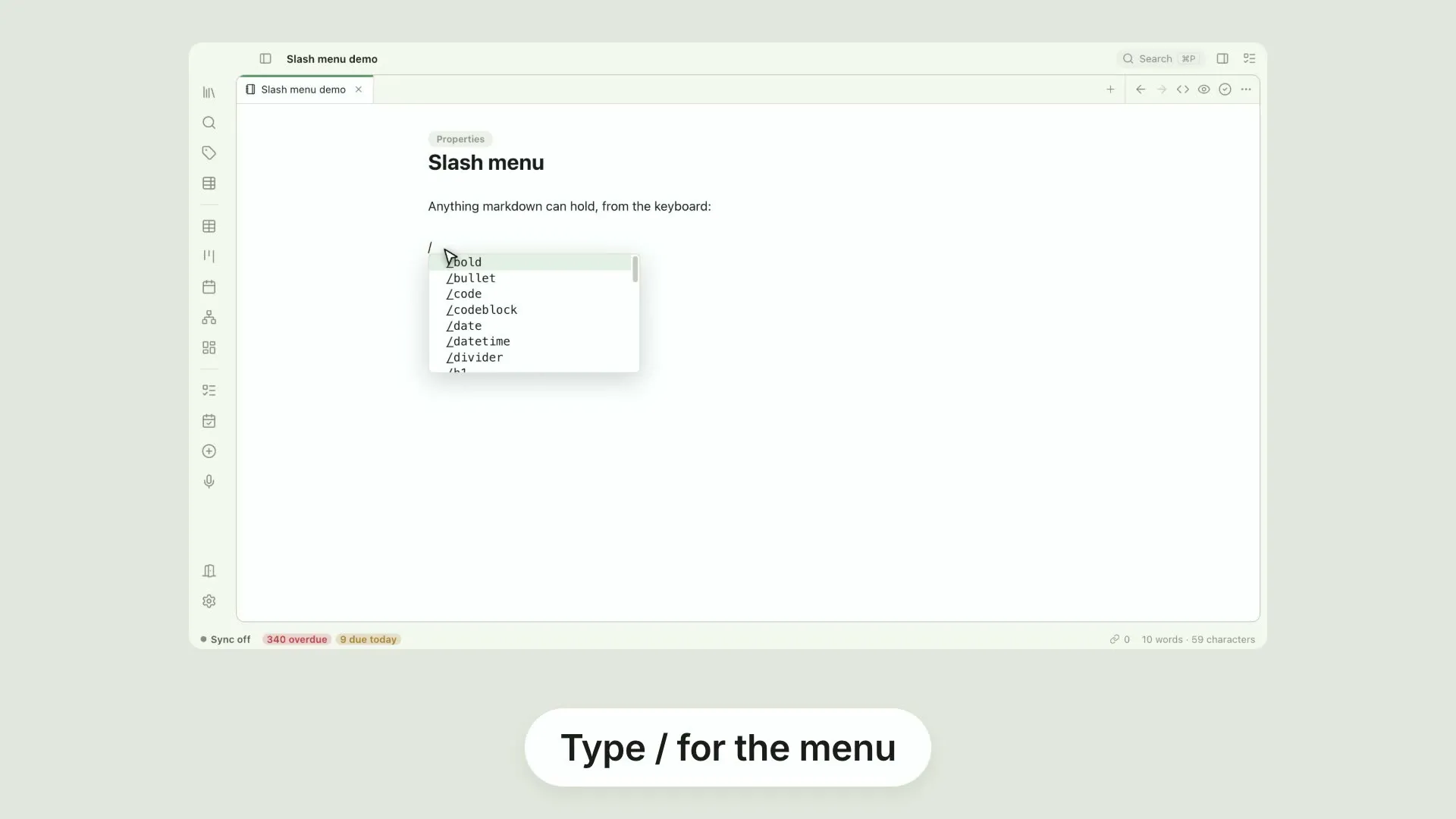
The slash menuType a slash anywhere in a note to insert almost anything
0:21
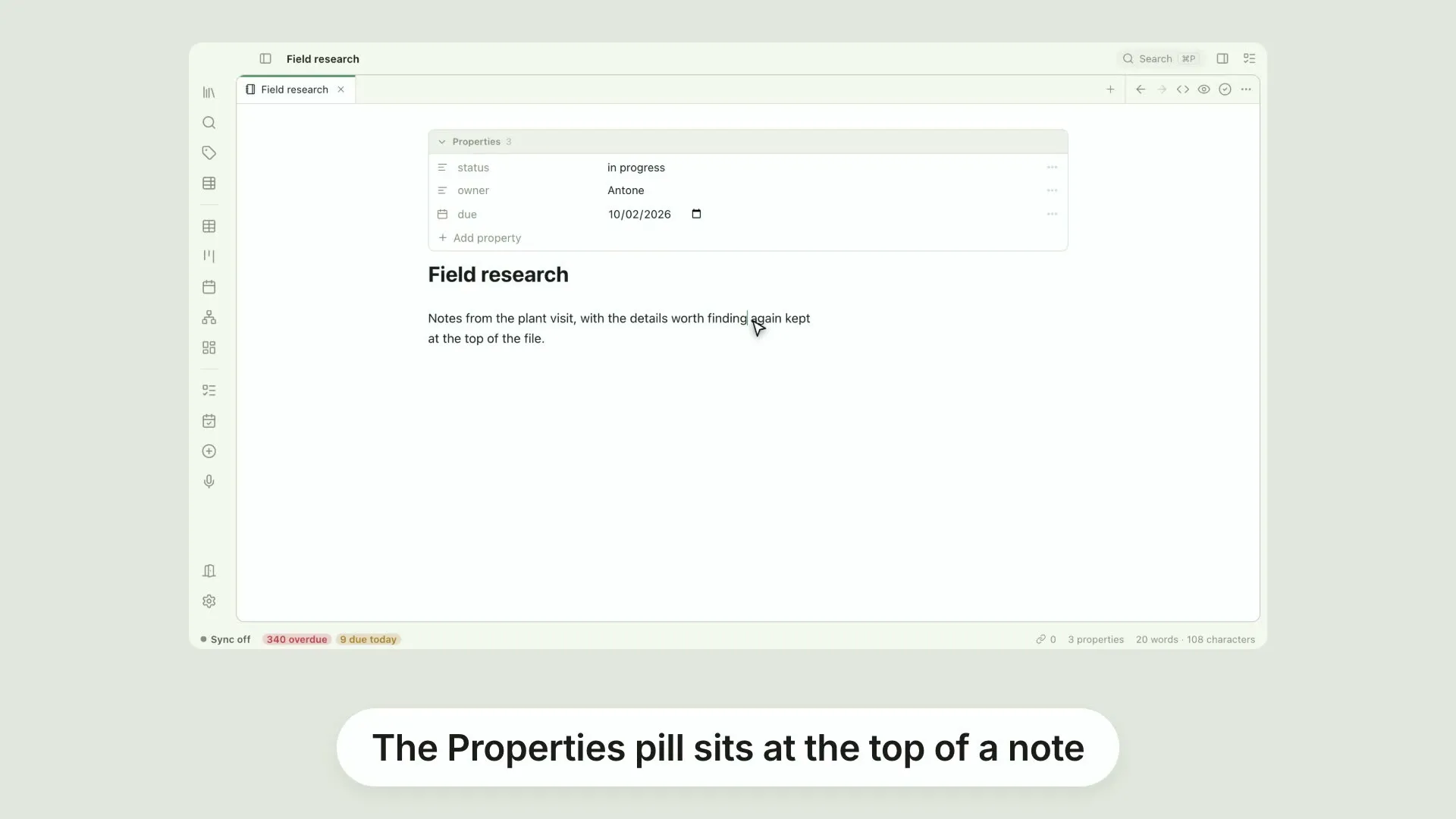
Properties on a noteClick the Properties pill at the top of any note to see and edit its properties
0:26
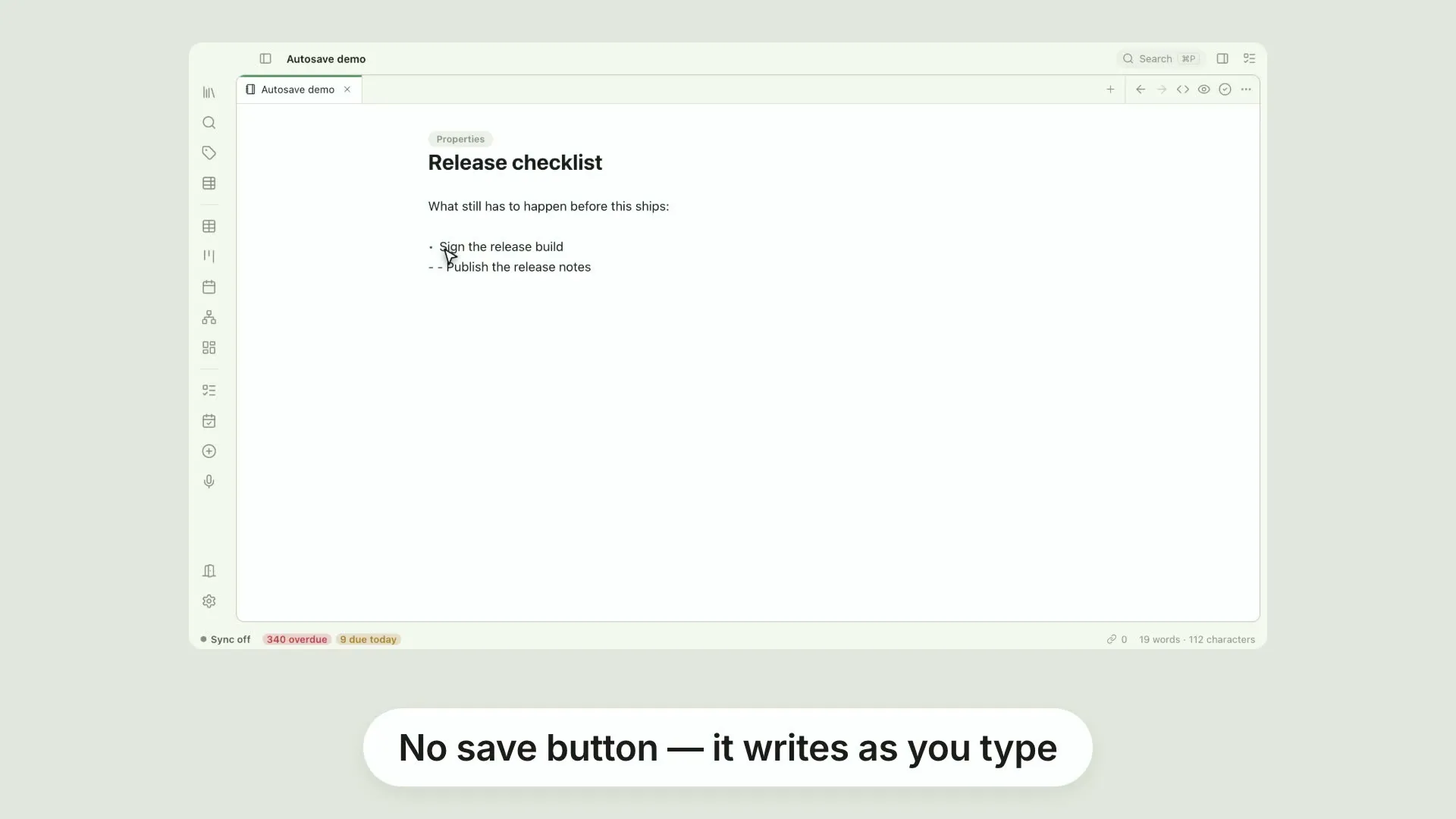
Autosave and version historyPellet has no save button
0:24
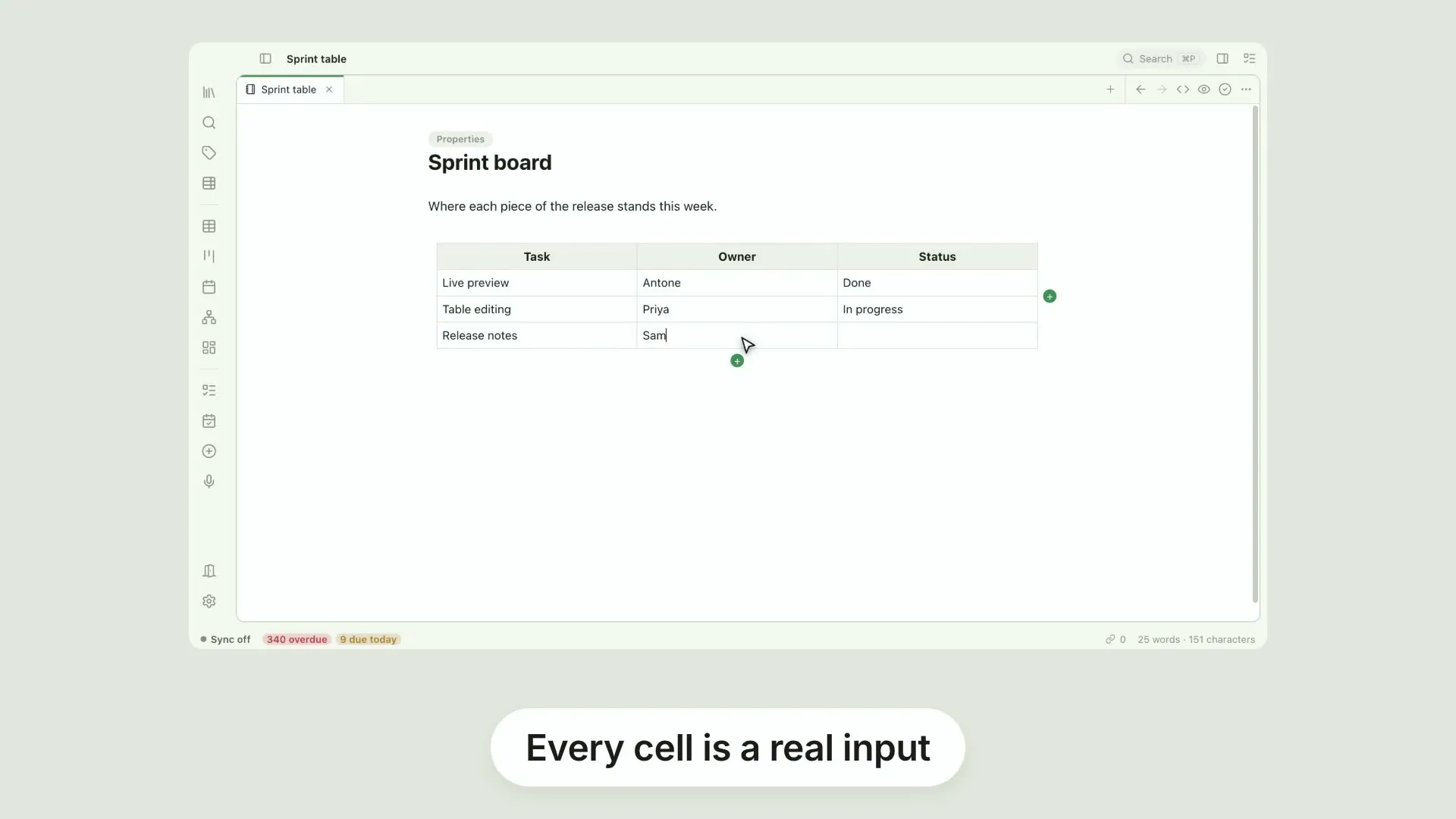
Editable markdown tablesPellet renders a markdown table as a real table, and every cell is an input
0:25
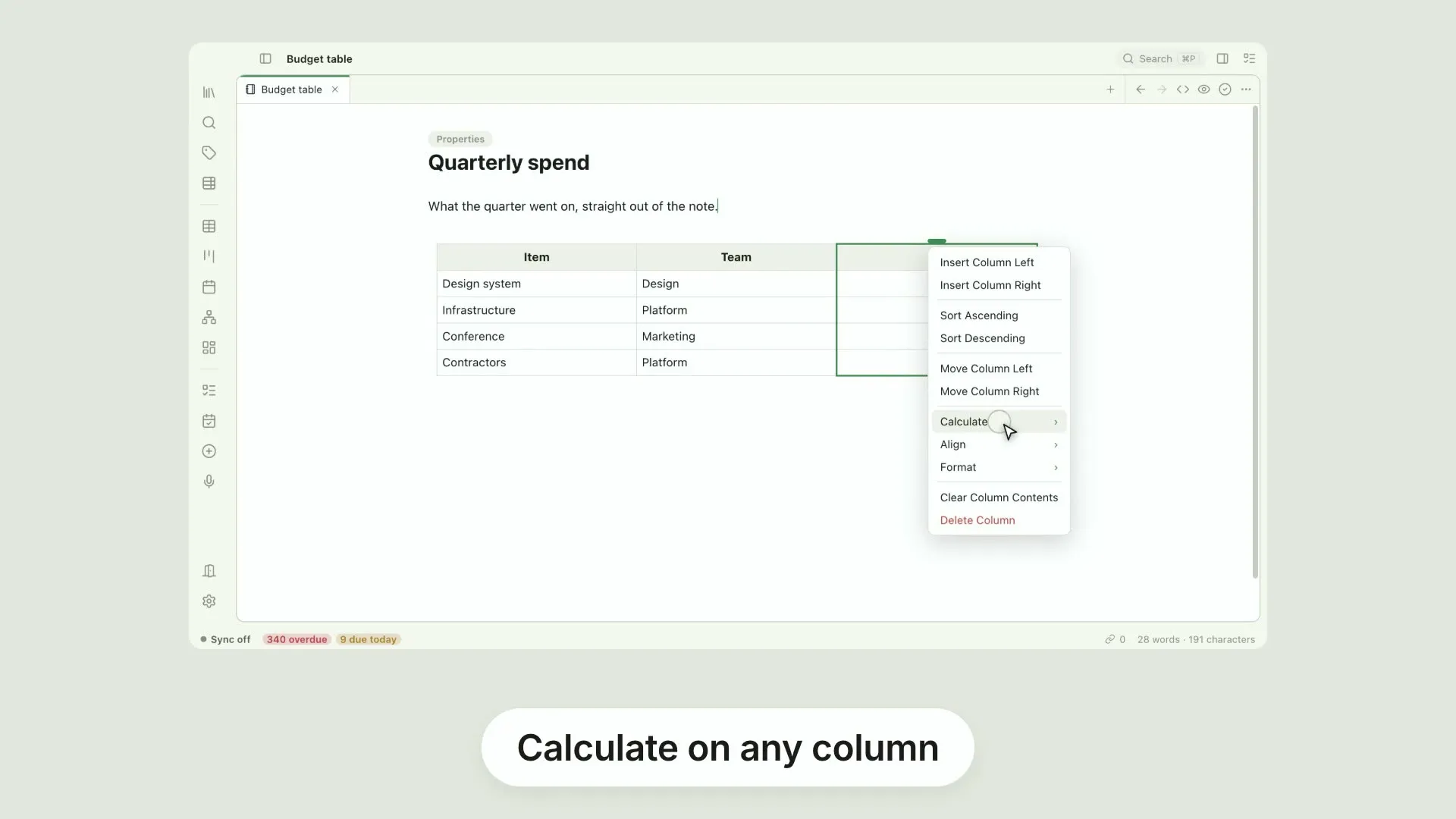
Calculate, format and align table columnsThe menu on any table column has more than row operations
0:24
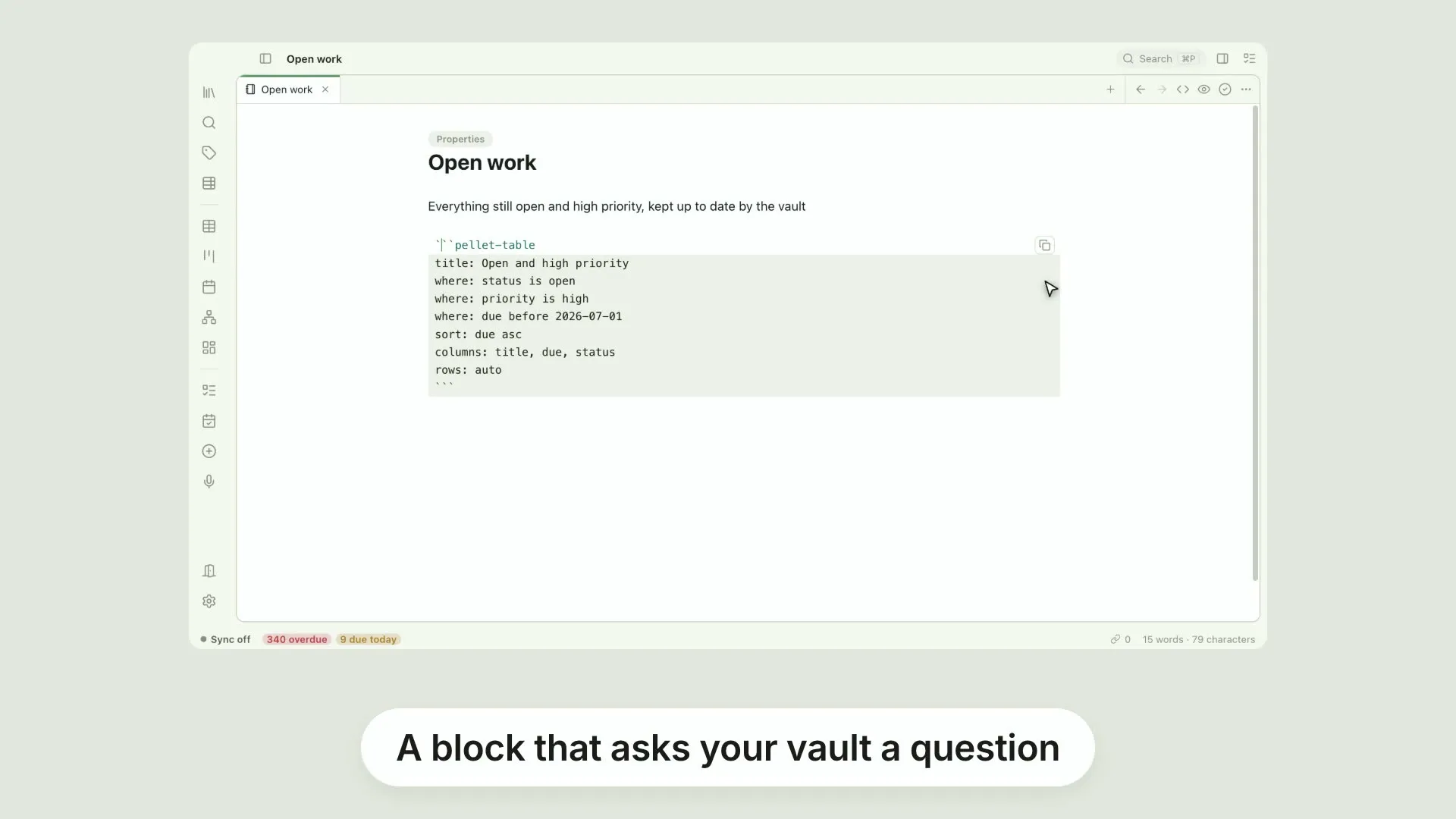
Embedded live query tablesA fenced pellet-table block turns a question about your vault into a table inside the note
0:23
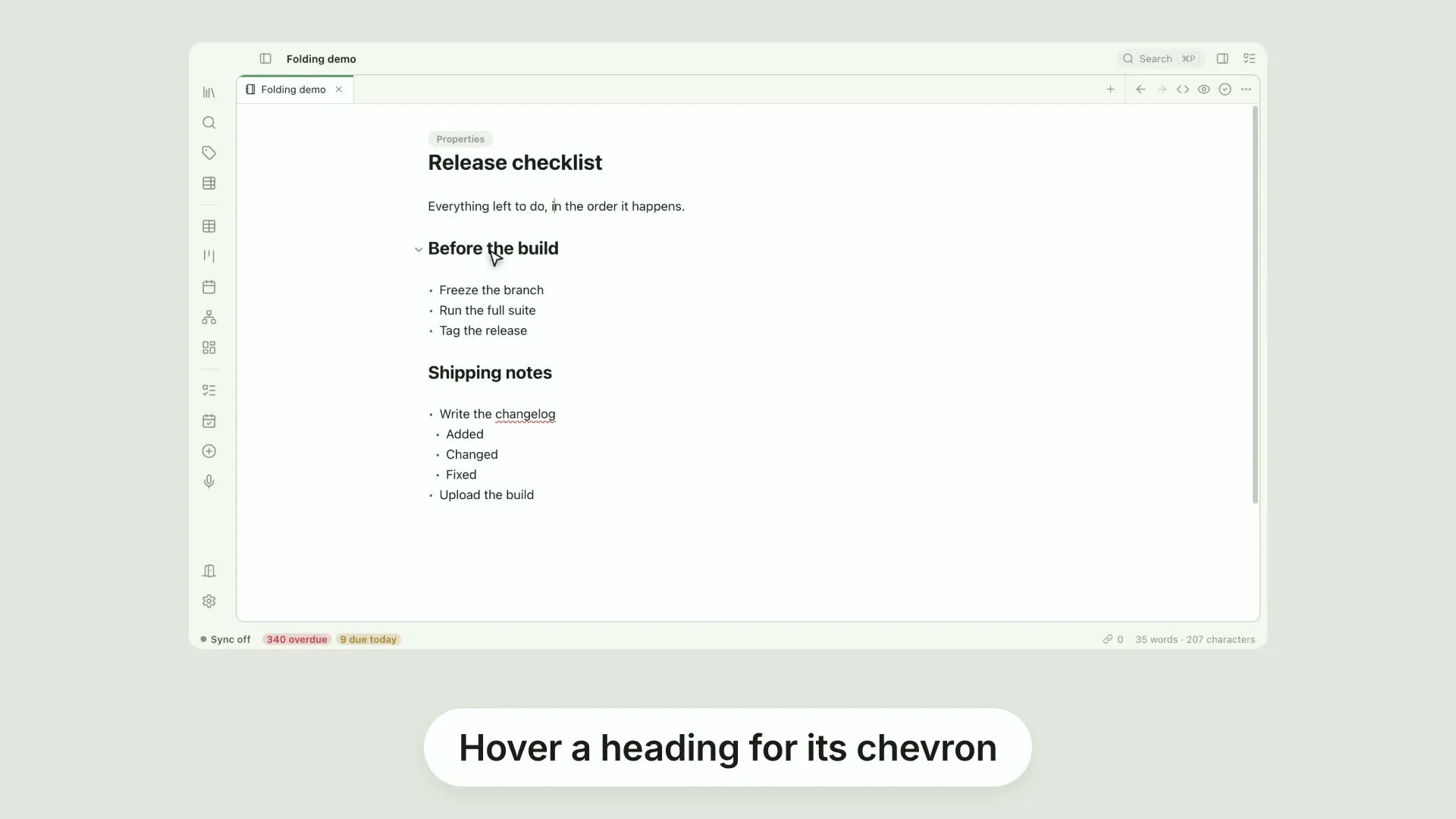
Collapsible headings and listsA long note does not have to be a long scroll
0:27
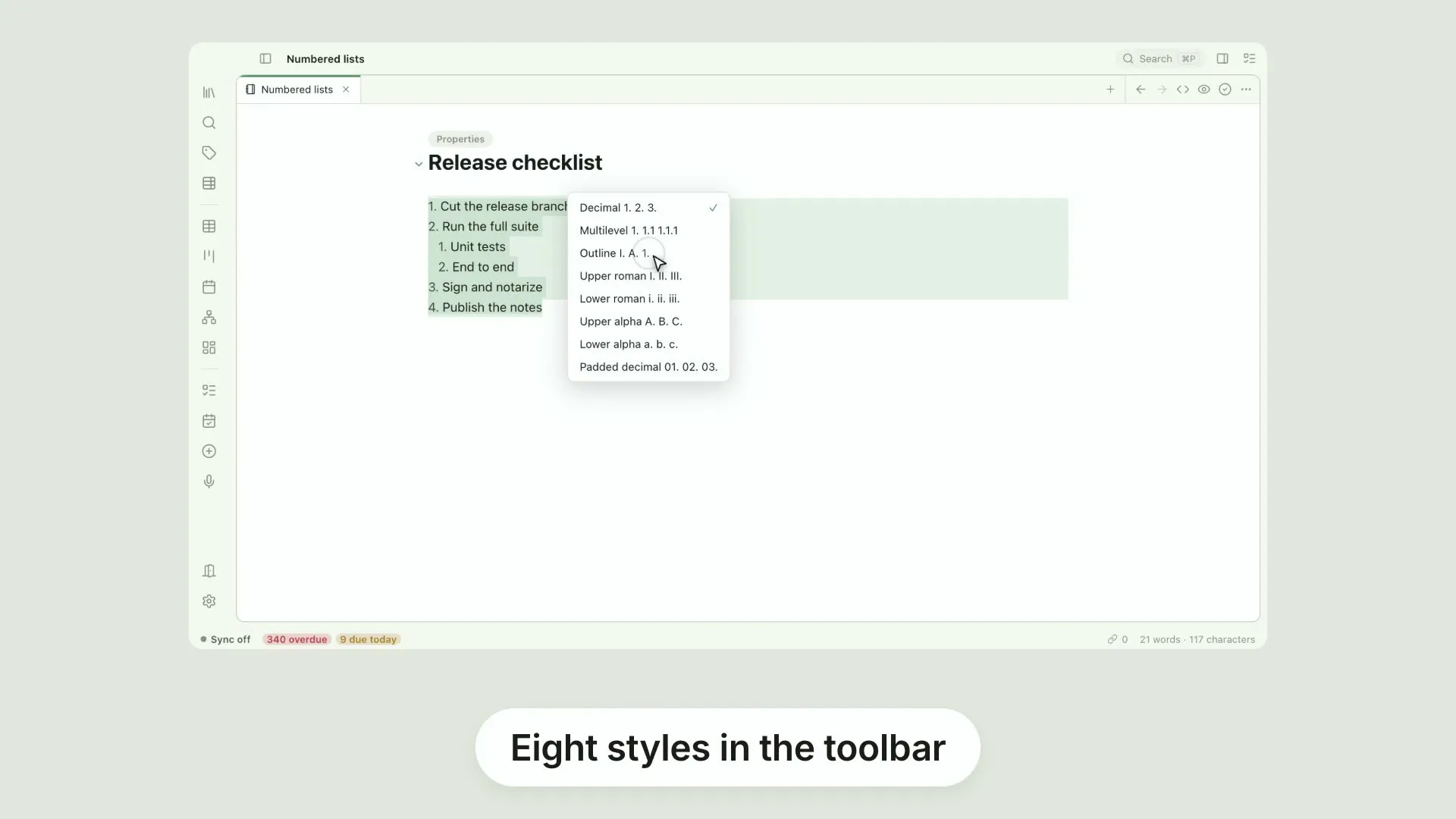
Numbered list stylesA numbered list in Pellet can be decimal, multilevel, outline, upper or lower roman, upper or lower alpha, or padded decimal
0:24
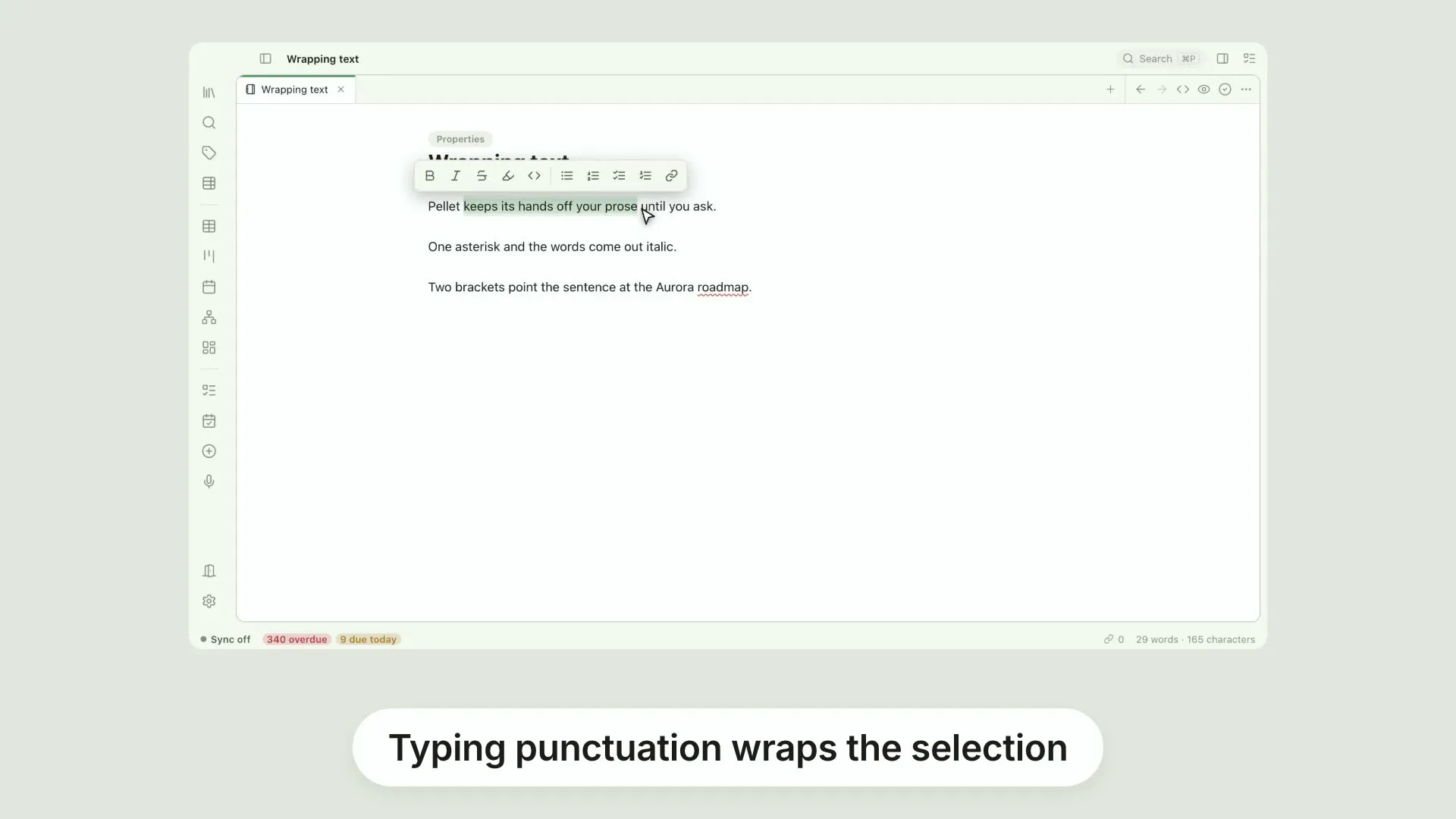
Wrap a selection by typingSelect some text in Pellet and type a bracket, a quote, an asterisk, an underscore, a tilde or a backtick
0:24
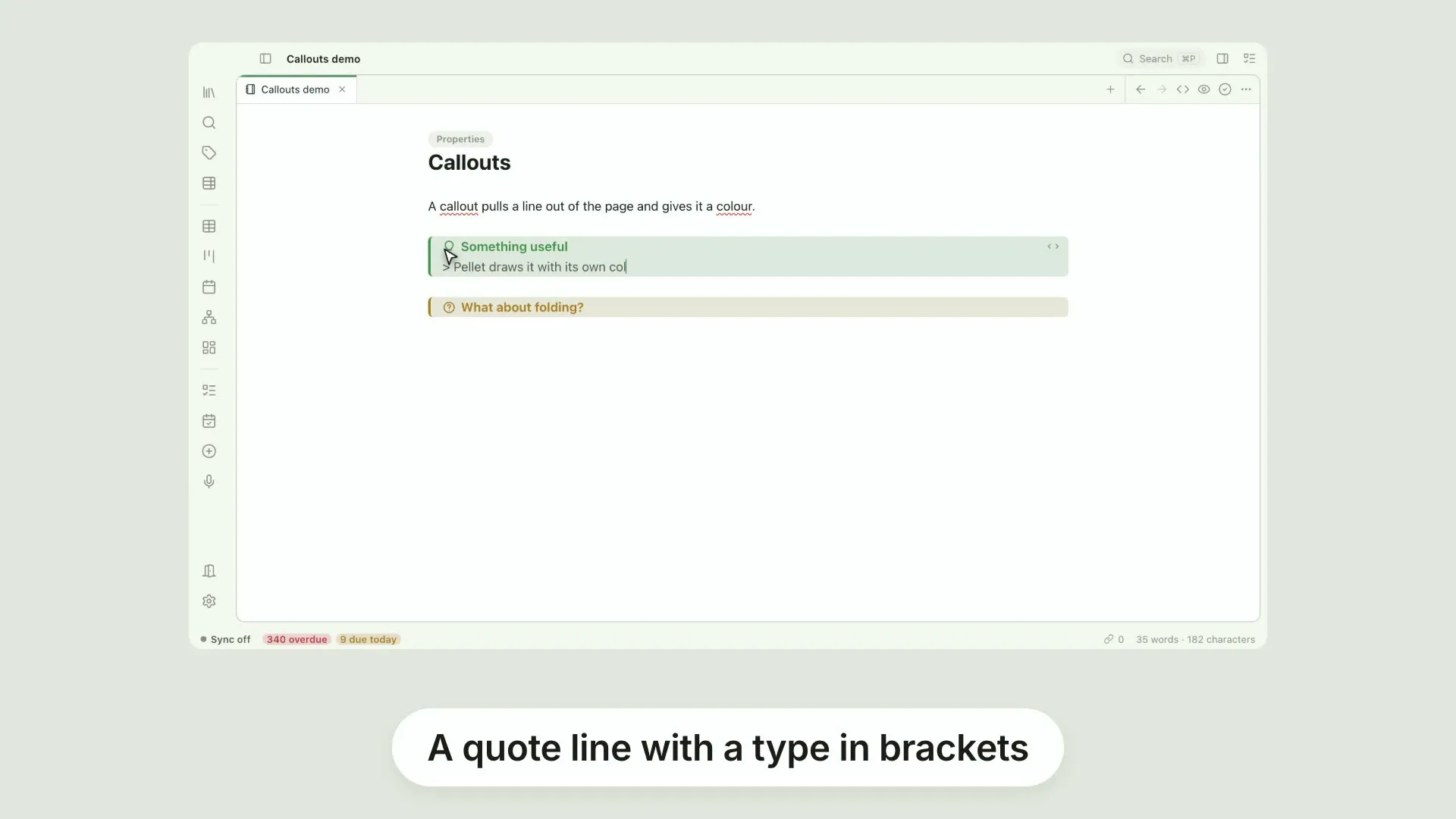
CalloutsA callout is an ordinary blockquote with a type in brackets on its first line, and Pellet renders it with a colour, an icon and a title
0:25
Turn a Table view into a live embedThe quickest way to get a live table into a note is to build it in the Table view first
0:23
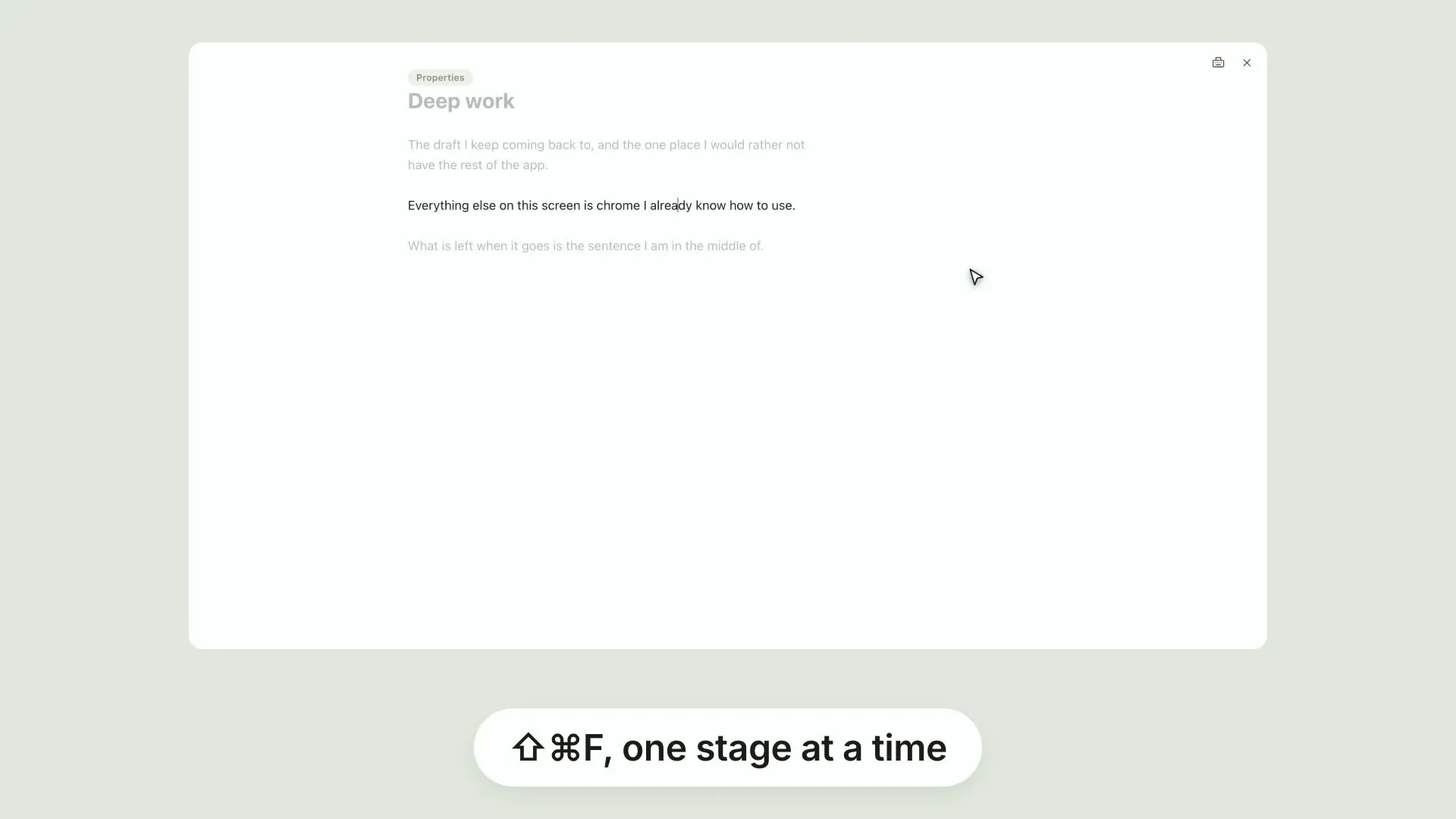
Focus mode and typewriter scrolling⇧⌘F puts Pellet into focus mode, taking the interface away a stage at a time until only your writing is left
0:24
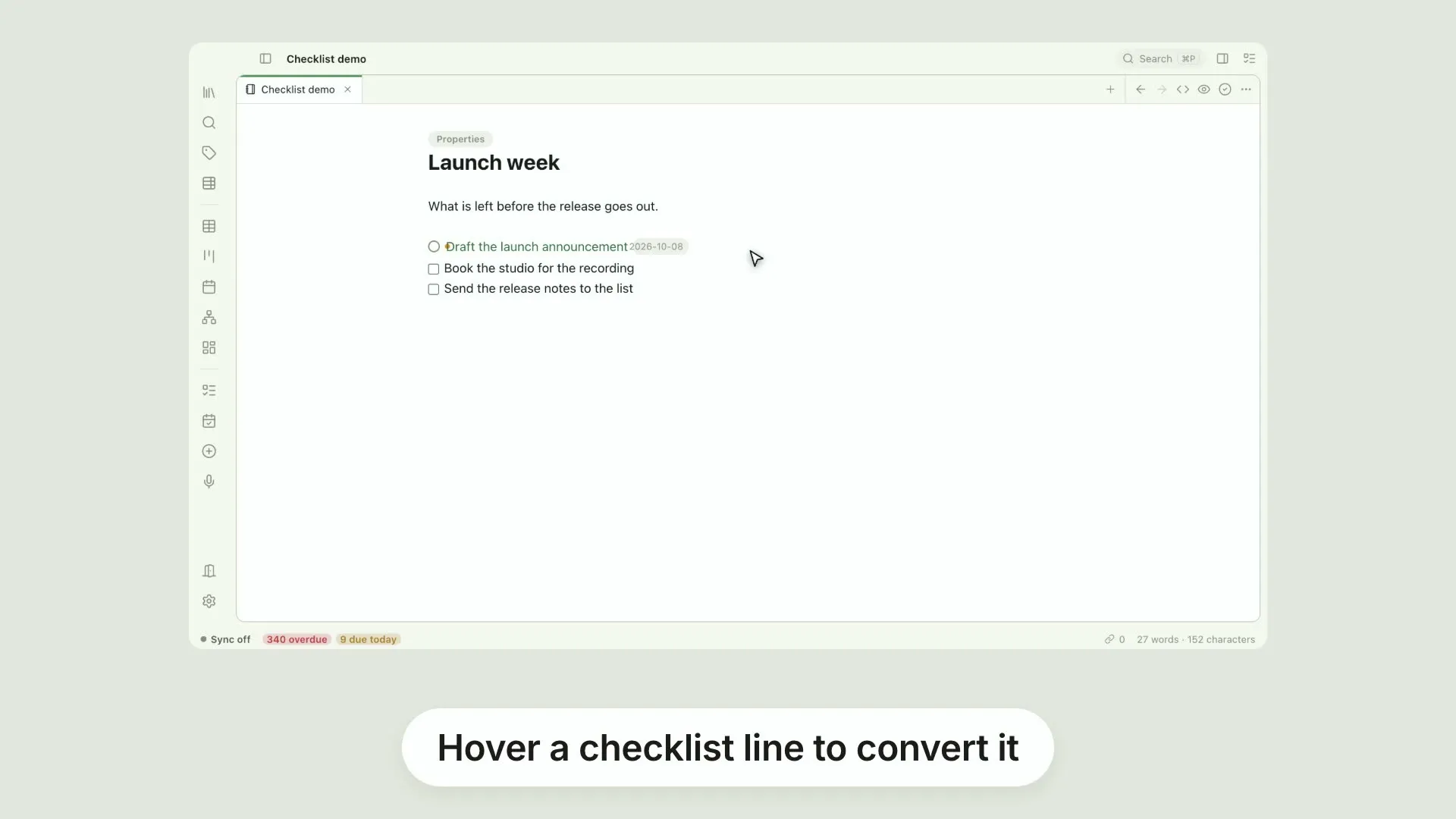
Checklist lines become tasksWrite an ordinary checklist line and Pellet will turn it into a real task
0:26
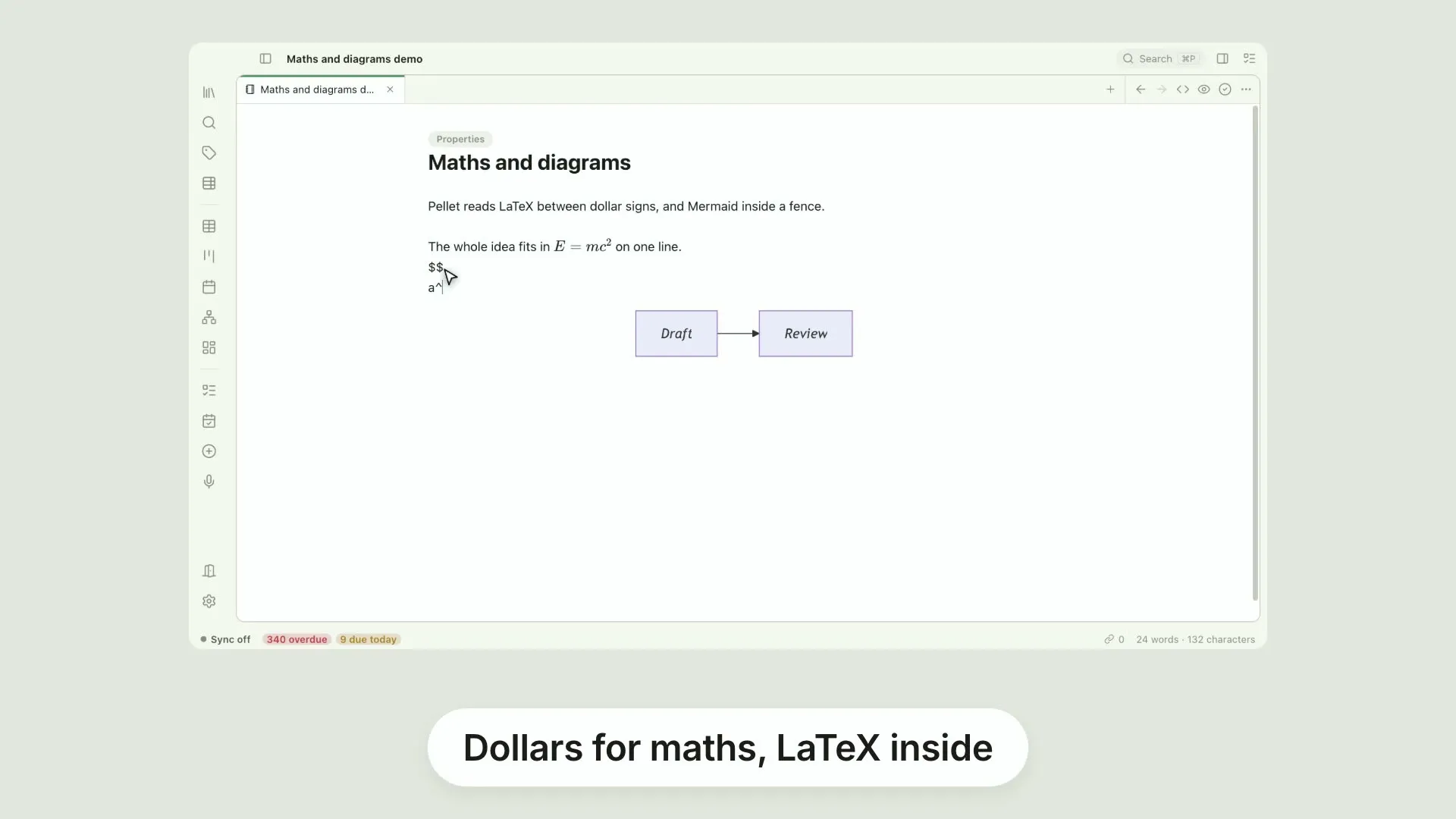
Maths and Mermaid diagramsWrap an expression in dollar signs and Pellet renders the LaTeX inline
0:25
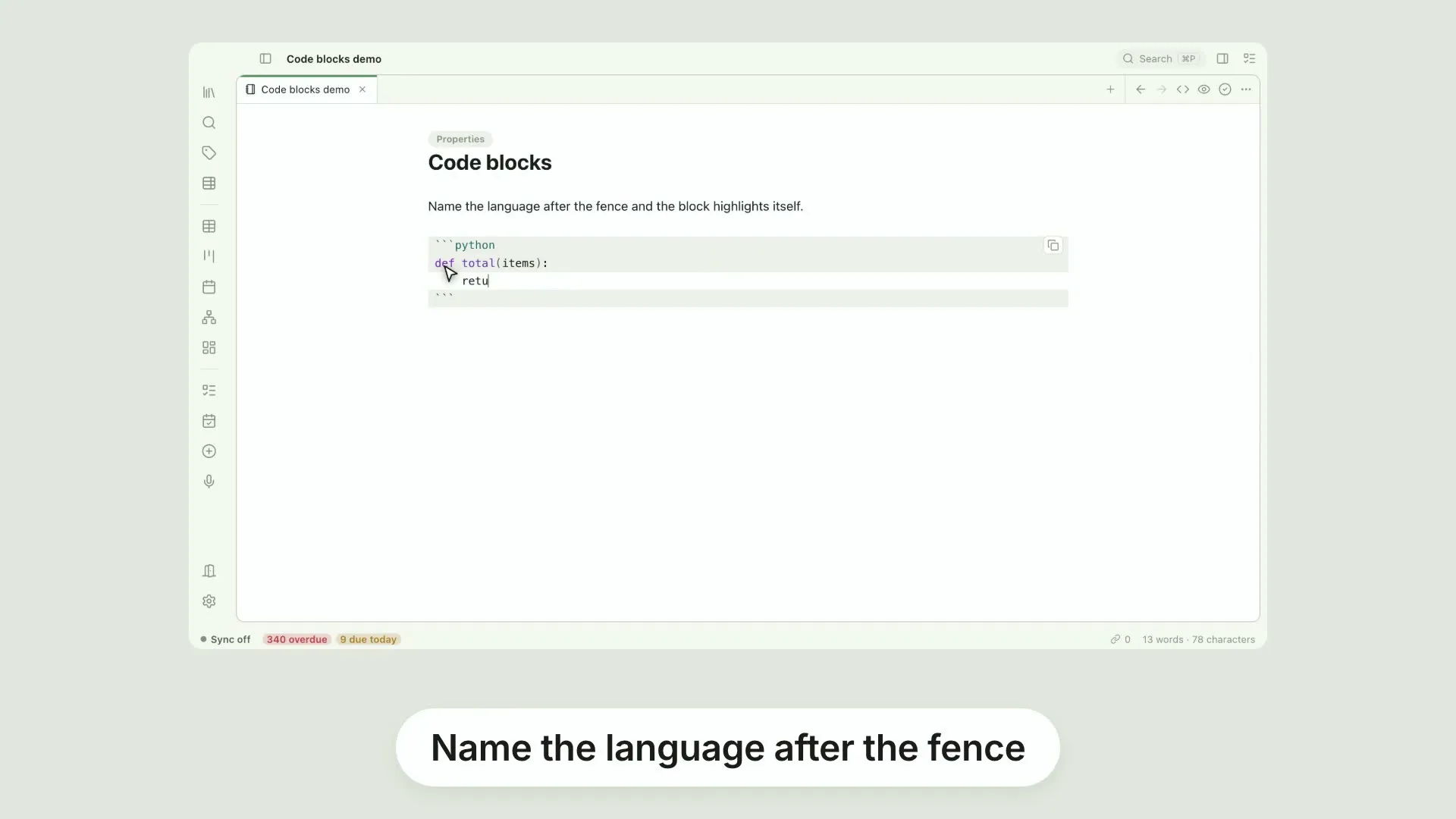
Code blocksPut a language after the opening fence and Pellet highlights the block — around 150 languages, with the name completing as you type
0:24
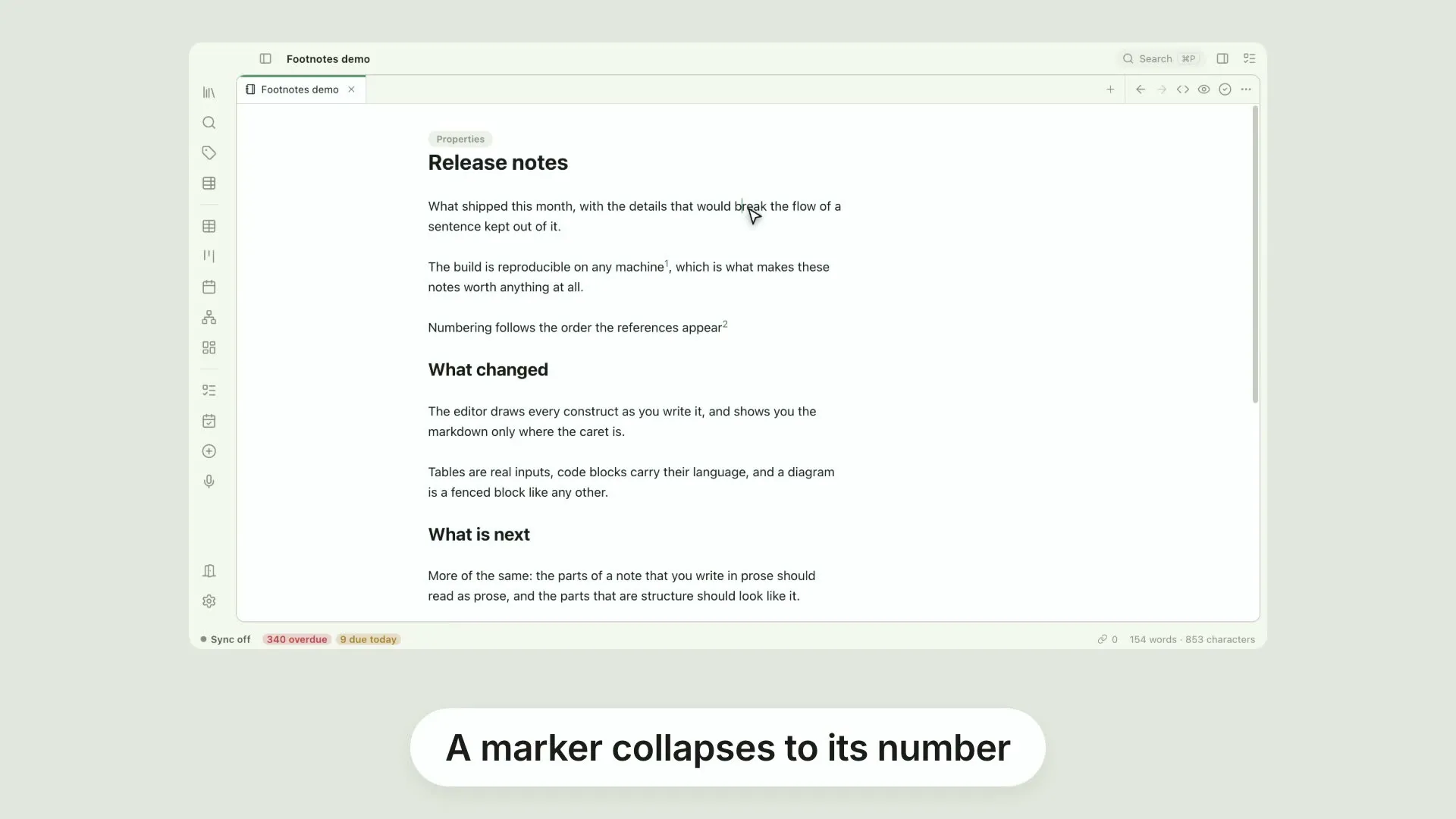
FootnotesPellet supports markdown footnotes
0:24
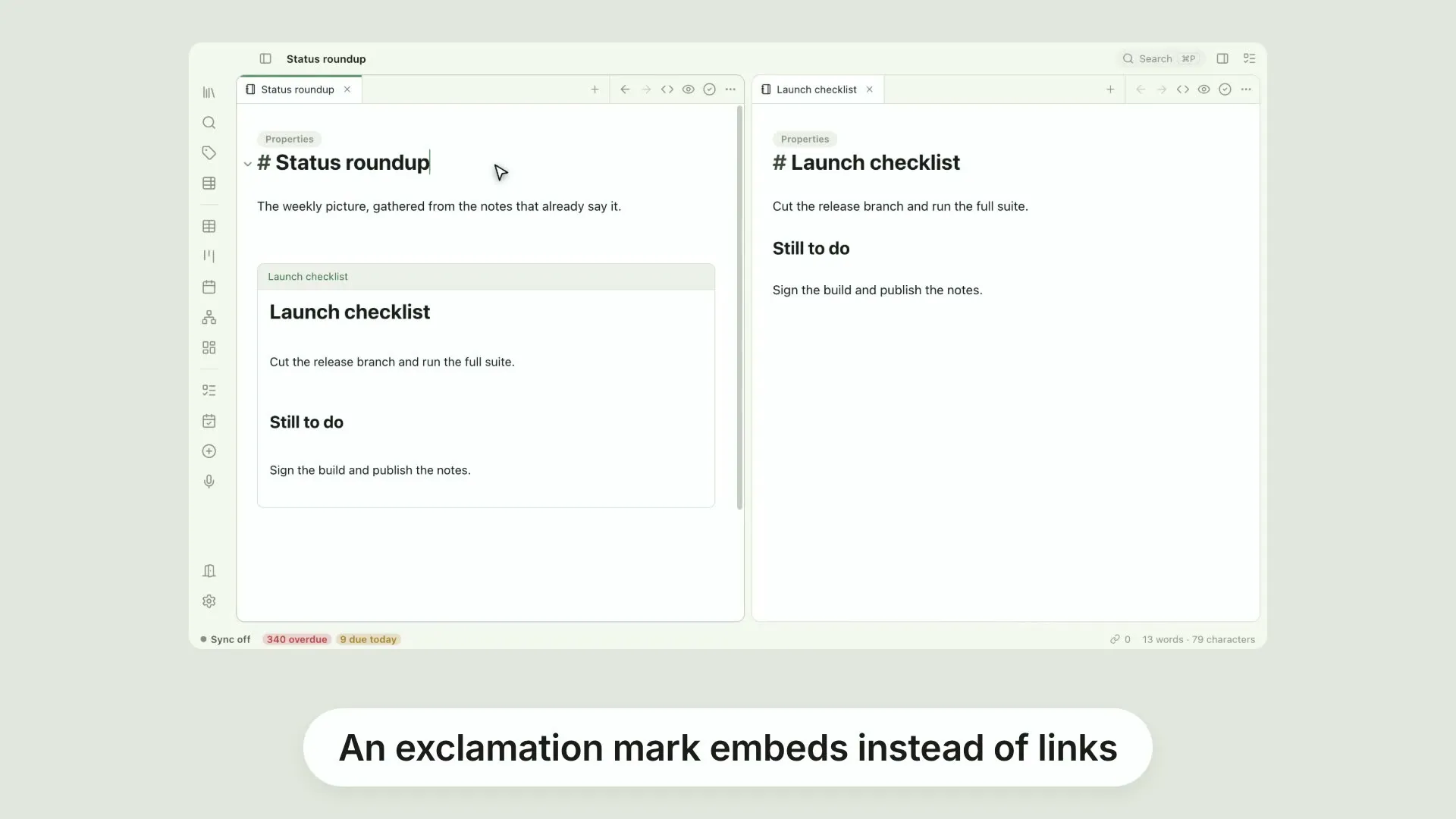
Transclusion and embedsPut an exclamation mark in front of a wikilink and Pellet embeds that note instead of linking to it
0:25
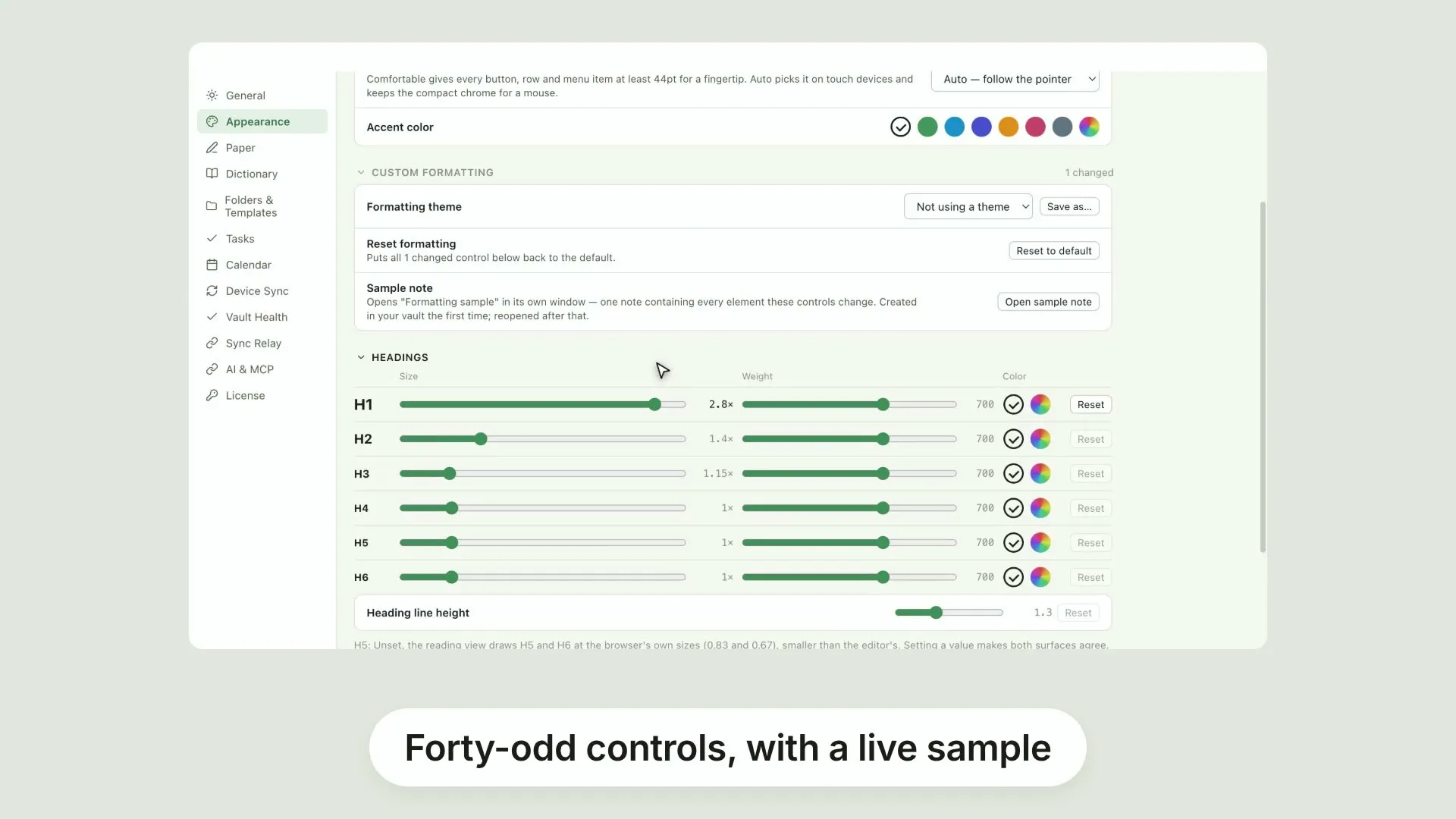
Custom formattingSettings ▸ Appearance ▸ Custom formatting has controls across five groups: Headings, Body, Quotes & code, Tables and Callouts
0:25
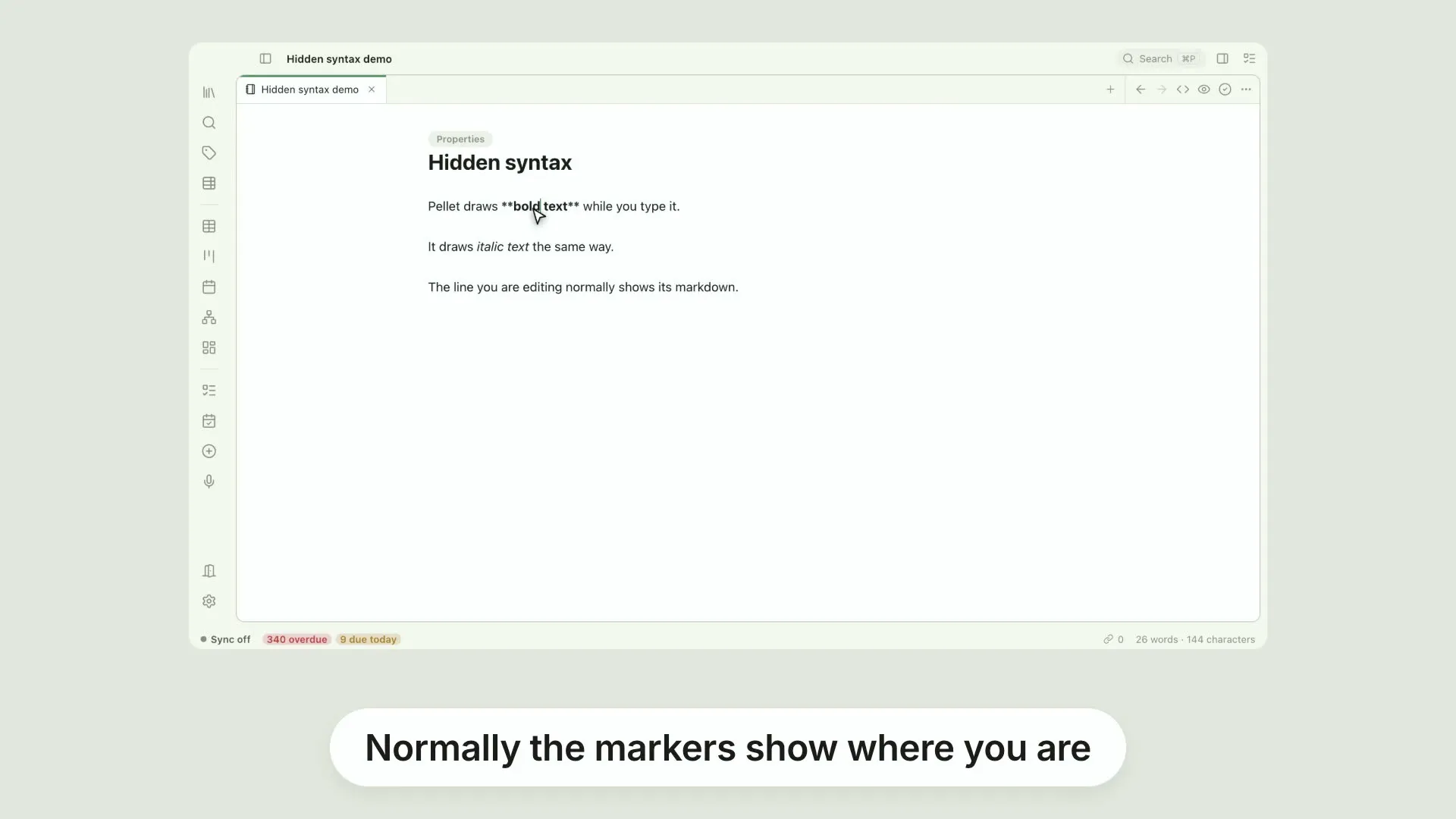
Hide markdown at the cursorBy default Pellet reveals a construct's markers when your cursor is inside it, so you can see what you are editing
0:26
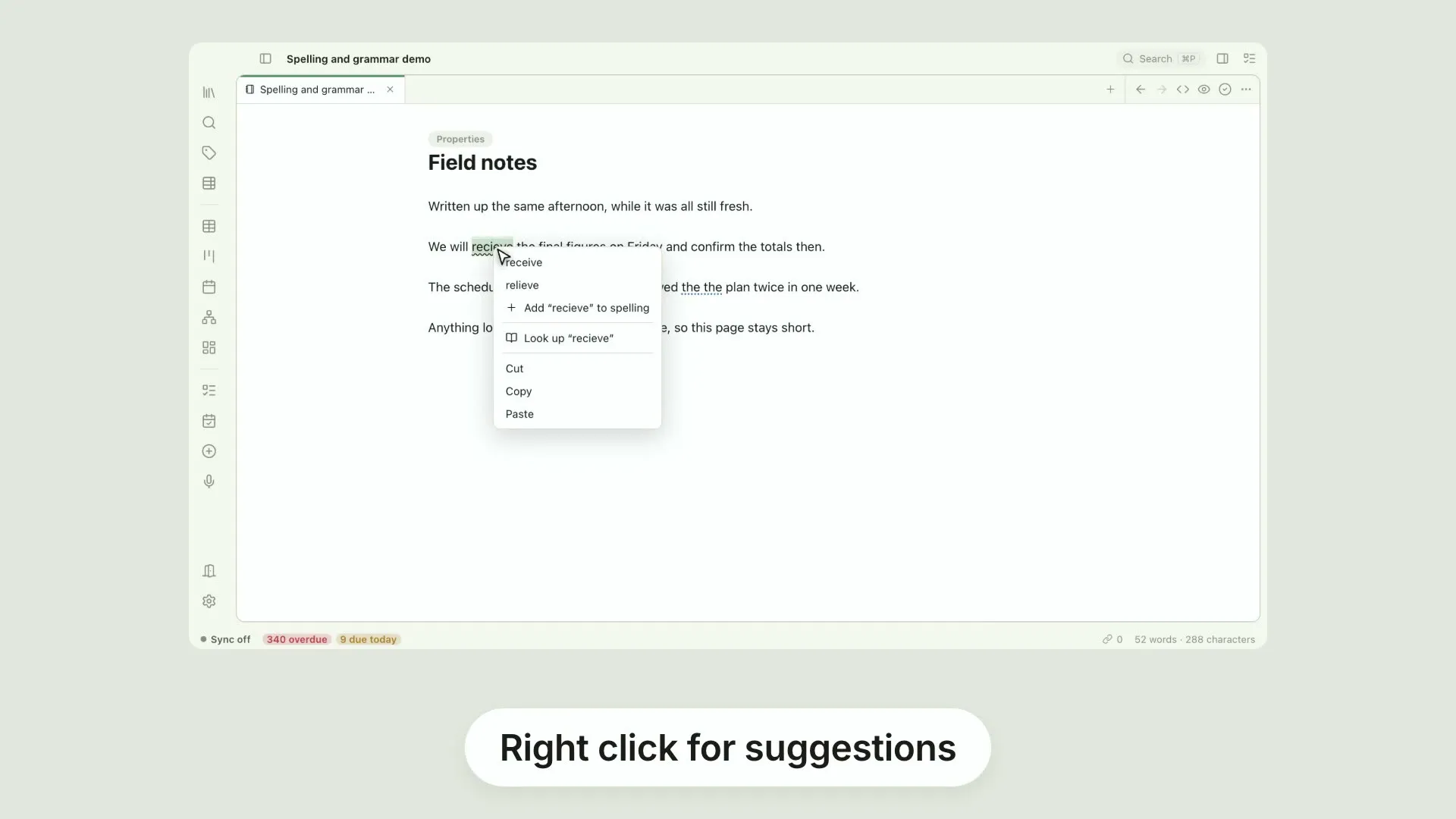
Spelling and grammarPellet checks spelling with its own engine and grammar with a bundled one, both on your machine
0:25
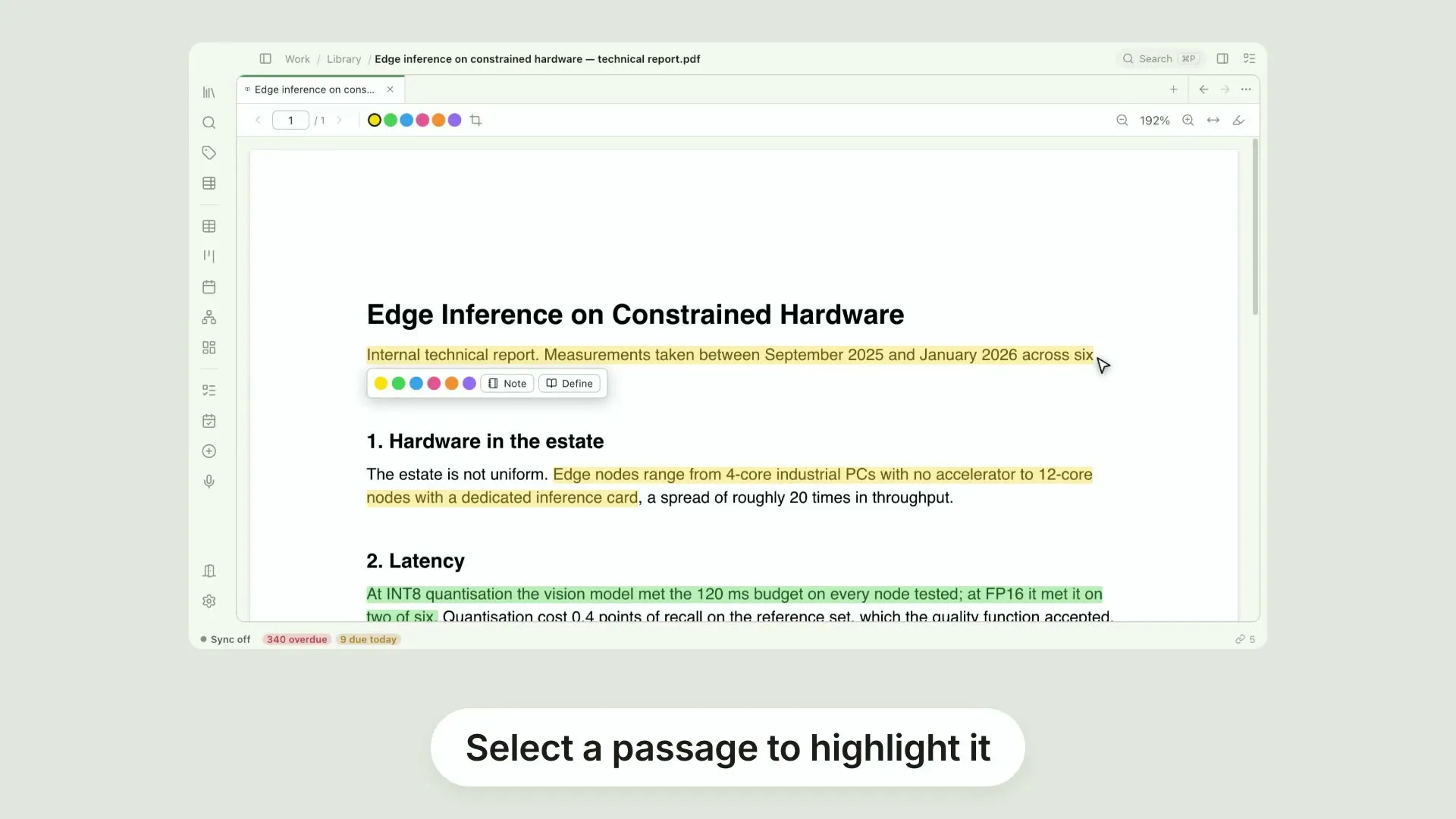
PDF and EPUB highlightsPellet opens PDFs and EPUBs in the pane rather than handing them to another app
0:23
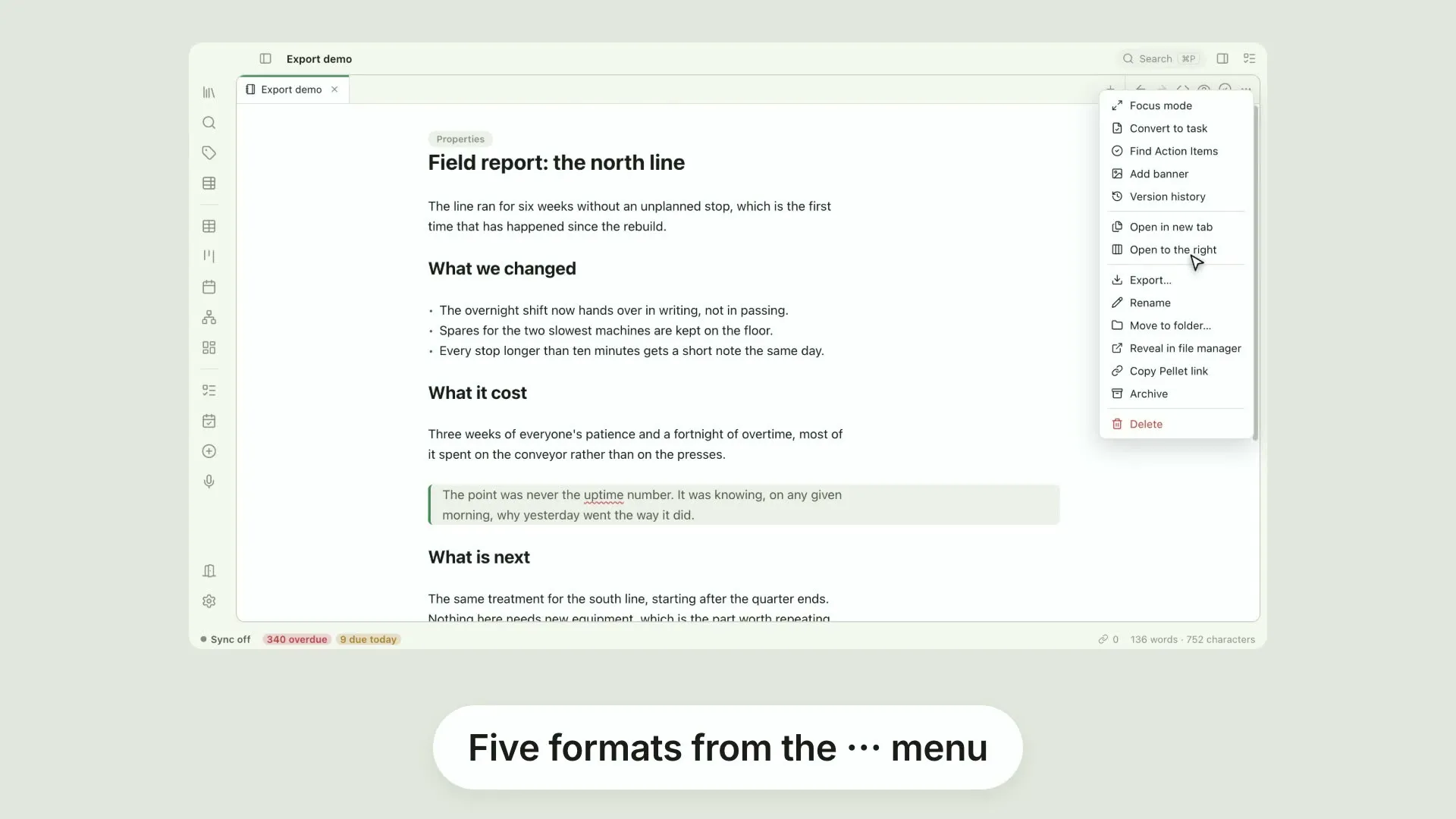
Exporting a noteThe ⋯ menu on a note has Export: PDF, Rich Text, a web page, markdown or plain text
0:24
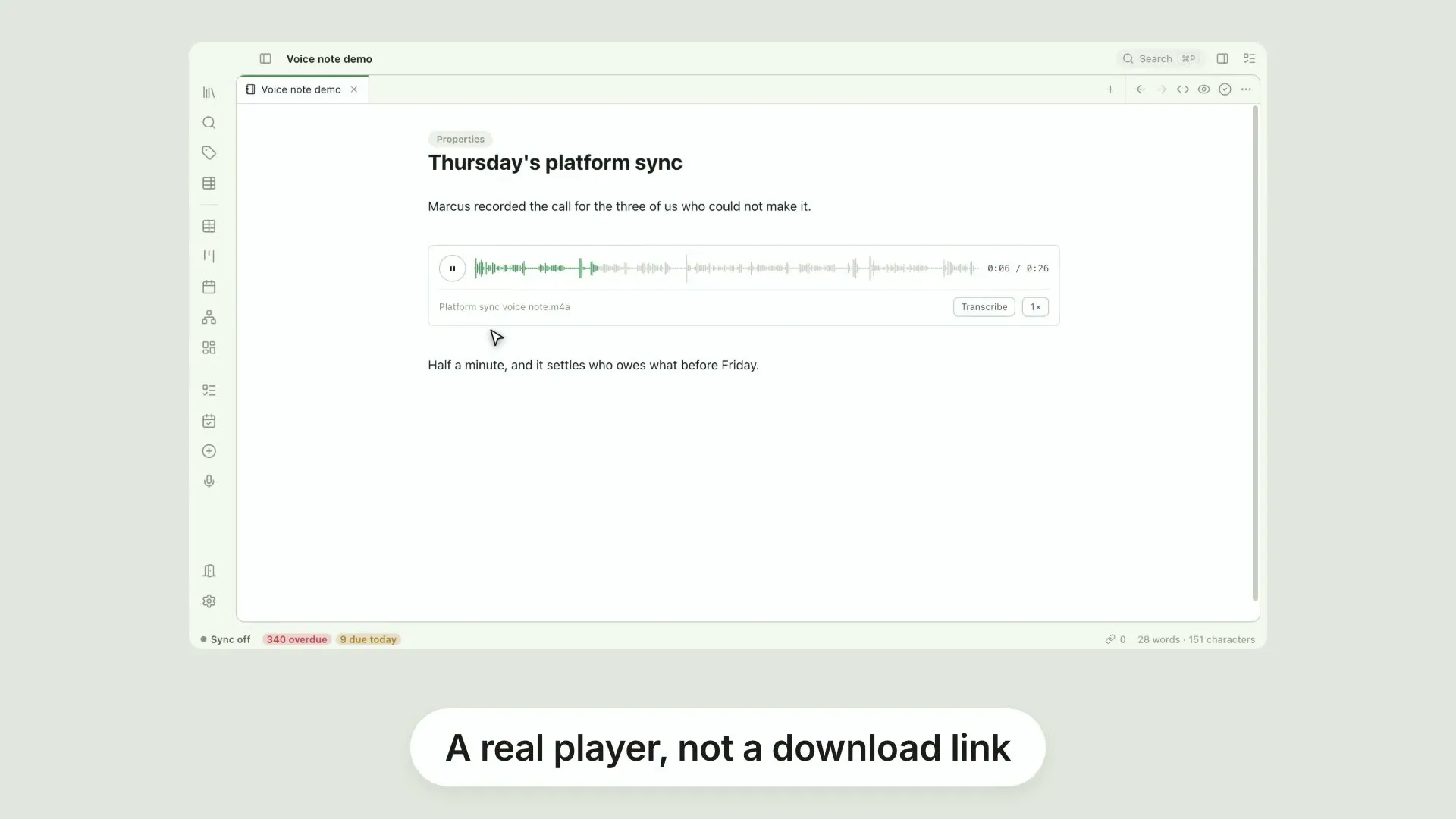
Audio in your notesEmbed an audio file the way you would embed an image and Pellet renders a player inside the note: a waveform, timecodes and a scrubber
0:25
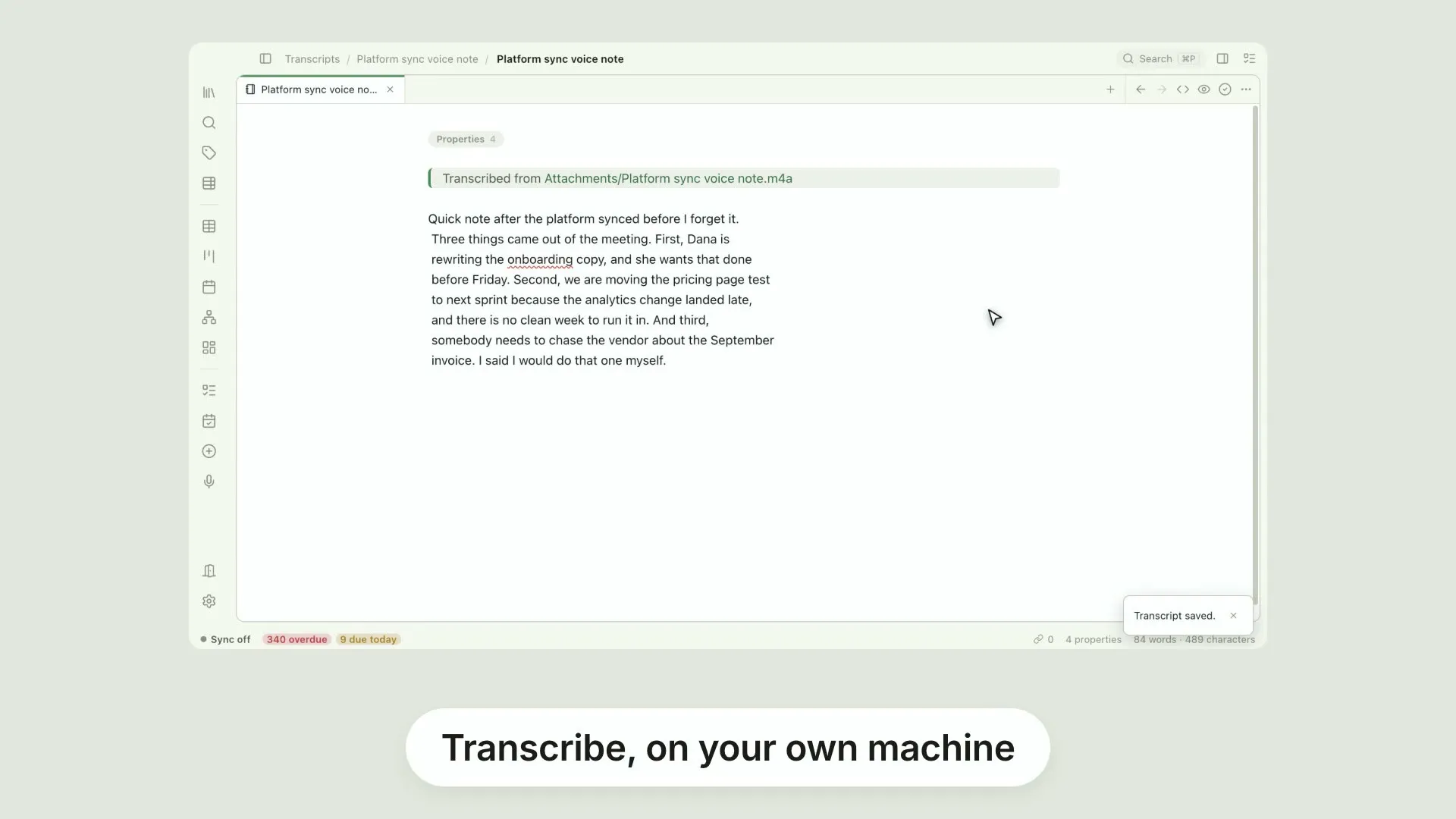
Transcribe a recordingAny audio embedded in a note has a Transcribe button
0:24
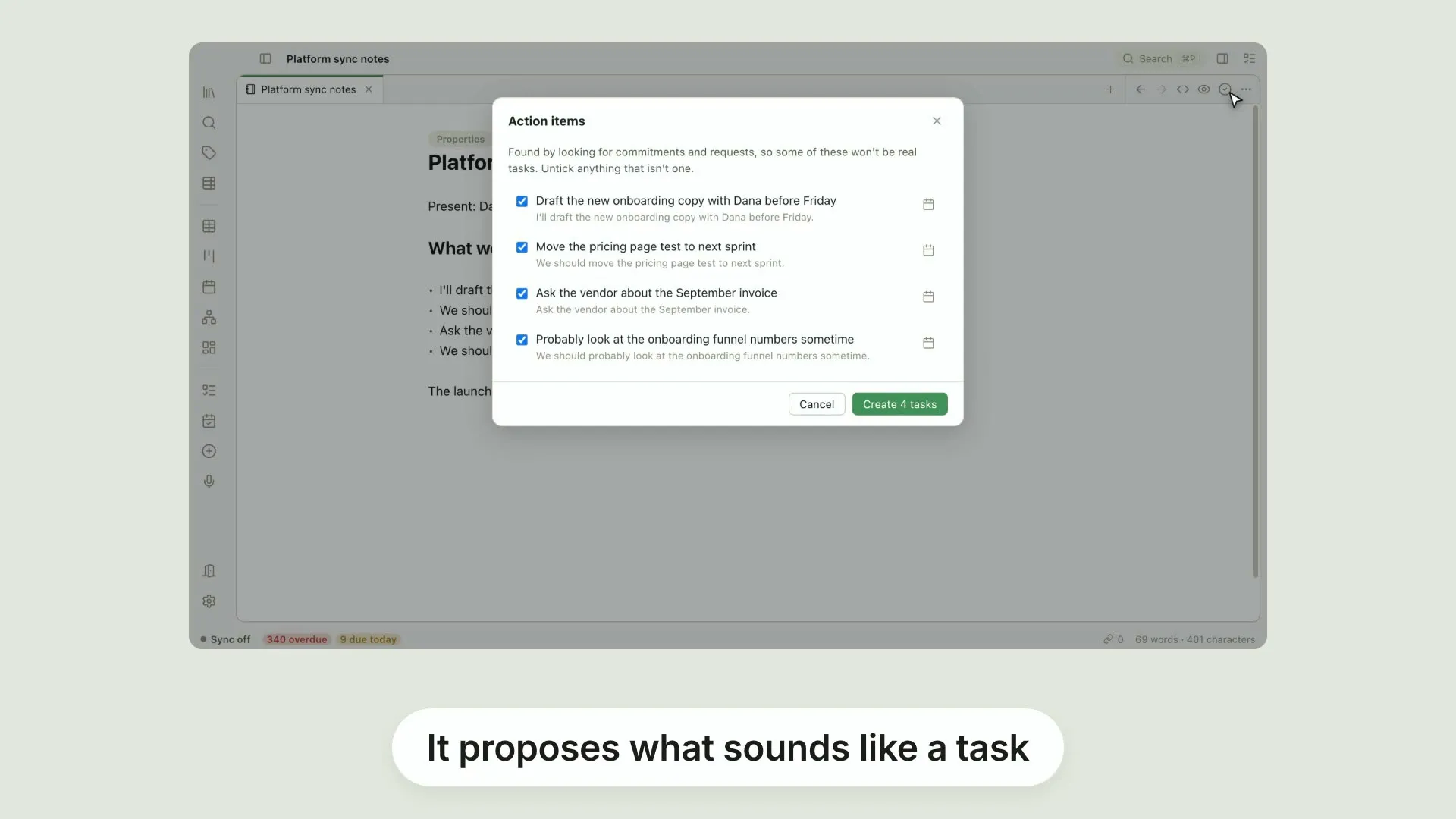
Find action itemsFind Action Items reads a note and proposes everything in it that sounds like a task, each with a checkbox
0:25
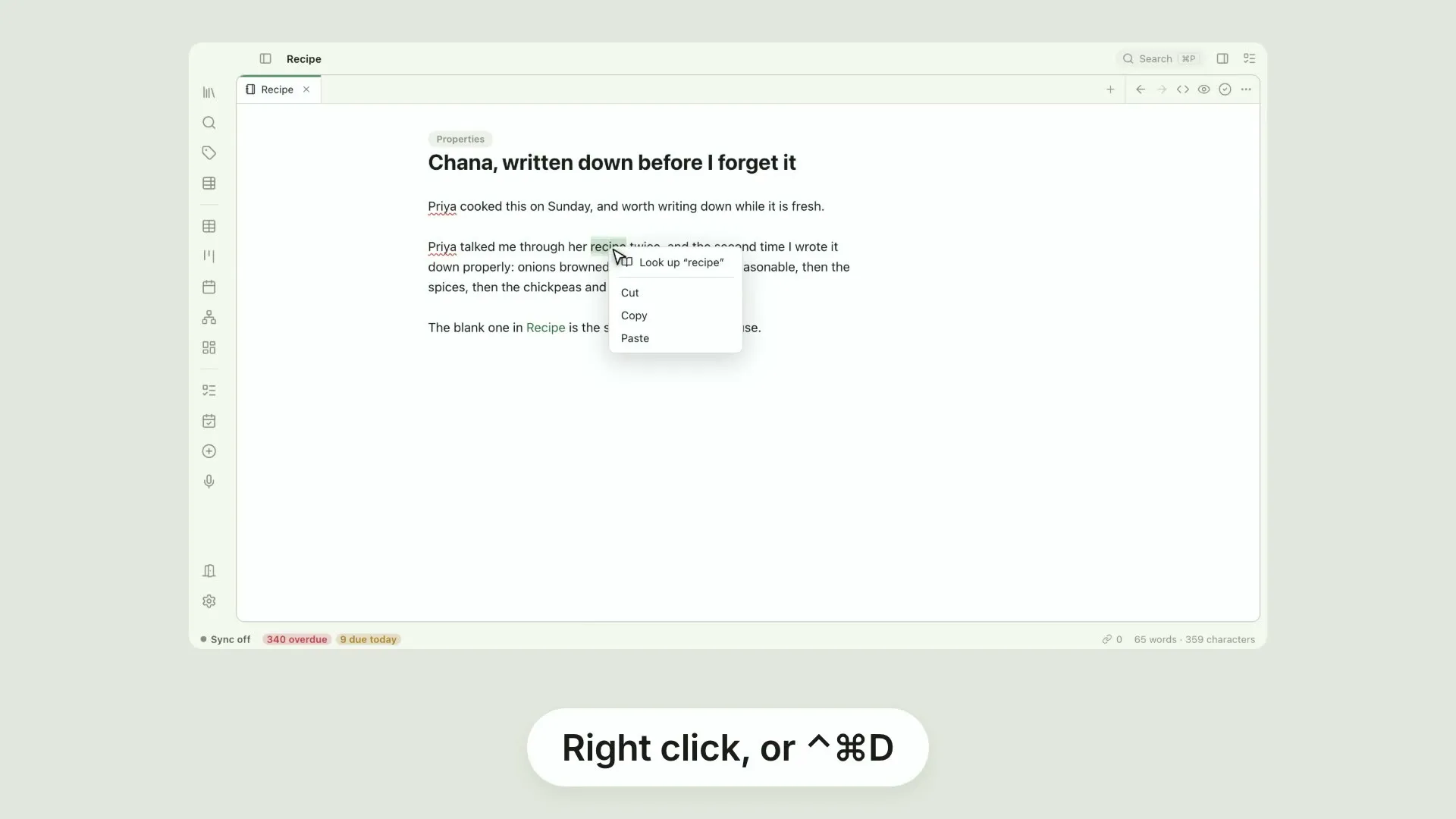
Dictionary lookupRight-click a word or press ⌃⌘D and Pellet opens a definition card beside it

The Table 20 videos

The workhorse view, one feature at a time — all twenty on one page.
0:42
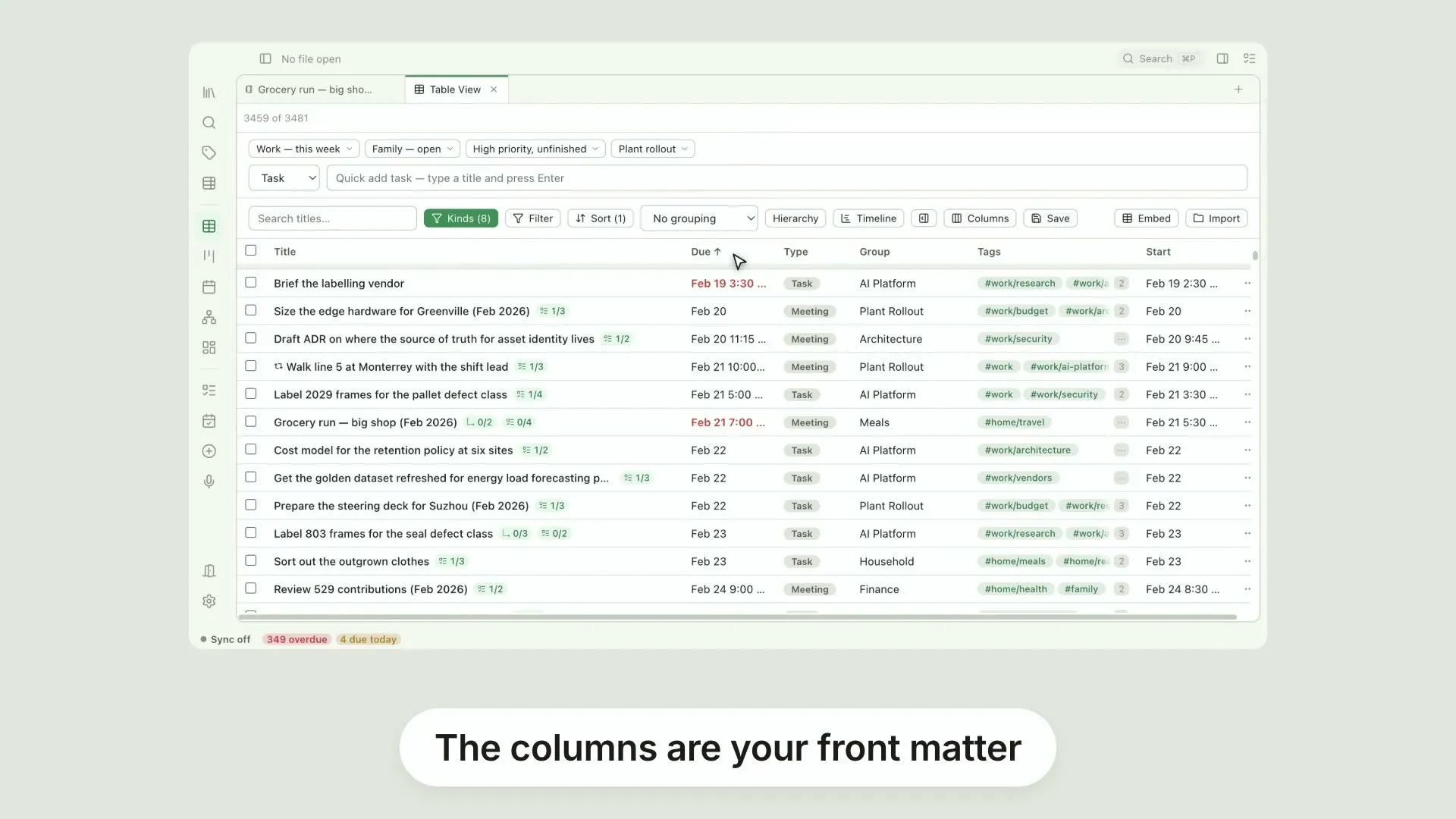
Your whole vault, as a tablePellet's Table view turns your vault into a database you can read
0:40
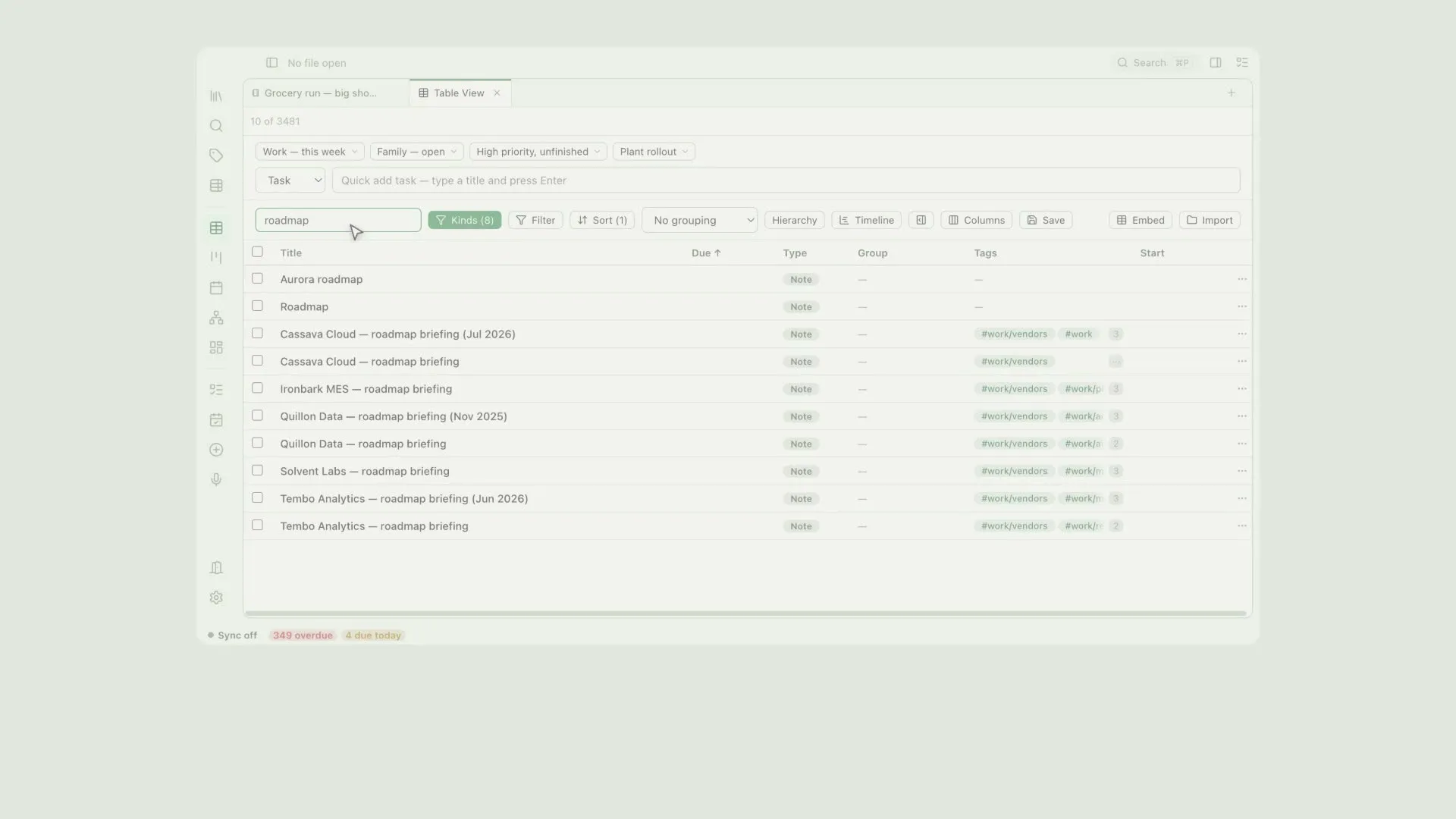
Search and sort the tableTwo things you do in Pellet's Table view before anything else
0:46
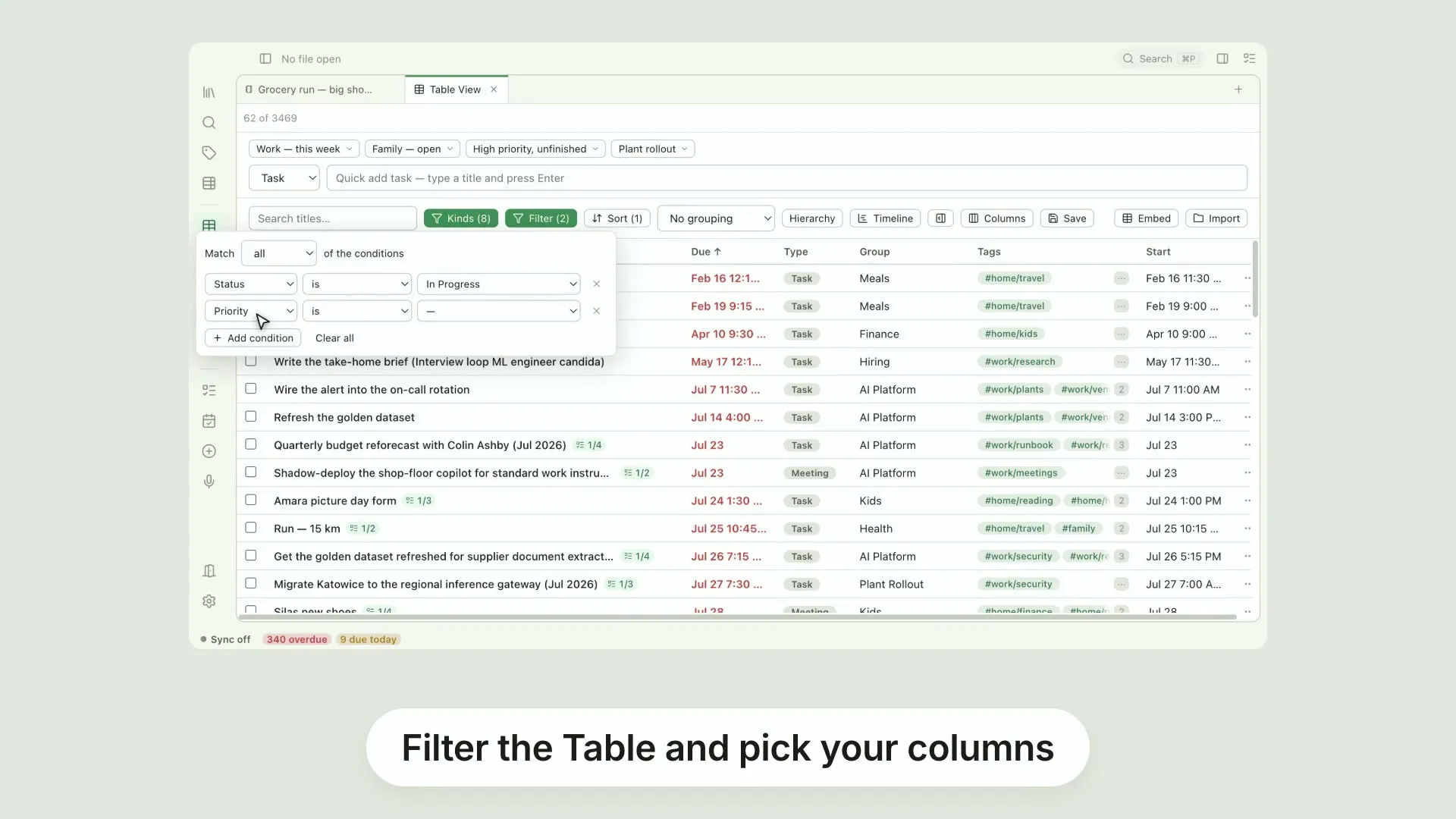
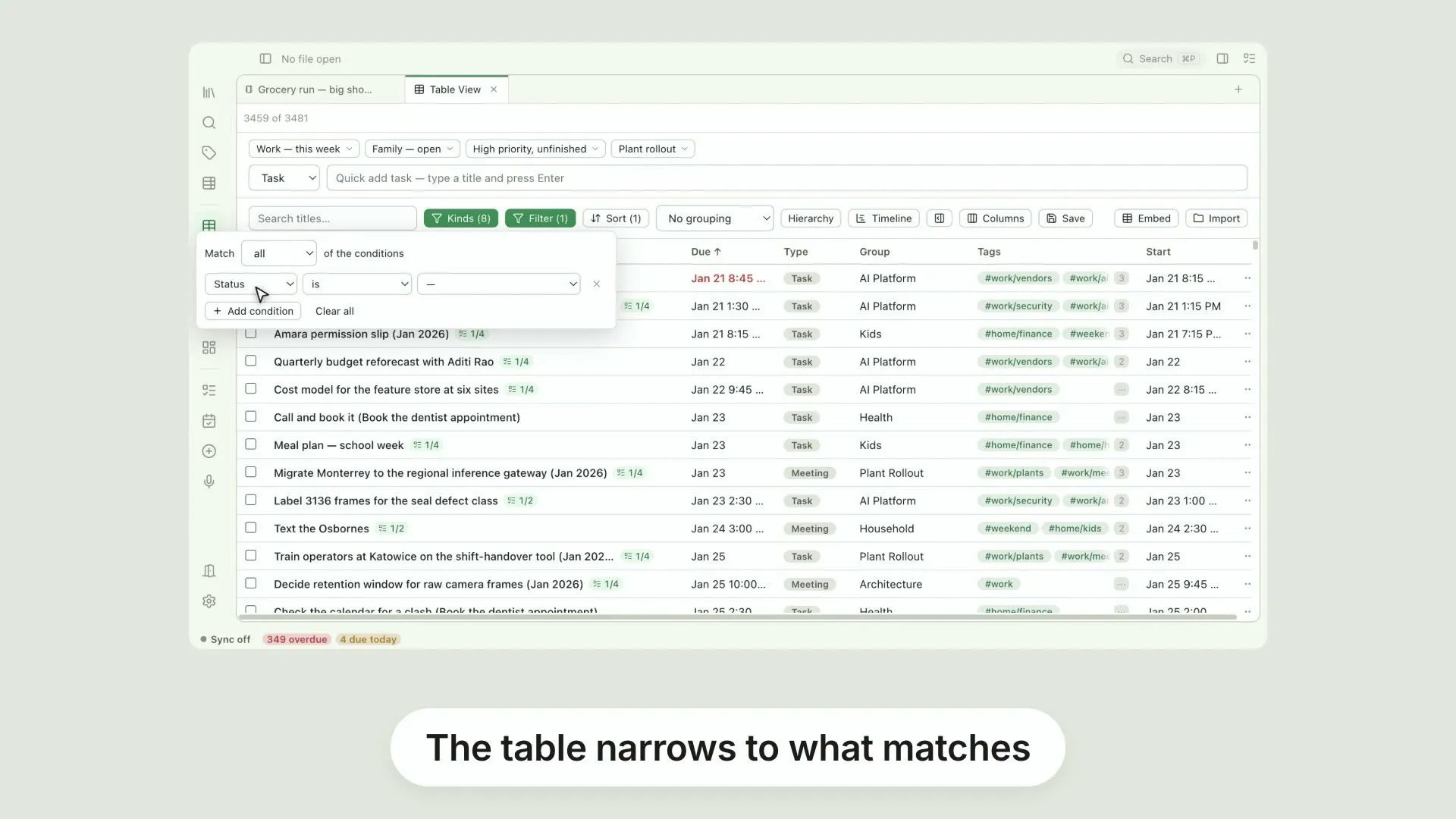
Filter the tableSearch finds a title
0:43
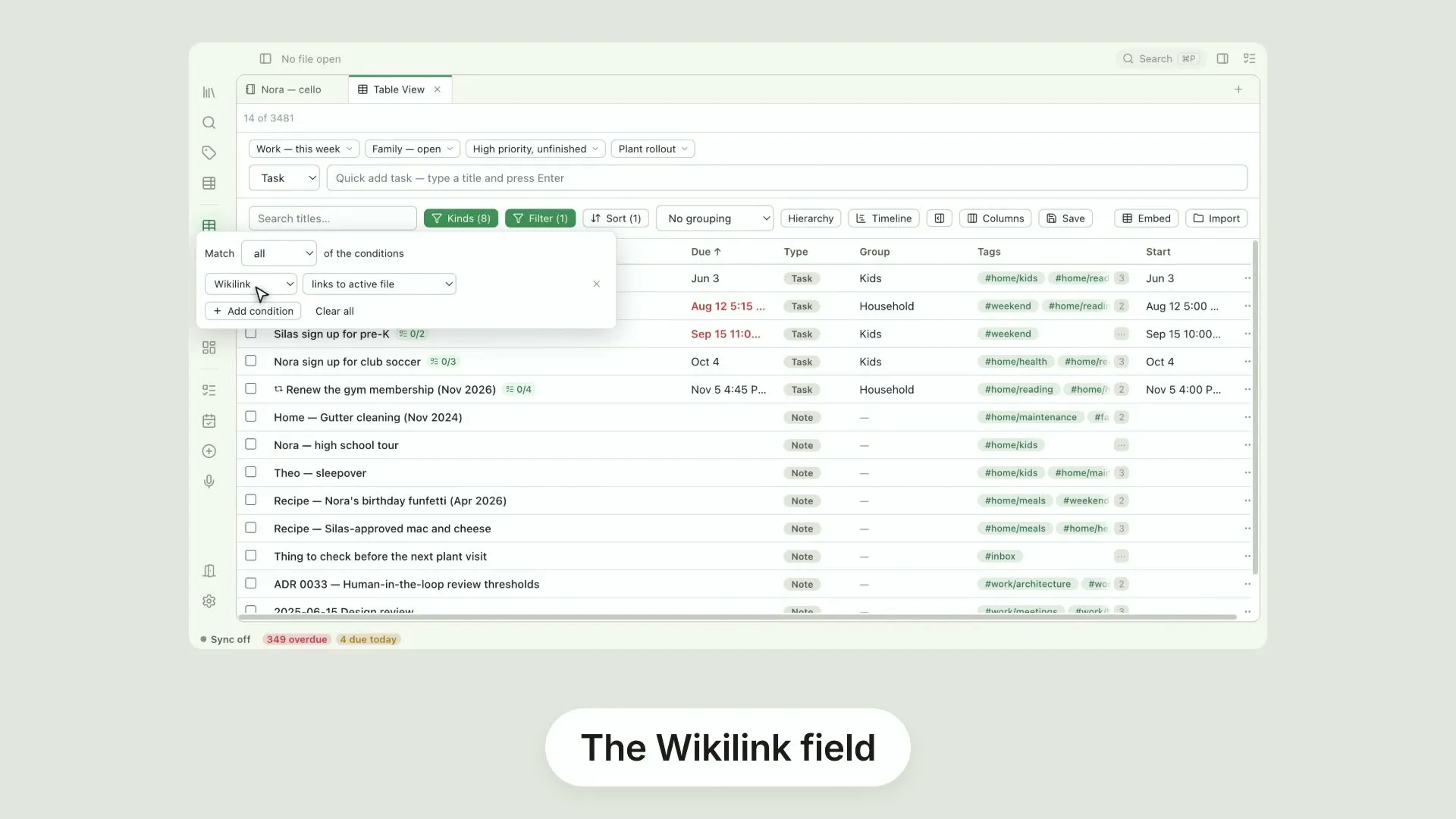
A table filter that follows the note you are readingMost filter fields in Pellet's Table view ask about the file itself
0:44
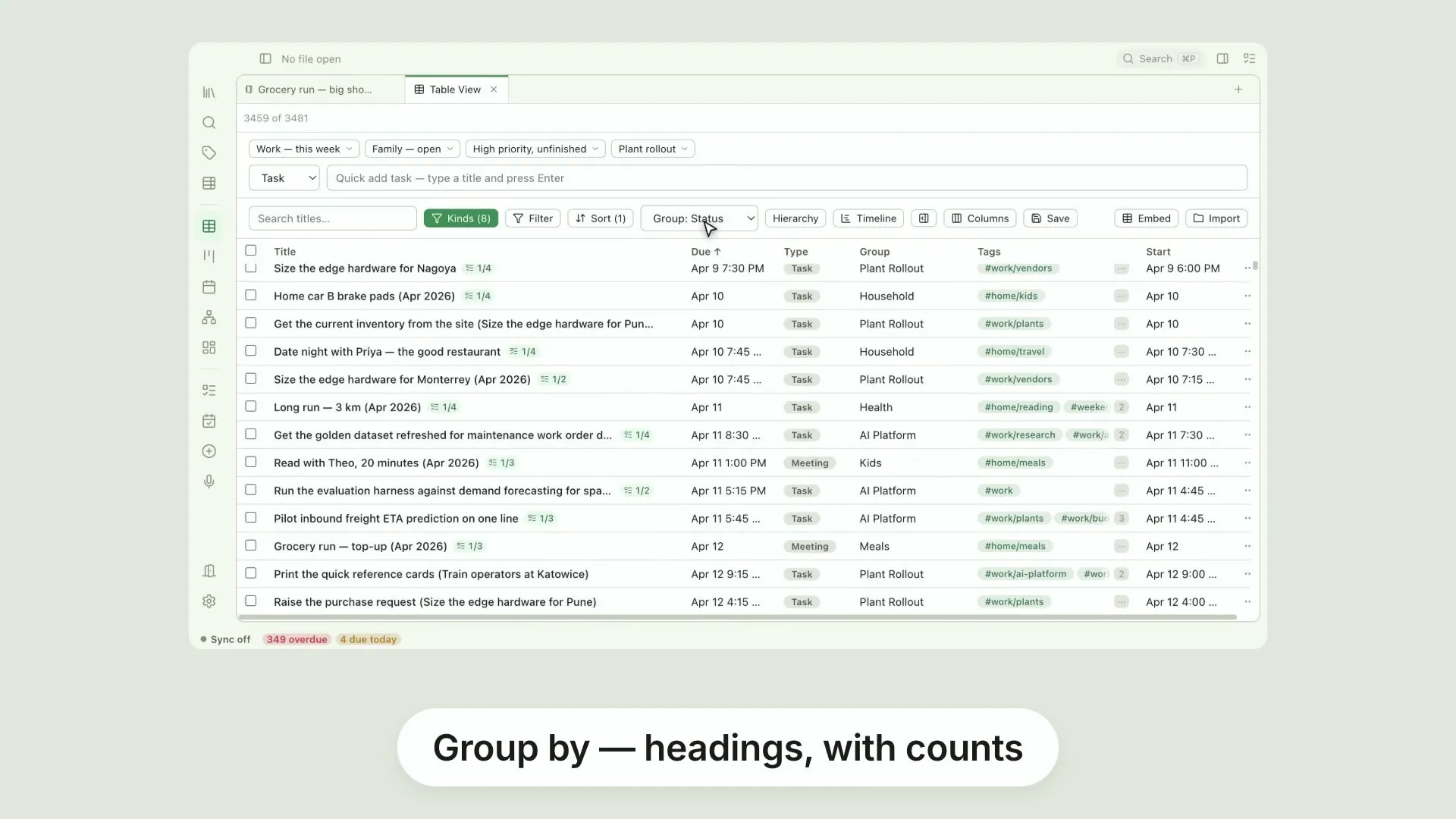
Group the table into pilesSorting puts rows in order
0:42
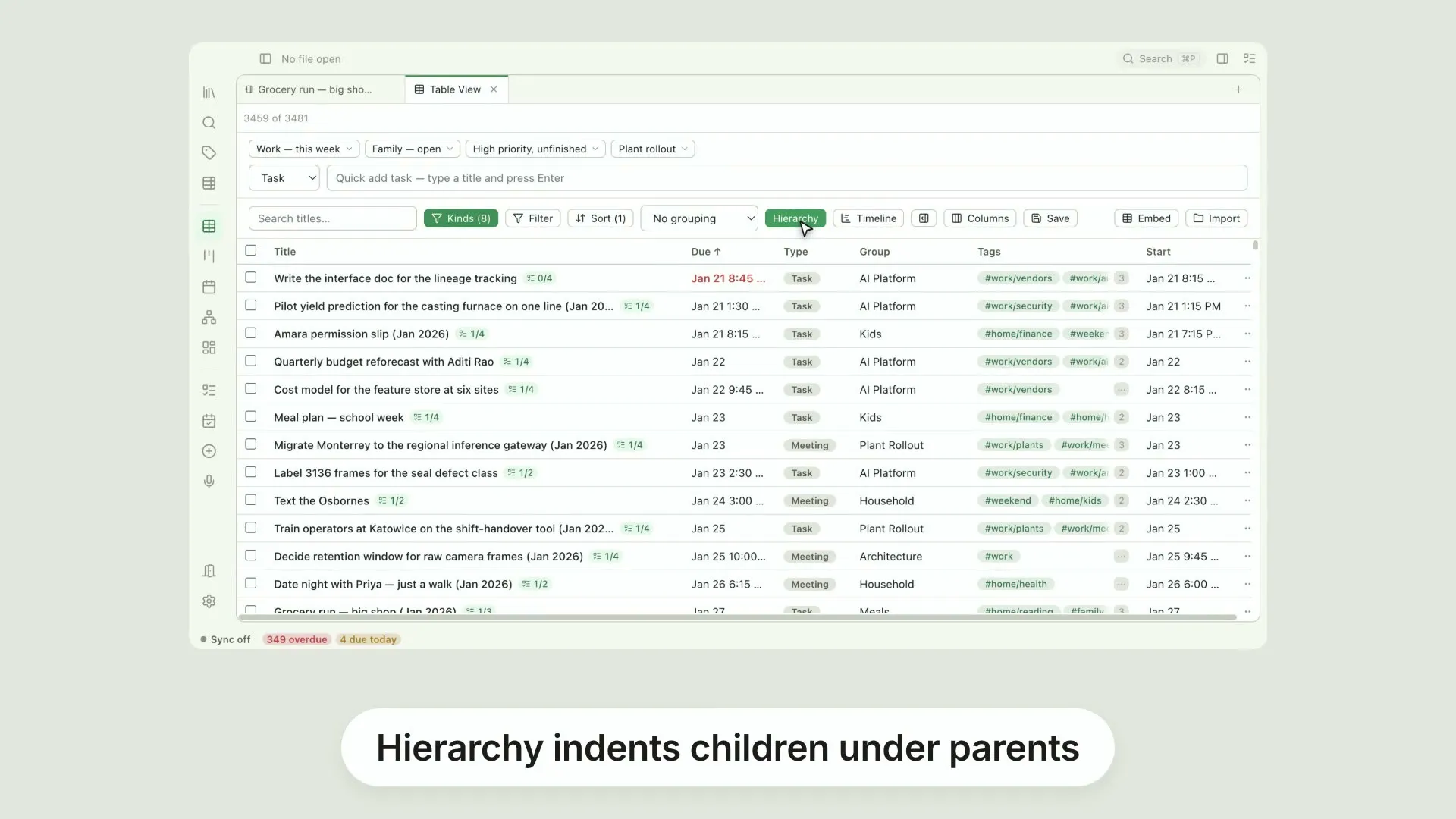
Subtasks in the tableA task with subtasks says so in Pellet's Table view
0:38
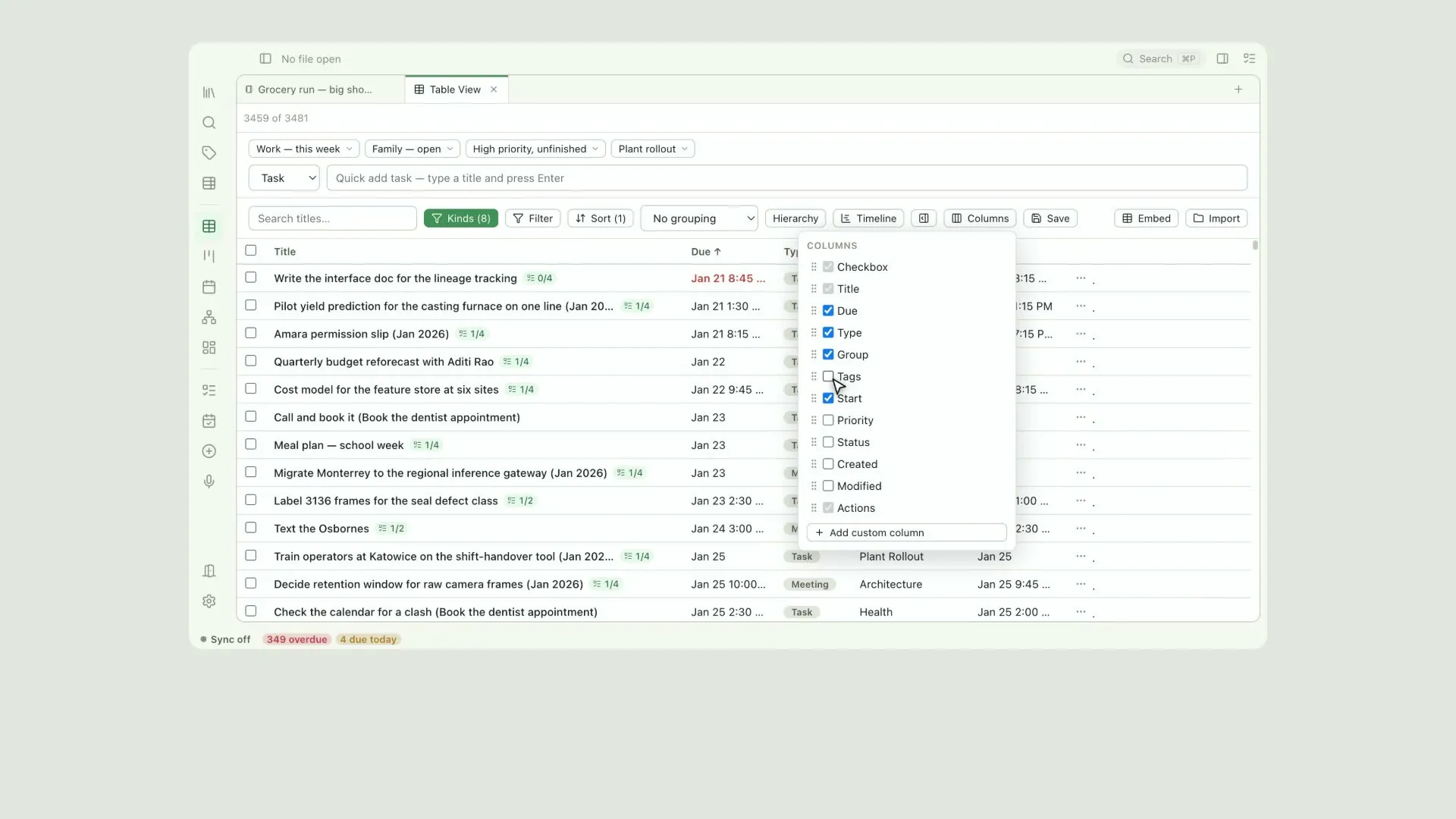
Choose and arrange the table's columnsThe Table view shows what you tell it to
0:55
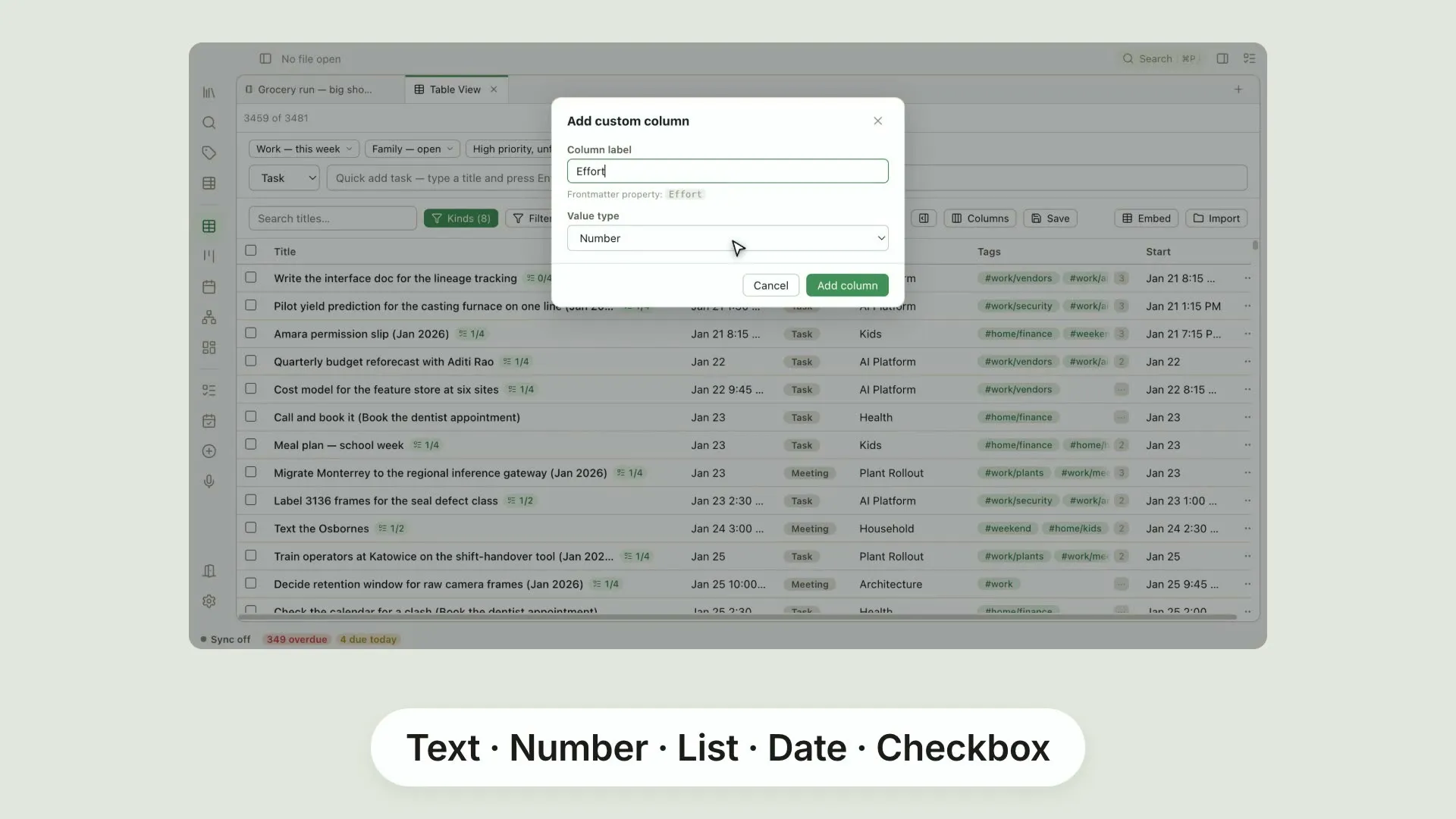
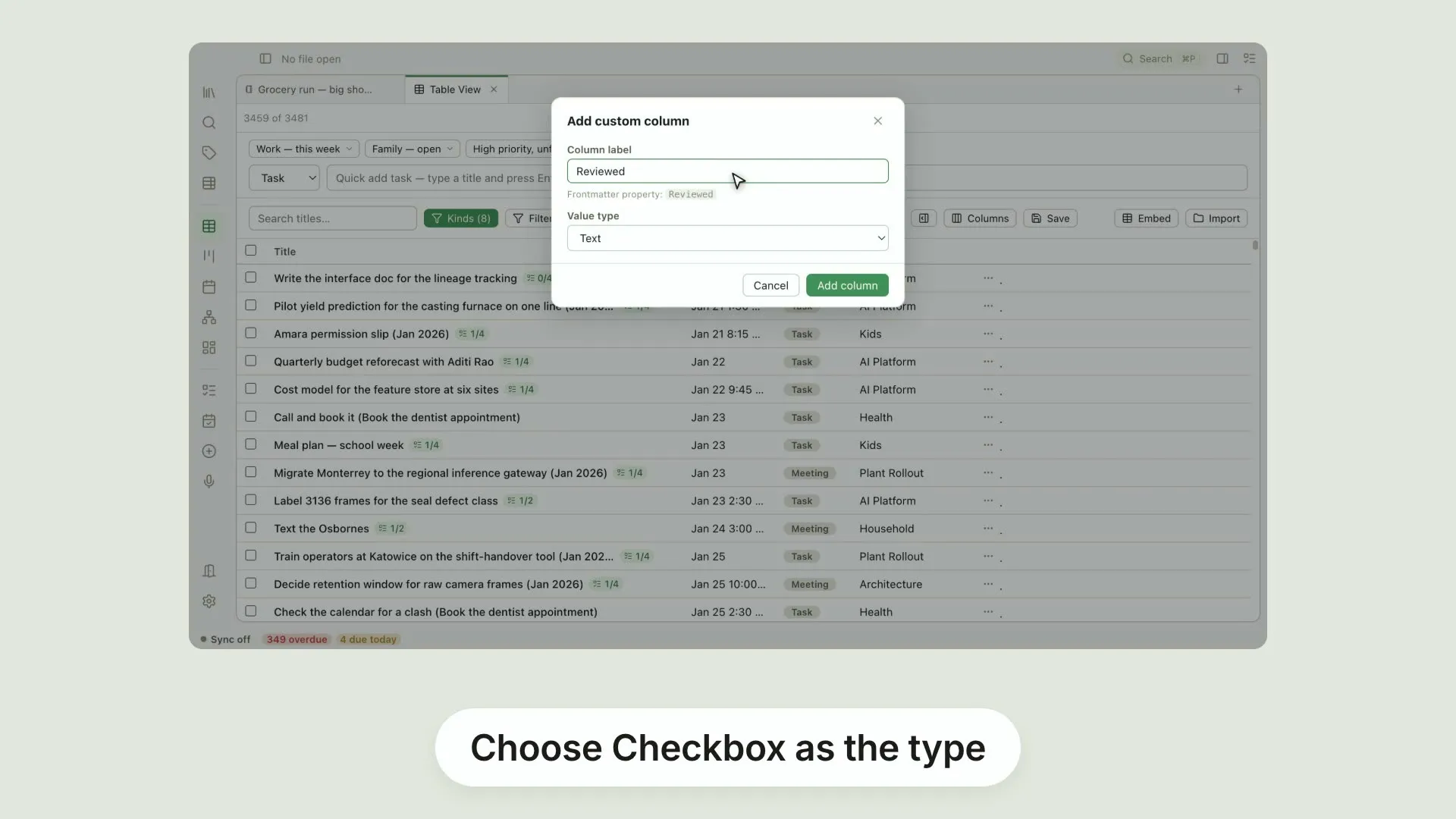
Add your own columns to the tableThe Columns list in Pellet's Table view ends with Add custom column, and that is where the table stops being fixed
0:41
A checkbox column in the tableAdd a column of your own in Pellet's Table view and choose Checkbox as its type
0:44
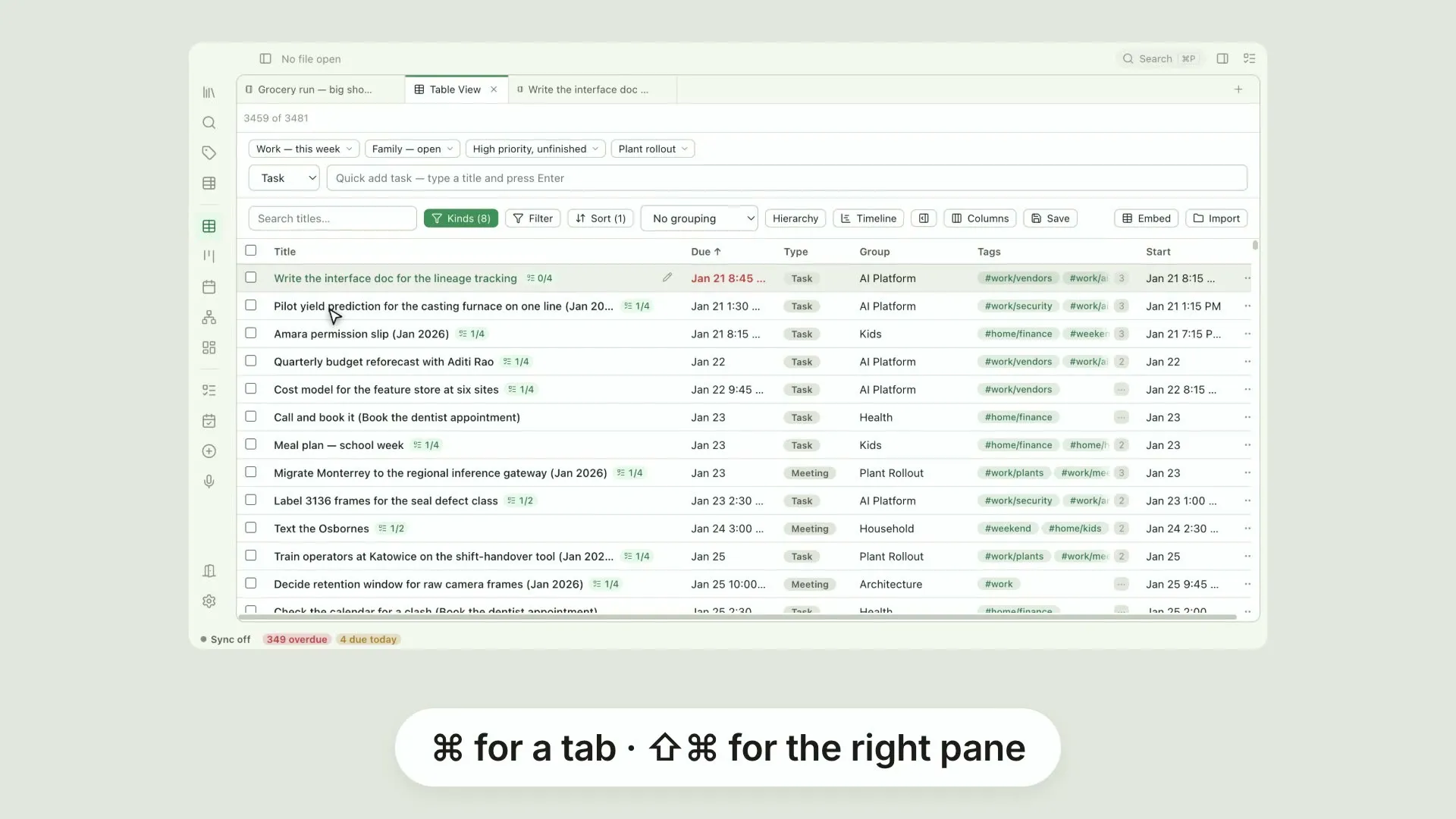
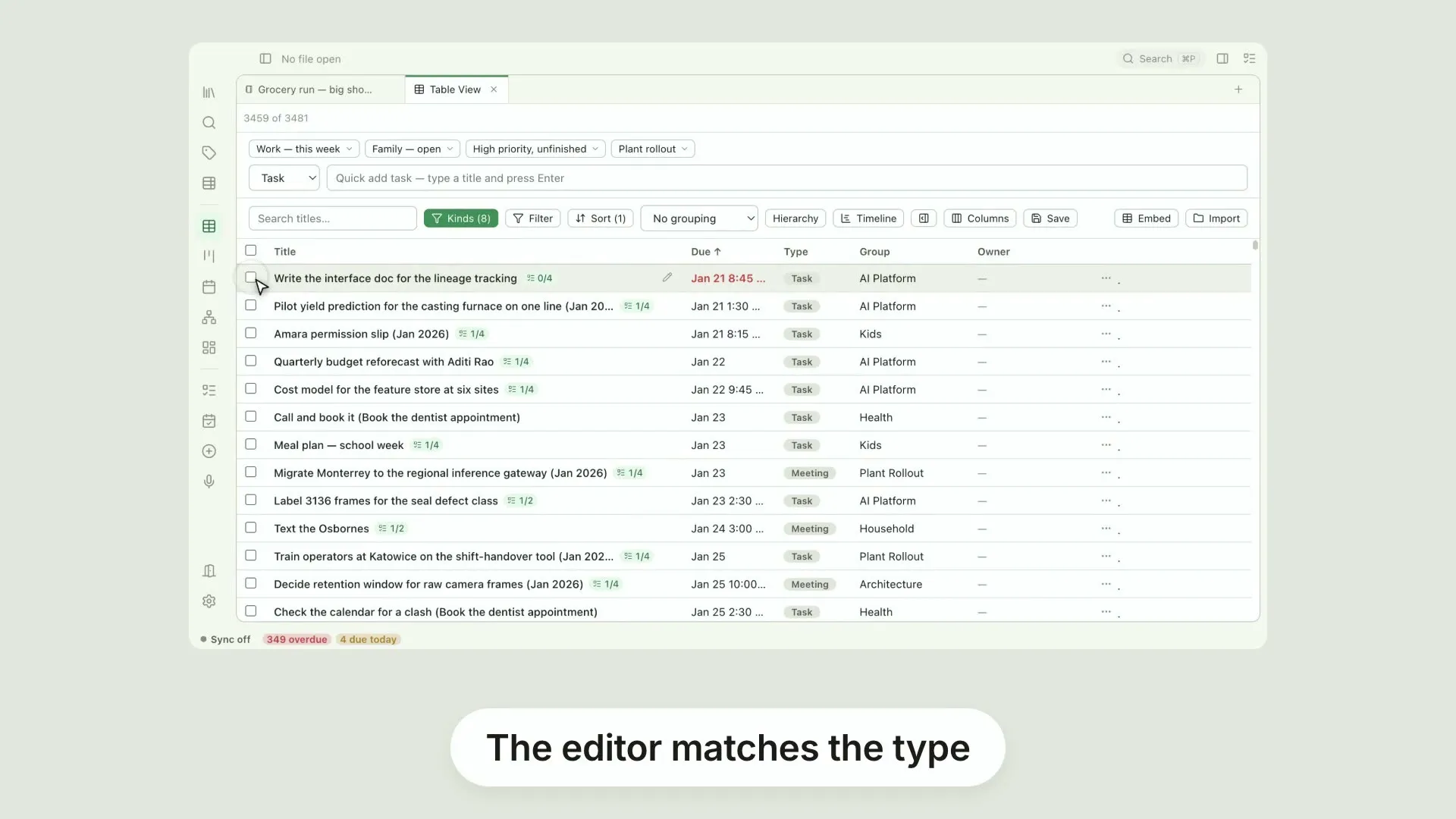
Open rows from the table, your wayClicking a row's title in Pellet's Table view opens that file
0:31
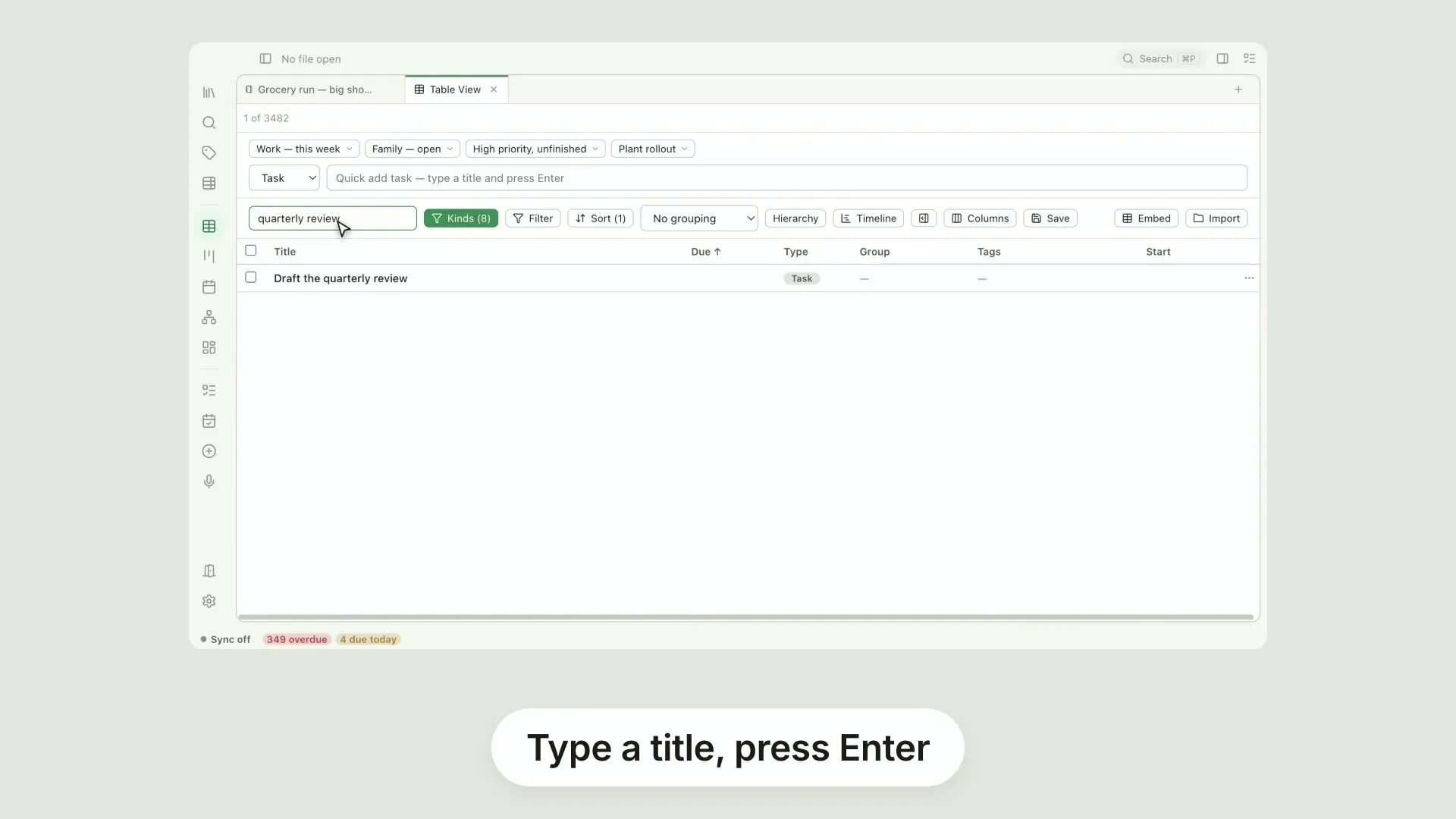
Add tasks and notes from the tableThe bar above Pellet's Table view is a quick add
0:46
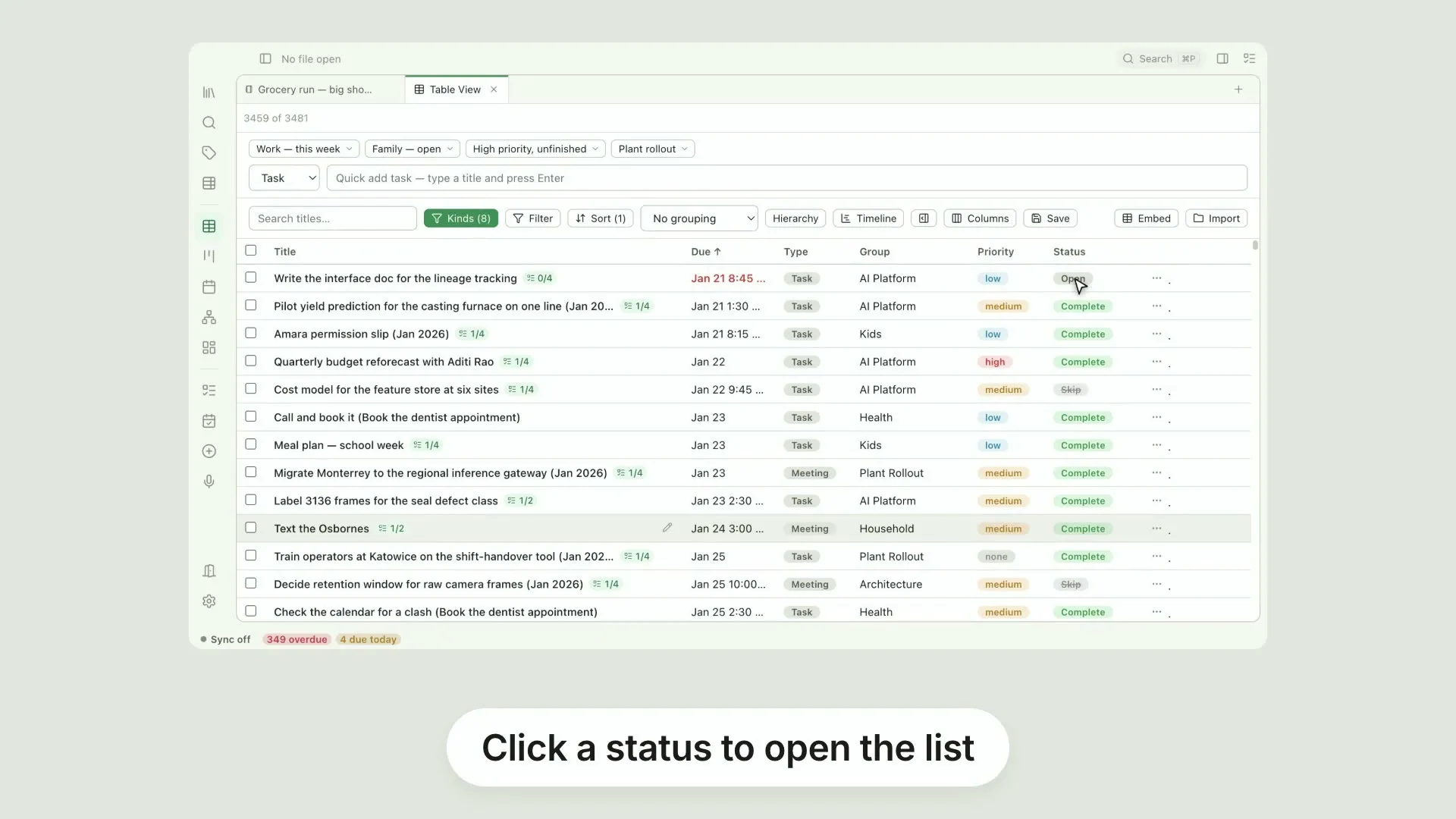
Change status and priority from the tableYou can triage a whole list of tasks from the Table view without opening any of them
0:37
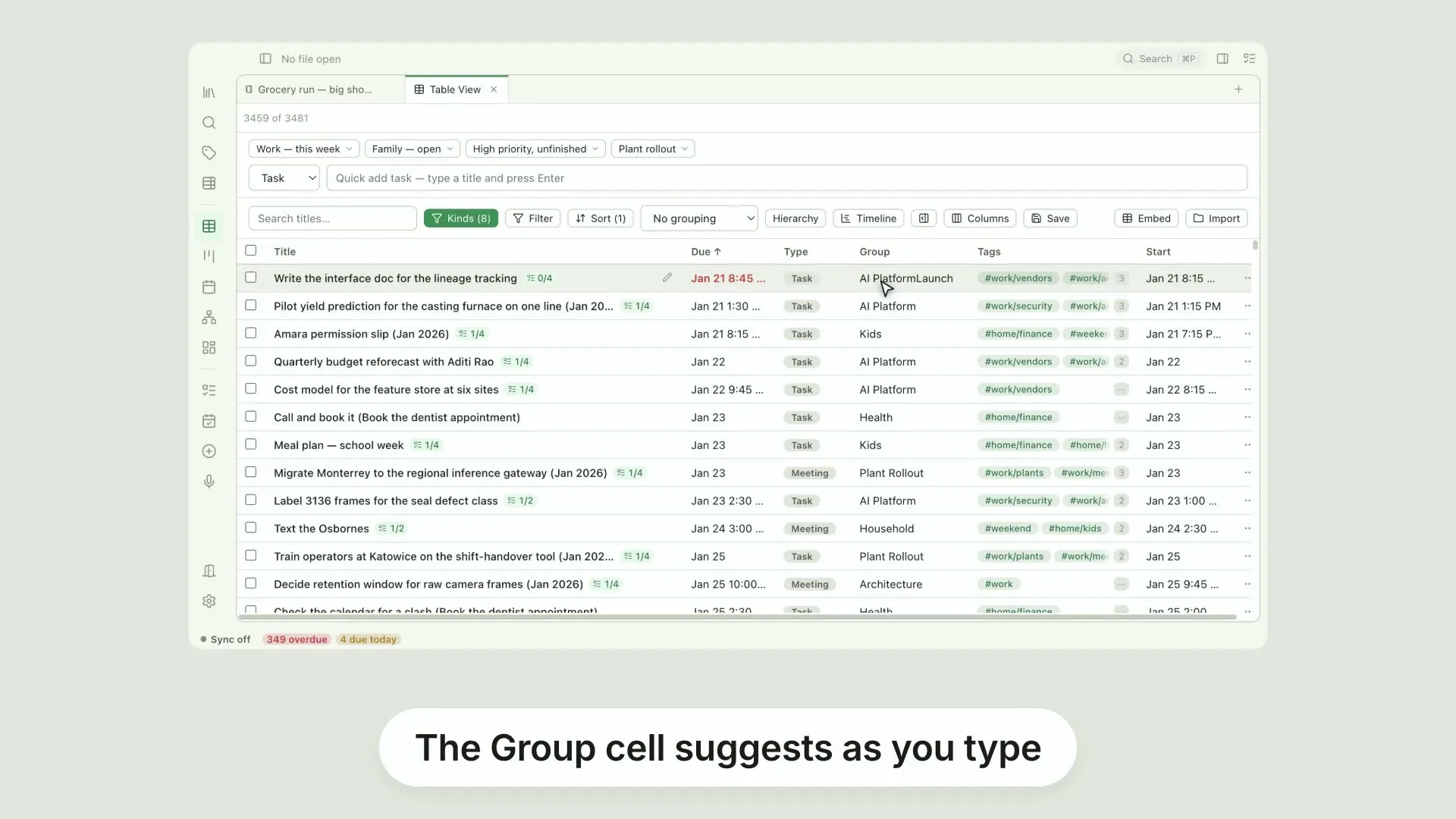
Edit groups and tags in the tableTwo cells in Pellet's Table view can be typed into directly
0:43
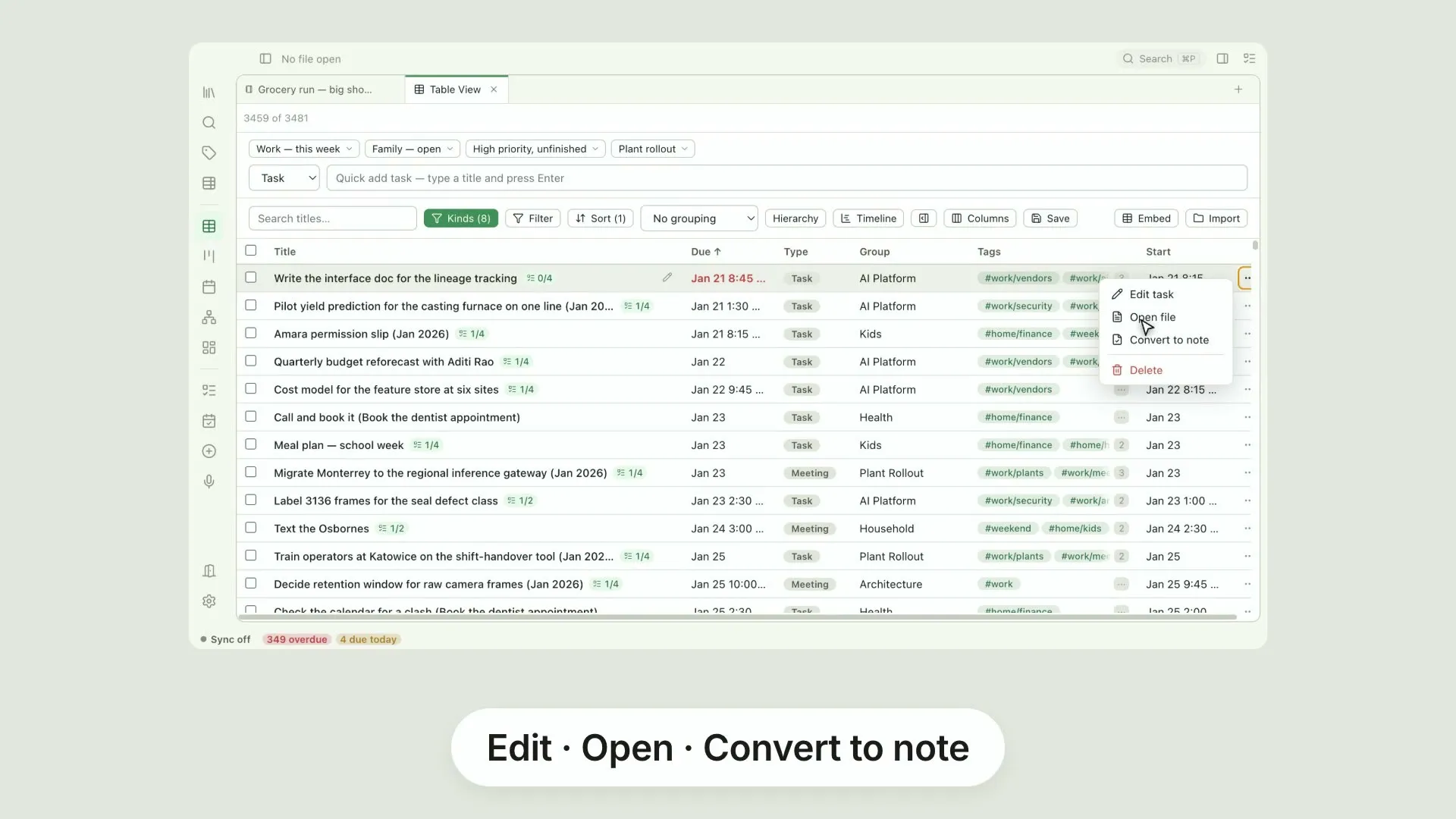
What one row can doAt the right-hand end of every row in Pellet's Table view there is a small button holding everything you can do to that one file
0:43
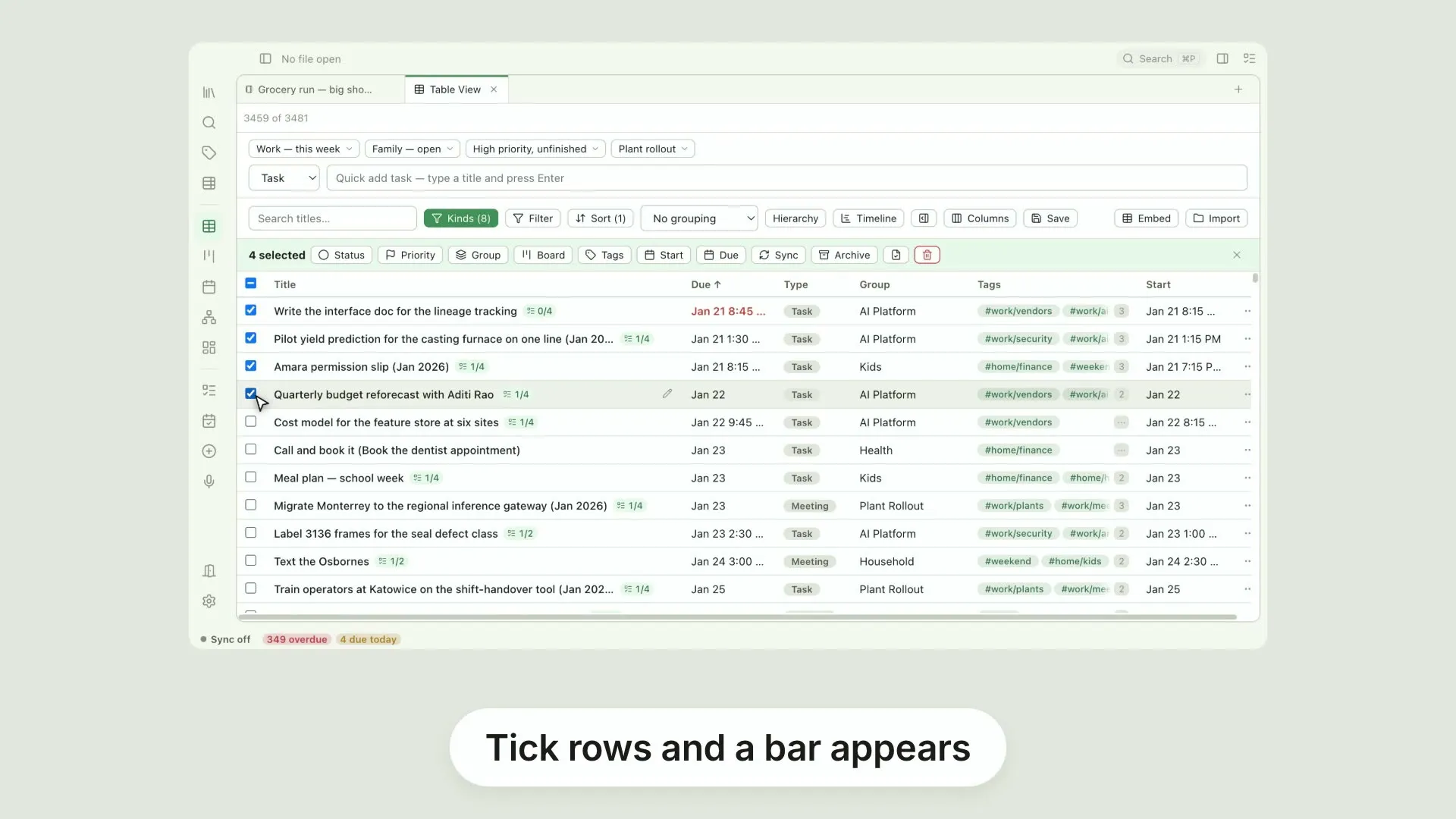
Change many rows at onceEvery row in Pellet's Table view has a checkbox
0:39
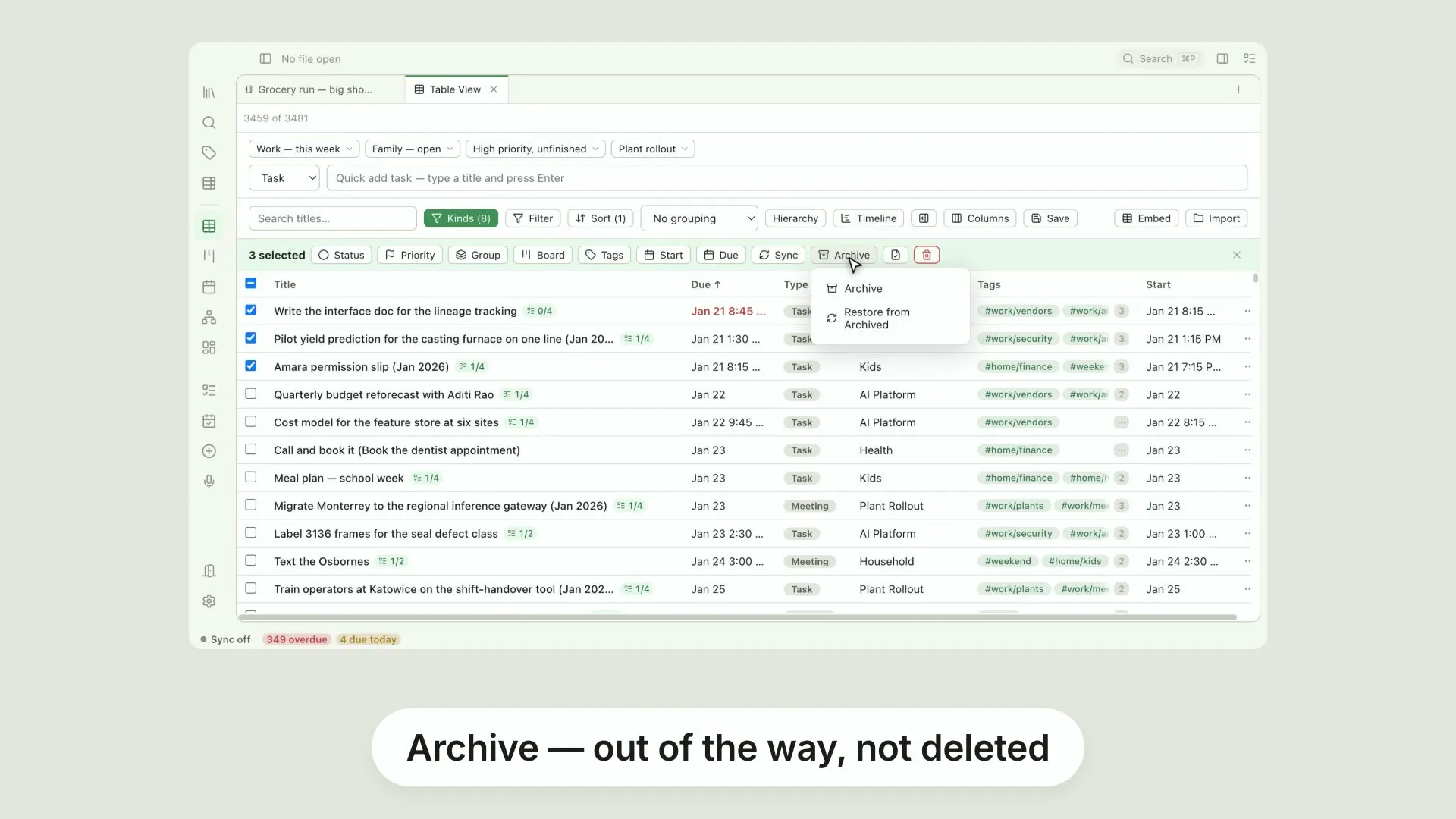
Archive and restore from the tableSelect some rows in Pellet's Table view and the bar offers Archive
0:42
Set a property across many filesOnce you have a column of your own, the bulk bar in Pellet's Table view grows a Properties button
0:38
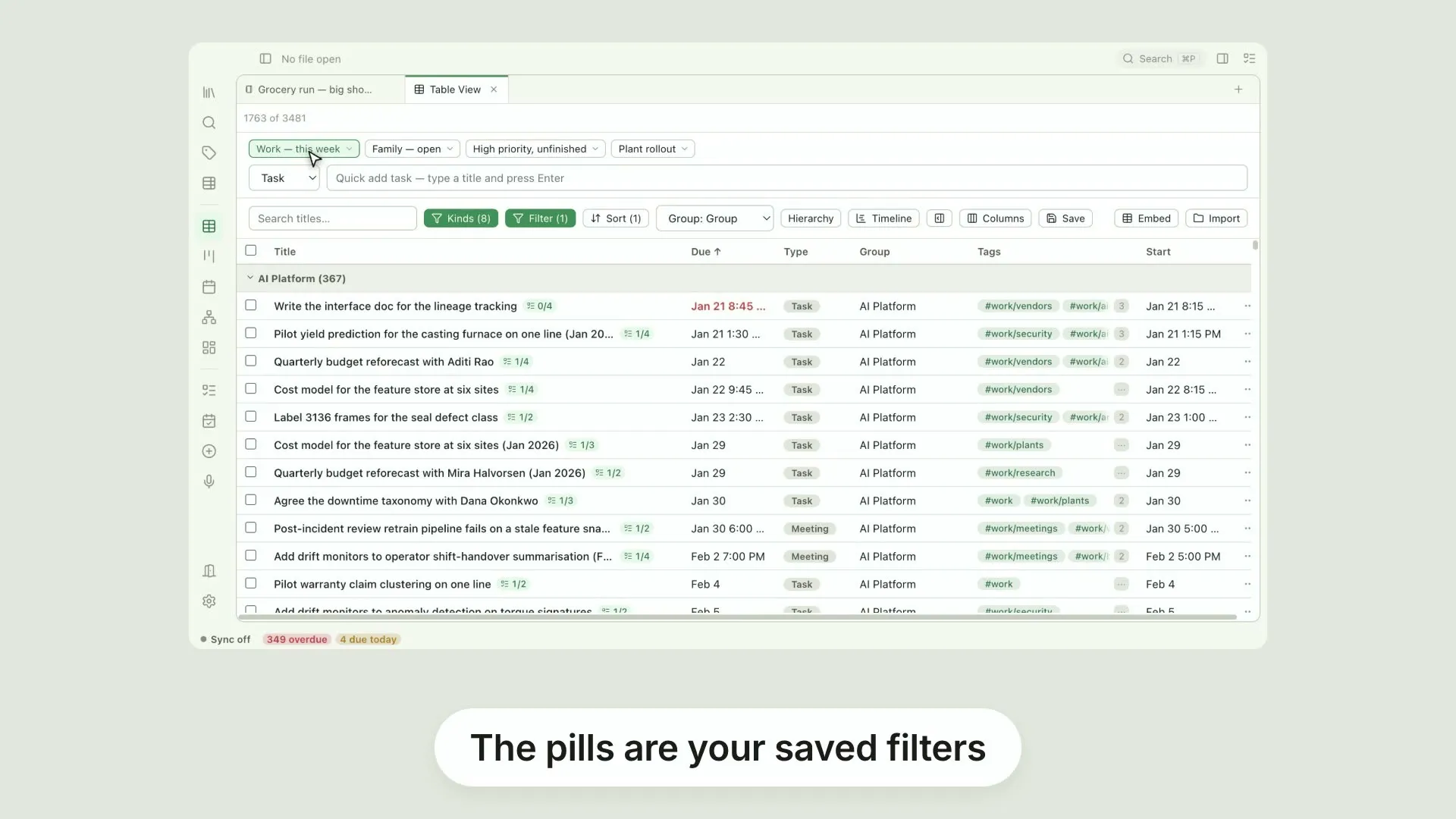
Save a table view as a filterThe row of pills above Pellet's Table view is your saved filters
0:39
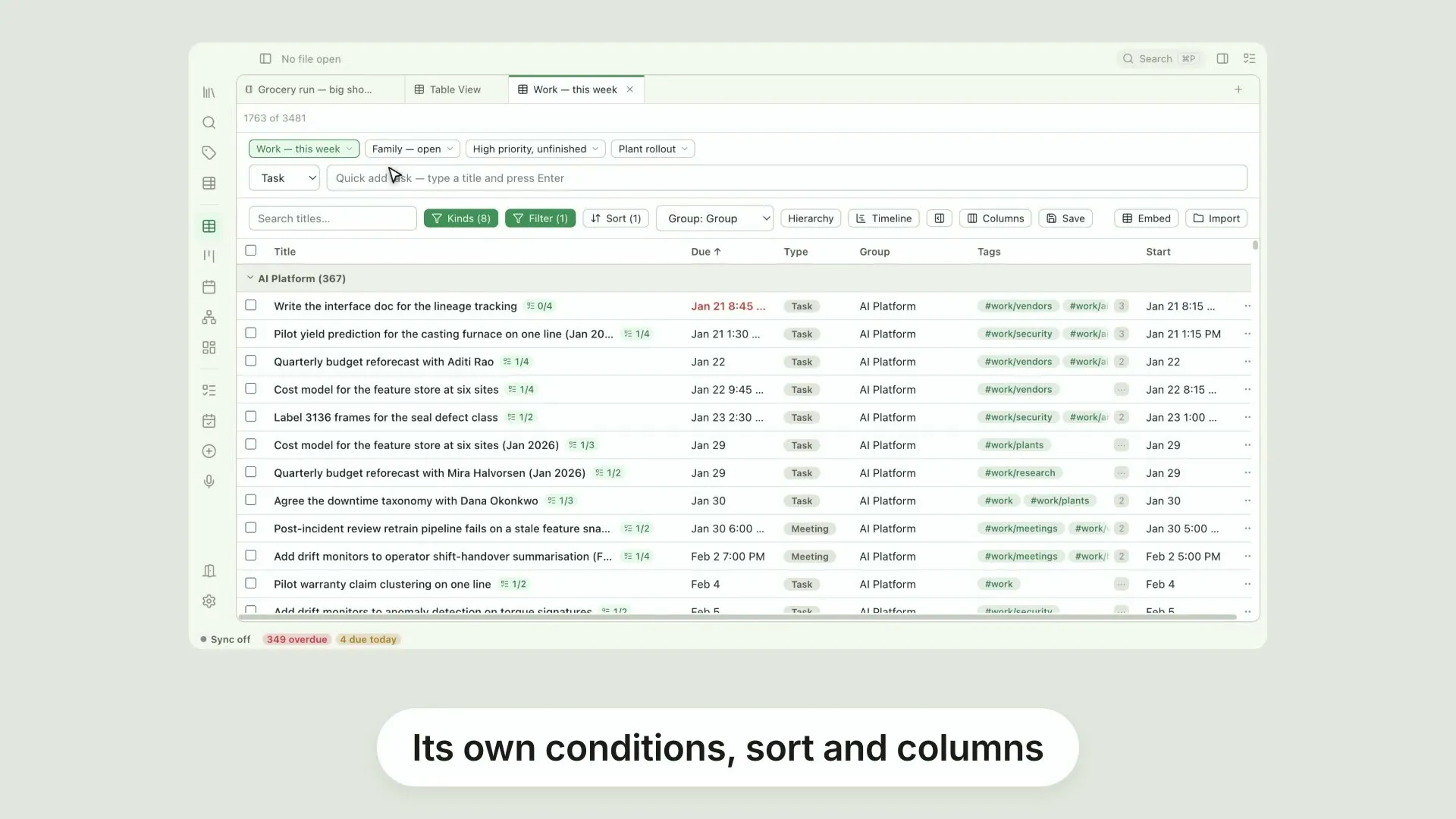
A filter as its own tabA saved filter in Pellet does not have to share the table with everything else
0:43
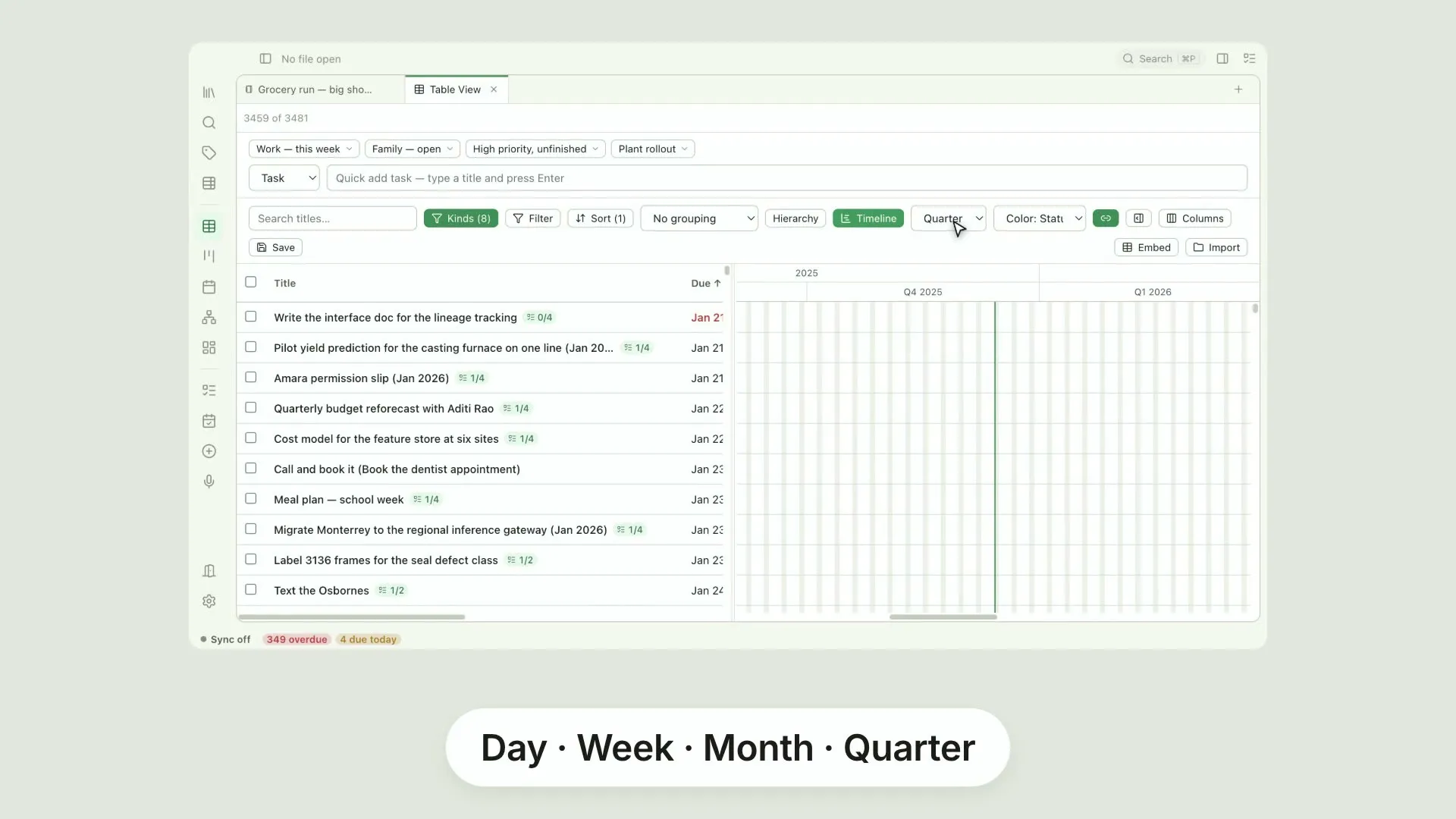
The table's timelineThe Timeline button splits Pellet's Table view

Pellet news 2 videos
Watch here

These cover ground the help pages don't have a section for yet.

The slash menu
Transcript

Type a slash to insert almost anything. Headings, lists, tasks, tables, code, maths, dates and more, without leaving the keyboard. Keep typing to narrow it down, then press Enter.

Editable markdown tables
Transcript

Markdown tables, without counting pipes. Every cell is a real input. Tab walks across, the arrow keys step between cells, and the columns keep themselves lined up in the file. Add rows and columns, move them, delete them, from the menu on any column.

Calculate, format and align table columns
Transcript

Your tables can do arithmetic. Open the menu on any column and choose Calculate. Sum, average, median, minimum, maximum or range, worked out from the rows and kept up to date. The same menu formats a column as a number, a percentage or a currency, and aligns it left, centre or right.

Collapsible headings and lists
Transcript

Long notes fold out of the way. Hover a heading and a chevron appears. Click it and everything under that heading collapses, so a long note becomes its own outline. Lists fold the same way. Any item with children gets a chevron of its own.

Numbered list styles
Transcript

Numbered lists, eight ways. The List style button offers decimal, multilevel, outline, upper and lower roman, upper and lower letters, and padded decimal. Pick one and the list redraws. Your file keeps ordinary one dot, two dot markers, with a single comment recording the style, so the note stays readable anywhere else.

Checklist lines become tasks
Transcript

Turn a line into a real task. Hover a checklist item and Pellet offers to convert it. The line becomes a task with its own note behind it. It still reads as a checkbox in your file, but it now carries a priority, a due date, and it turns up in the Table, the Kanban and the Calendar.

Footnotes
Transcript

Footnotes that stay out of the way. Write a marker where you want the reference, and the note itself further down. Pellet collapses the marker to its number. The definition sits at the bottom of the file, out of the way of the sentence you are writing, and the reference reads as a footnote should.

Hide markdown at the cursor
Transcript

Hide the syntax, even under your cursor. Normally the markers show on the line you are editing, so you can see what you are changing. Turn on hide markdown at the cursor and they stay hidden. The line you are writing looks exactly like the finished text.

Keep a Pellet note on top of everything else
Transcript

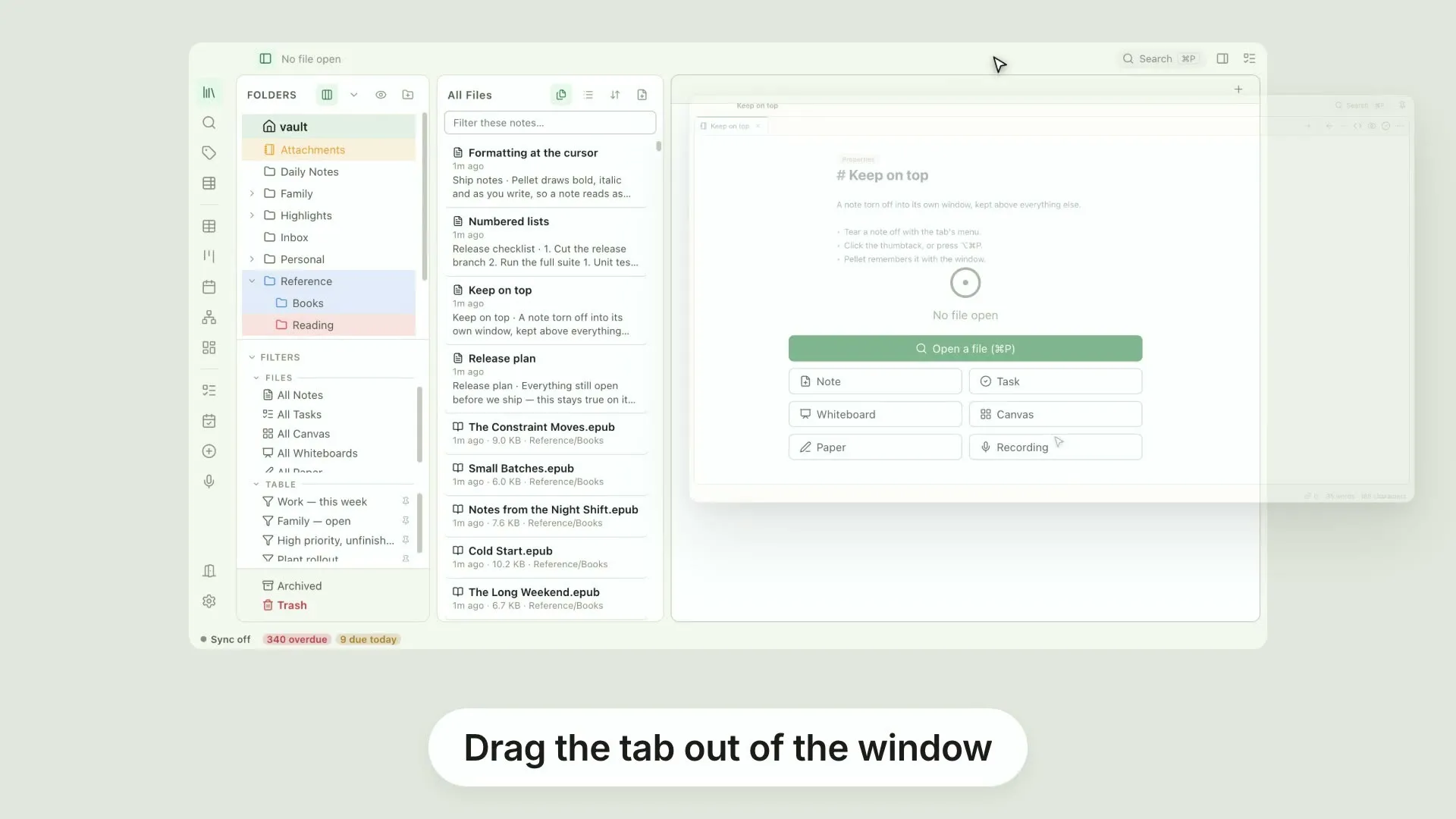
Here's a quick Pellet tip: keeping a window on top. Drag a tab out of the window, and it becomes a window of its own. Click the thumbtack in the title row, or press option, command, P. Now it stays above everything else while you work. Click it again to release. Pellet remembers it with the window.

What's new in Pellet 0.21.0 — Sync what you choose
Transcript

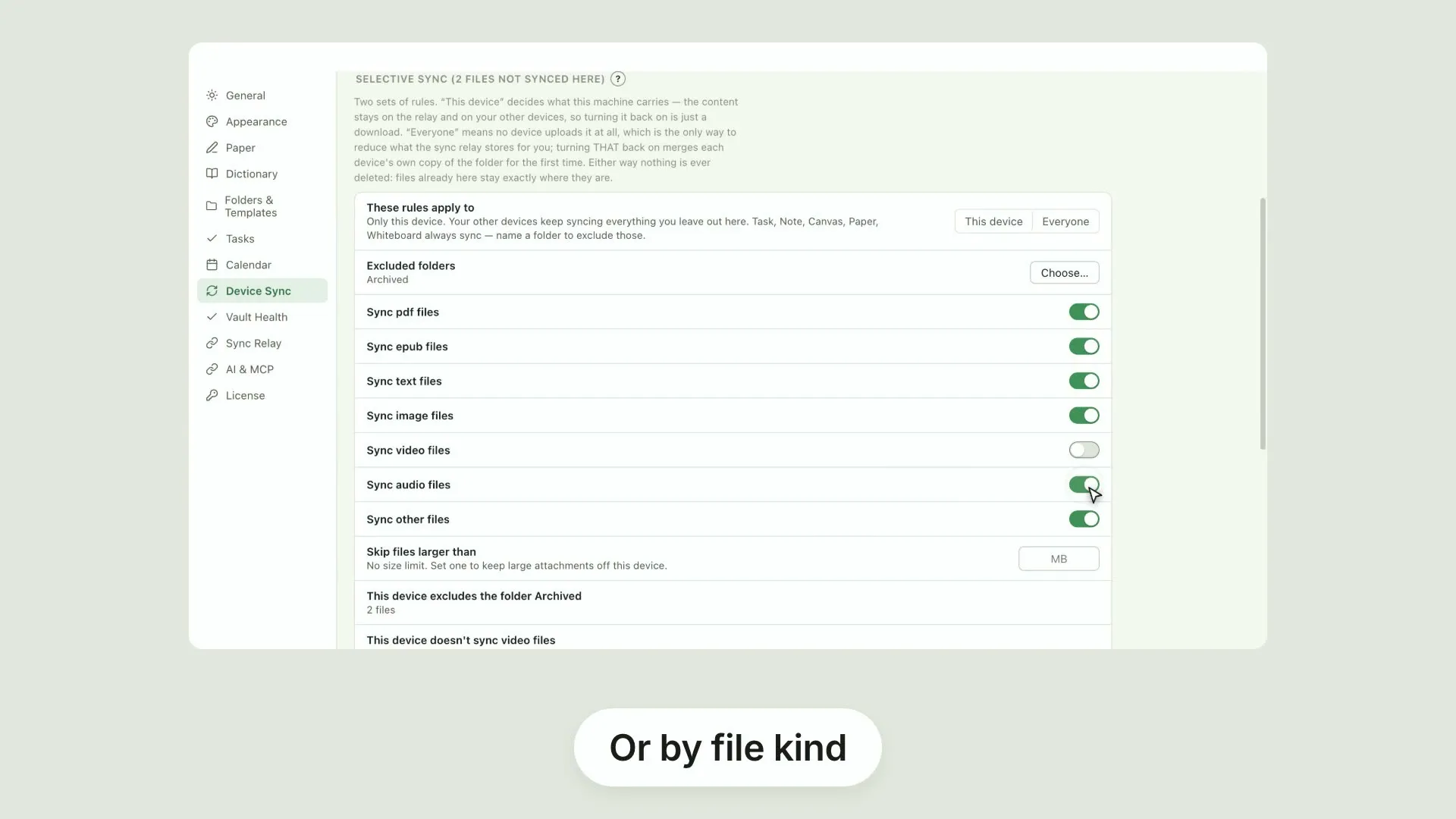
Pellet zero point twenty-one is here. Here's what's new. Selective sync lets you decide what each device carries, and what the group stores at all. Rules by folder, file kind or size. Nothing already on a device is deleted. Or switch off whole file kinds, so video and audio never land here. Numbered lists get eight styles. Decimal, multilevel, outline, roman, letters. Your file keeps ordinary markers. Colour the calendar by type or status. Pellet remembers the choice for each vault. Torn-off windows gained focus mode, and a thumbtack to keep one above everything else. And markdown can stay hidden under the cursor, so the line you are editing stays formatted. There's plenty more in this release. The full notes are on the site.