Setting up the PARA method in a folder of notes
PARA is Tiago Forte’s system for organizing everything you keep, from Building a Second Brain. It has four top-level buckets and one rule, and the rule is why it works where most folder schemes don’t. This is how I’d set it up in a folder of markdown notes, and where I’d bend it.
The four buckets
- Projects — things with an end and an outcome. Move the warehouse. Ship 1.0. Plan the trip.
- Areas — ongoing responsibilities with a standard to keep, no end date. Finance. Health. The garden. Each client.
- Resources — topics you’re interested in and material you’ve collected. Woodworking. Negotiation. Recipes.
- Archives — anything from the other three that’s no longer active.
The rule: sort by actionability, not by topic. A note about a supplier goes in the project it’s needed for, not in a “Suppliers” folder. When the project ends, the whole folder moves to Archives, supplier note included. If you need that note again for a new project, you move it back or link to it.
That single rule is what keeps PARA from becoming a filing cabinet. Topic-based systems grow forever and every note has three plausible homes. Actionability-based ones have a natural flow: Projects to Archives, with Areas and Resources feeding in.
Why folders suit it
PARA was designed for folders, which is why it maps so cleanly onto a vault of plain files. Four folders at the top level, a folder per project under Projects, a folder per area under Areas, and topics under Resources.
Vault/ Projects/ Warehouse move/ Ship 1.0/ Areas/ Finance/ Health/ Norvale (client)/ Resources/ Negotiation/ Woodworking/ Archives/ 2025 Office refit/In Pellet these are ordinary folders on disk, made in the app or in Finder, and dragging a note between them is how it moves. Finishing a project is dragging its folder into Archives. See Organizing with folders and tags.
Where PARA fits badly, and the fix
Two places, both about the things that don’t belong to exactly one bucket.
Daily notes. A day’s note mentions three projects and an area. It can’t live in all four. Keep daily notes in their own folder outside PARA entirely, and link out from them. That’s what they’re for: capture first, sort later. Pellet keeps a Daily Notes folder by default and opens today’s page with ⌘D. See Daily notes and templates.
Reference that many projects use. A note about a person, a tool, or a policy gets used across projects. PARA’s answer is “put it in the project that needs it most, move it when that changes”, which works less well the more places it’s needed. The plain-files answer is links: give the person a note in an Area (or a small “People” resource), and link to it from every project note that mentions them. The person’s note then lists every project they came up in, automatically, through backlinks. See Link notes together.
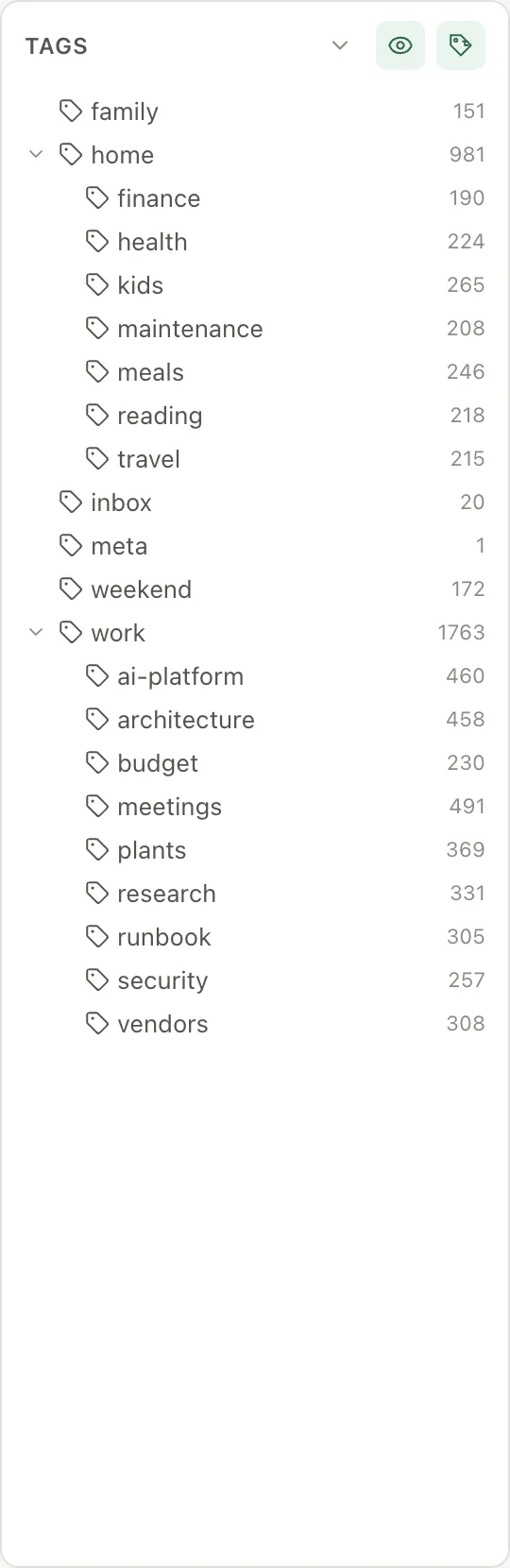
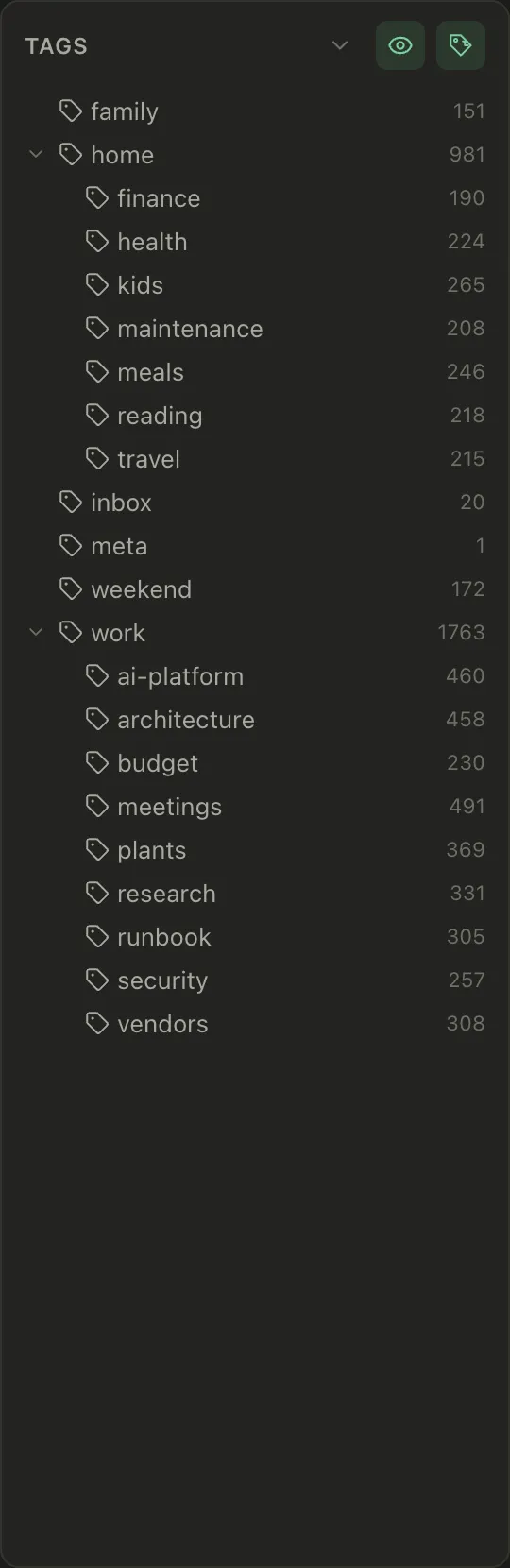
Tags fill the rest of the gap. A note lives in one folder but carries any number of tags, so #norvale on a note filed under a project still makes it findable from the client’s side. Folders for where it belongs, tags for what it’s about.
Tasks inside PARA
This is where a notes app that also does tasks earns its place. Every project has tasks. If those live in a separate app, the project folder is only half the project.
In Pellet a task is a note with fields at the top, so it can live in the project’s folder like any other note: drag it there, or make it there from the folder’s menu. Give each project a group value and the Table can filter to one project’s tasks, the Board can show every project as a column, and the Calendar shows when it all lands. See Your first task and Choosing a view.
A useful habit: at the top of each project folder keep one note named after the project that holds the goal, the current status, and links to the important notes. It’s the front page. Everything else in the folder is supporting material.
Reviewing, so it stays true
PARA drifts if you never look at it. Once a week, in a few minutes:
- Open Projects. Anything finished moves to Archives. Anything that has quietly become an area (it’ll never end) moves to Areas.
- Open the daily notes from the week and pull anything that should be a task or a project note out of them.
- Check each active project has a next action. A project with no task is a project that’s stalled.
Pellet’s Table view makes the third step quick: a saved filter for status is not done, grouped by group shows every project with its open tasks, and a project with an empty group is the one to look at. See Filters and saved views.


Start smaller than the diagram
Four folders and nothing else. Add a project folder when a project starts. Don’t pre-build Resources with twenty topics; a topic folder that holds one note is a folder you’ll ignore. The system should grow at the pace of your actual work, and a folder of plain files lets it, because reorganising is dragging things around and every tool you own keeps working.
If you’d like to try this with an app that treats the folder as the source of truth, Pellet is free to download.