Running GTD inside your notes, with an inbox, next actions and a weekly review
Getting Things Done is David Allen’s method for keeping commitments out of your head and in a system you trust. The book is long; the method is five steps and a handful of lists. What most people get wrong isn’t the method, it’s keeping the lists somewhere the notes aren’t, so the “why” behind every task lives in one app and the task in another.
This is how I run GTD inside a folder of notes, where a task is a note and the meeting that produced it is one link away.
The five steps, briefly
- Capture everything that has your attention, immediately, without deciding what it means.
- Clarify each captured item: is it actionable? If yes, what’s the very next physical action? If no, is it reference, someday, or trash?
- Organize the results into lists: next actions, projects, waiting-for, someday/maybe, calendar.
- Reflect with a weekly review that brings the lists back to true.
- Engage by picking from the lists based on context, time, energy and priority.
Everything below is those five steps mapped onto files.
Capture: one inbox, reached in one keystroke
GTD lives or dies on capture being frictionless. Two inboxes work in a notes vault:
- Today’s daily note for thoughts, half-formed things, and anything that needs a sentence of context. In Pellet, ⌘D opens it, creating it if needed.
- A quick-add box for things that are already obviously tasks. Pellet’s Tasks panel has one; type a title and it lands on the day you’re looking at, no dialog. See The Tasks panel.
Both land in an Inbox folder by default. The point is that you never decide where at capture time. Everything goes to the same place, and clarifying happens later.
Clarify: turn captured lines into tasks with a next action
Once a day, open the Inbox and the last daily note. For each item, ask the GTD question: what’s the next physical action?
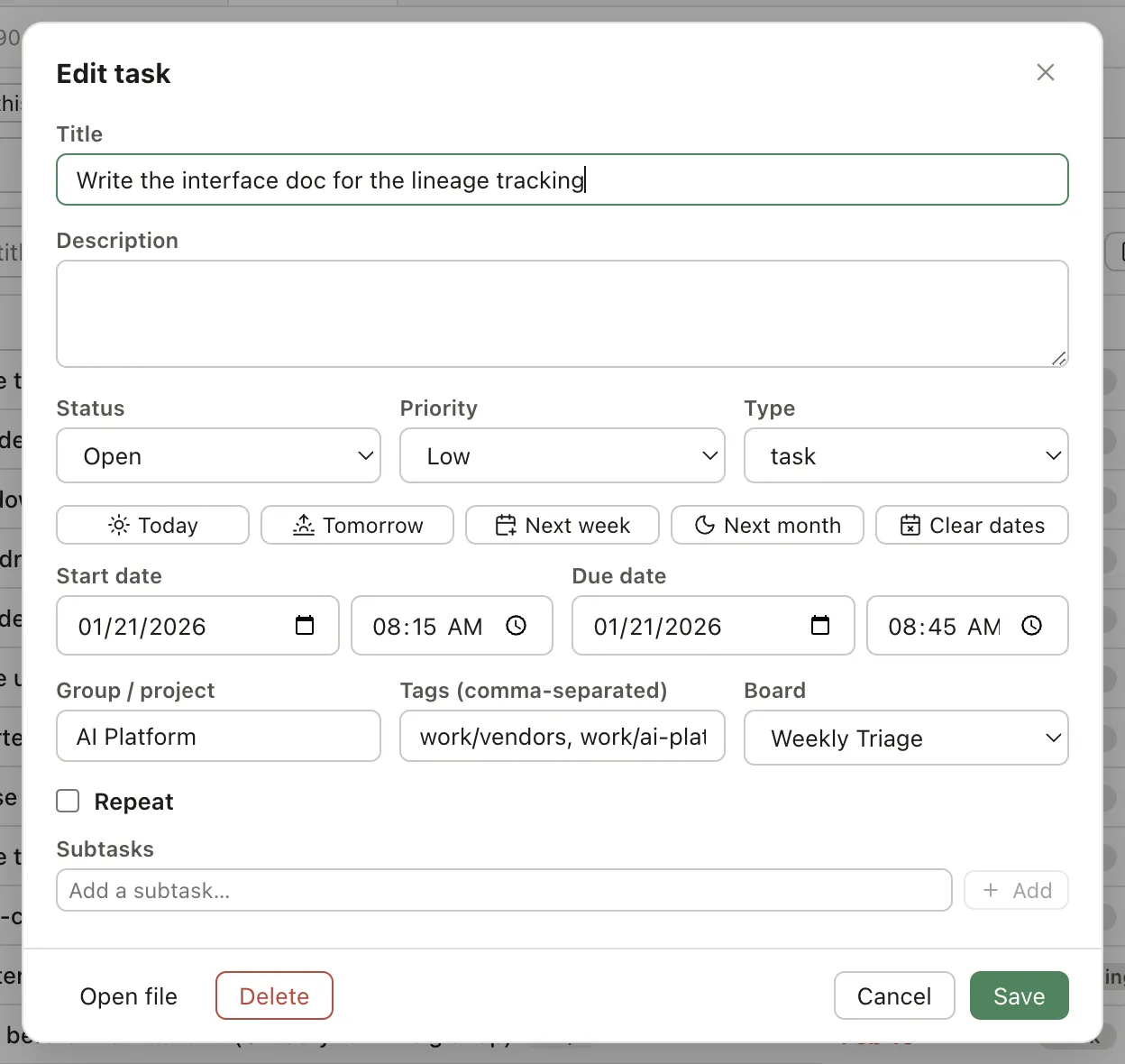
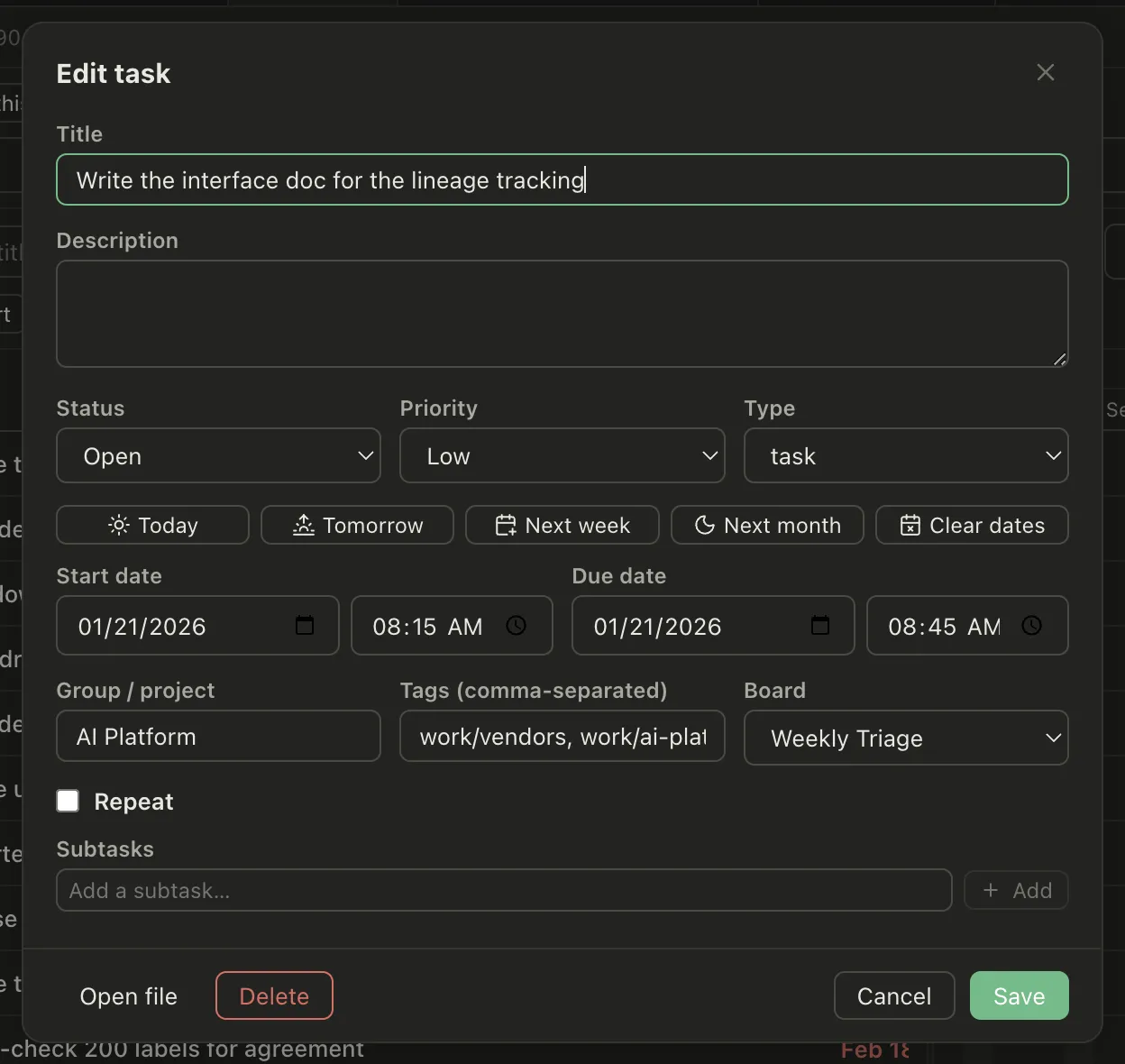
A checkbox line in a daily note (- [ ] call the hire company) can become a real task with a due date and a project; Pellet lists every loose checkbox in the vault beside the Board and Calendar so you can turn one into a task from there. A task is just a note with fields at the top, so it can hold the context that made it necessary, and a link back to the day it came from costs one [[ . See Your first task.
Two fields do most of the GTD work:
- Status — Open, In Progress, Complete, Skip. Add a custom status called Waiting for things you’re waiting on someone else for; that’s GTD’s waiting-for list, kept as a status instead of a separate place. Custom statuses live in Settings › Tasks.
- Group — the project the task belongs to. GTD’s “project” is anything that takes more than one action, and grouping by it is how you see every project’s next action in one screen.
Organize: lists as saved filters, not separate folders
The GTD lists are questions, and a good task table answers questions. Rather than moving tasks between folders, save the questions:
- Next actions — status is Open, due is empty or within the next 7 days.
- Waiting for — status is Waiting.
- Someday/maybe — a tag,
#someday, and a filter for it. Tagging is better than a folder here because a someday item usually has a project it belongs to. - Today — due today or overdue, not done.
- By project — status is not done, grouped by group.
In Pellet each of those is a saved filter, and saved filters become pills above the Table you click once. Right-click a pill to open it in its own tab. See Filters and saved views.
The calendar is the calendar. GTD is strict that only things with a real date go there, and I’d keep to that: a due date in Pellet puts a task on the calendar and in the Tasks panel for that day; leaving the date empty keeps it on the next-actions list without pretending it’s scheduled. If you’ve connected your real calendars, meetings and tasks sit together in one view. See The Calendar.


Reflect: the weekly review, in the same folder
The weekly review is the step everyone skips and the one that makes the rest trustworthy. In a notes vault it’s short because everything is one place:
- Empty the inboxes. The Inbox folder and the week’s daily notes: clarify every line into a task, a note, or nothing.
- Look at every project. The by project filter shows them grouped. A project with no open task is stalled; give it a next action or move it to someday.
- Check Waiting. Anything you’ve been waiting on too long gets a follow-up task.
- Read Someday. Promote anything whose time has come; delete anything you’ve stopped wanting.
- Look at next week’s calendar and make sure the preparation for anything on it exists as tasks.
A weekly-review template helps: a daily-note-style page with those five headings that you open on Friday afternoon. Pellet’s templates support placeholders like the date and week number, so a review note can name the week it belongs to. See Daily notes and templates.
Engage: pick by context, not by scrolling
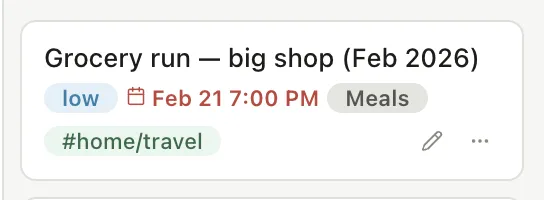
With the lists as filters, choosing what to do is choosing a view. Table for the morning triage, sorted by priority then due date. The Tasks panel, docked beside whatever you’re writing, for the rest of the day; it shows today’s events, anything overdue and today’s tasks without leaving the note you’re in. A Board when a project has a flow worth watching. See Choosing a view.
Why the notes matter to GTD
Allen’s system is about trust: you stop rehearsing commitments because you trust the lists. That trust depends on the lists being complete, and they’re only complete if capturing is effortless and the context survives. A task that says “call the hire company” is worse than one that links to the meeting where you learned why, what the number is, and what you already agreed. Keeping tasks and notes in the same folder, as the same kind of file, is what makes that link one keystroke instead of a copy and paste you’ll skip.
That’s the setup I use. If you want to try it in Pellet, it’s free to download, and the tasks it makes are markdown files you can read in anything.
- Letting an AI agent work on your notes without uploading them8 September 2026
- Leaving Notion for local-first notes24 August 2026
- Setting up the PARA method in a folder of notes18 August 2026